
Configure the Mutual TLS Authentication
The following example shows how to configure Anypoint Connector for AMQP (AMQP Connector) to connect to an AMQP broker with mutual TLS (mTLS) authentication. To configure the global configuration connection you need:
-
A client truststore that includes the Certificate Authority’s certificates that are required for the server validation.
-
A client keystore that provides the client private key and certificate that are required for the authentication.
-
To enable the parameters Use TLS and Use SNI on the AQMP global configuration in Anypoint Studio.
Configure the Connection
To configure the Mutual TLS authentication connection in Studio, follow these steps:
-
Navigate to the Global Elements tab and click Create.
-
In the filter box, type
AMQP. -
Select AQMP Config.
-
Click OK.
-
In the General tab, for the Connection section, set the following parameters:
-
Host:
localhost -
Port:
${rabbitmq.tls.port}
-
-
Select the Use tls and Use sni parameters boxes.
-
Click the TLS tab.
-
For TLS Configuration select Edit inline.
-
In the Trust Store Configuration section, set the following parameters:
-
Path:
mtls/truststore.jks -
Password:
test -
Type:
JKS
-
-
In the Key Store Configuration section, set the following parameters:
-
Type:
JKS -
Path:
mtls/test.jks -
Alias:
test -
Key Password:
test -
keyPassword:
test
-
-
Click OK.
In Studio, the AMQP global configuration with TLS authentication looks like this:
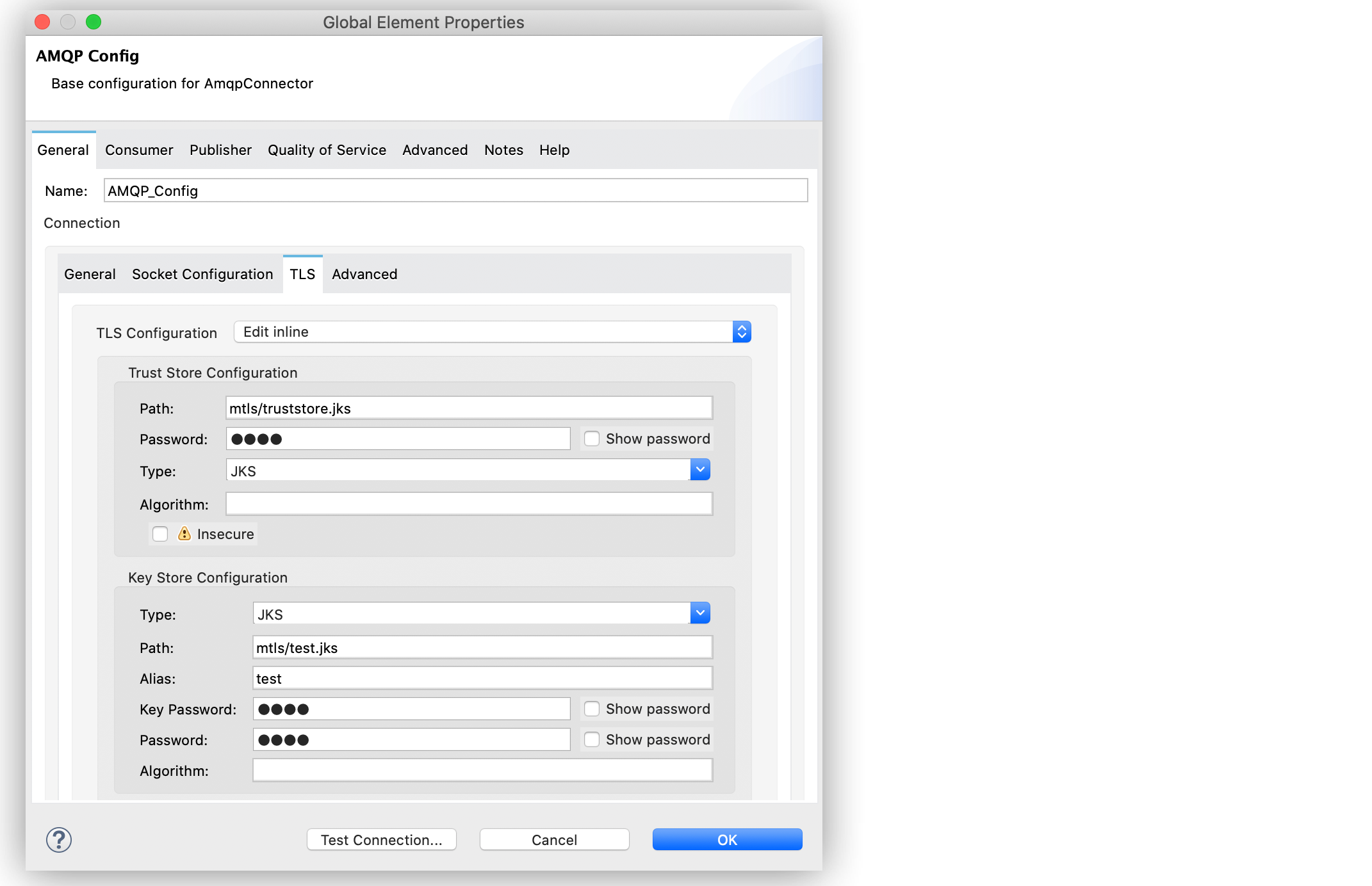
XML for Configuring Mutual TLS Authentication
In the XML editor, the configuration looks like this:
<amqp:connection host="localhost" port="${rabbitmq.tls.port}" useTls="true" useSasl="true" >
            <tls:context >
                <tls:trust-store path="mtls/truststore.jks" password="test" type="jks" />
                <tls:key-store type="jks" path="mtls/test.jks" alias="test" keyPassword="test" password="test" />
            </tls:context>
</amqp:connection>