
Working with Workspaces
Organize your Mule projects in workspaces to ensure all Anypoint Code Builder features work correctly. Workspaces help you manage multiple related projects and avoid build-time and design-time issues.
Valid Setups for Anypoint Code Builder
Anypoint Code Builder requires one of the following project configurations to function properly:
-
A single Mule project open at the root of your directory
-
A multi-root workspace pointing directly to one or more Mule projects
If your directory structure doesn’t meet these requirements, Anypoint Code Builder displays a message with steps to resolve the issue, such as opening a Mule project or creating a workspace. See Fix a Nested Project Error.
Use a multi-root workspace when you work on an API-led architecture that spans an experience API, one or more process APIs, and one or more system APIs. By grouping these related projects in a single workspace, you can configure a multi-project run configuration that deploys all projects to the same local runtime, so you can validate service-to-service calls across the stack. See Running Multiple Mule Applications Concurrently for additional information.
Create a Project in a Workspace
When you create a new project, add it to a workspace. With this setup you can add more projects later without restructuring your environment.
To create a project in a workspace:
-
Start the project creation process using one of the following methods:
-
From the Create menu, select the project type.
For example, Implement an API or Develop an Integration.
-
From the Command Palette, run the appropriate command.
For example,
MuleSoft: Implement an API Specification. -
Ask MuleSoft Vibes to create the project using natural language.
-
-
In the project creation form, select Add to workspace.
You can create a new workspace or add the project to an existing workspace.
-
Complete the remaining project configuration options.
-
Click Create Project.
Anypoint Code Builder creates the project and adds it to the selected workspace.
Import an Anypoint Studio Workspace
If you have existing projects in Anypoint Studio, you can import your Studio workspace into Anypoint Code Builder. This approach references your existing Studio projects and keeps them in sync. To instead package and import a single project as a JAR file, see Migrating Mule Projects from Anypoint Studio to Anypoint Code Builder.
To import a Studio workspace:
-
Open the Command Palette.
Show me how
-
Use the keyboard shortcuts:
-
Mac: Cmd+Shift+p
-
Windows: Ctrl+Shift+p
-
-
Select View > Command Palette.
-
-
Select the following command:
MuleSoft: Import Studio Workspace -
Navigate to the location of your Studio workspace and select it.
-
Choose a location to save the new workspace file.
Anypoint Code Builder creates a workspace that references your existing Studio projects. Changes made to the original Studio workspace are automatically reflected in Anypoint Code Builder.
Open and Switch Between Workspaces
You can open or switch between workspaces using the menu, the Command Palette, or MuleSoft Vibes.
Open a Workspace Manually
-
Open the workspace file using one of these methods:
-
From the menu bar, select File > Open Workspace from File….
-
From the Command Palette, run the command
File: Open Workspace from File….
-
-
Navigate to the location where you saved the
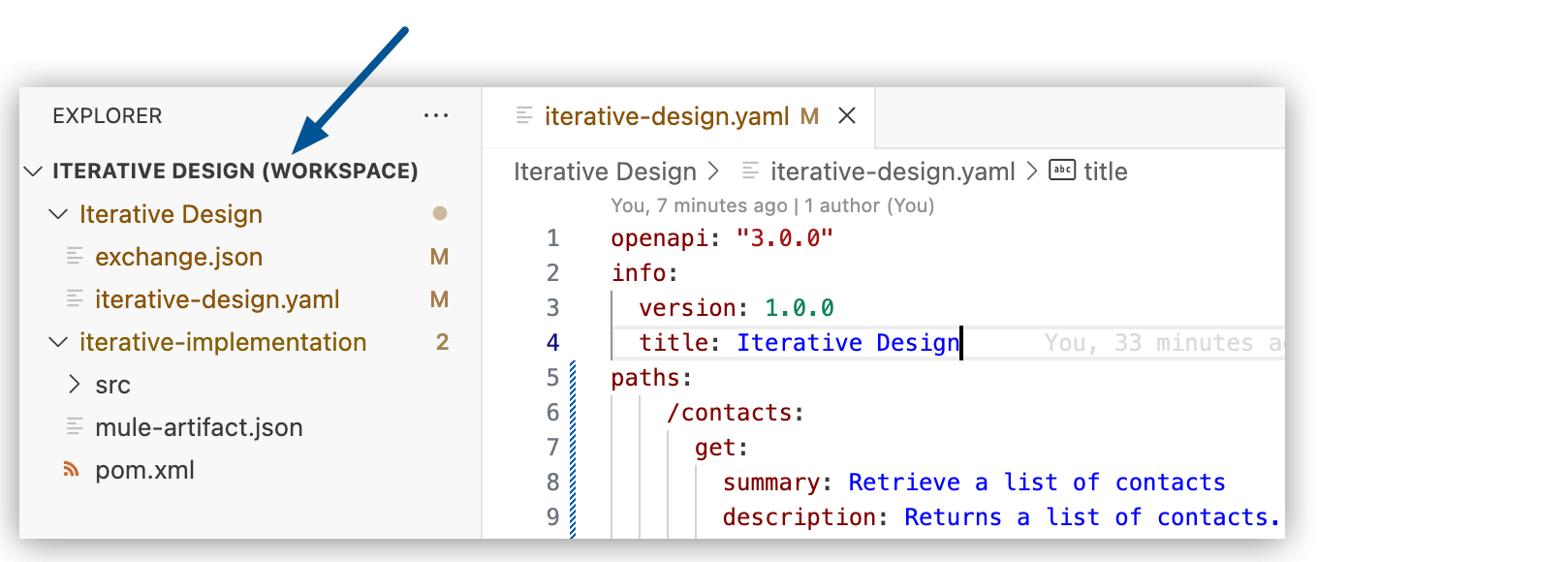
.code-workspacefile (for example, your home directory or a dedicated workspaces folder), and select it.The projects open in the Explorer view, and the folder name for the workspace includes (WORKSPACE) to indicate that you’re working in a multi-root workspace:
Close a Workspace
To close the current workspace:
-
Open the Command Palette.
Show me how
-
Use the keyboard shortcuts:
-
Mac: Cmd+Shift+p
-
Windows: Ctrl+Shift+p
-
-
Select View > Command Palette.
-
-
Select the following command:
Workspaces: Close Workspace
Actions in Workspaces
Anypoint Code Builder organizes actions based on their scope:
| Action Type | Location |
|---|---|
Global actions |
Always available from the Command Palette. These actions don’t depend on a specific project, such as creating a new project, importing assets from Exchange, or opening Anypoint Code Builder settings. |
Project-specific actions |
Available from the context menu (right-click) in the Explorer view. These actions apply to a specific project, such as running, debugging, deploying, or exporting a project. |
When working with multiple projects in a workspace, select the target project before running project-specific actions. For example, when you run or debug, you must select which project in the workspace to execute.
Workspace File Location
VS Code stores workspace configuration in a file with the .code-workspace extension. This file maps the folders for your projects.
|
The |
Fix a Nested Project Error
This error appears in either of these cases:
-
You open a folder that contains your Mule project instead of opening the project directly, and that folder isn’t configured as a multi-root workspace.
-
You open a parent directory that contains multiple Mule projects without configuring it as a multi-root workspace.
To fix this issue, open the project folder at the root level or add it (or each project in the parent directory) to a multi-root workspace.
Open the Project at the Root
If you’re working with a single project, open it directly so it appears at the top level of the Explorer view.
-
From the menu bar, select File > Open Folder….
-
Navigate to your Mule project’s root folder (the folder containing the
pom.xmlfile). -
Select the folder and click Open.
The project now appears at the top level of the Explorer view, and Anypoint Code Builder features are available.
Add the Project to a Multi-Root Workspace
If you want to keep your current folder structure or work with multiple projects, create a multi-root workspace that points directly to your Mule project.
-
From the menu bar, select File > Add Folder to Workspace….
-
Navigate to your Mule project’s root folder and select it.
-
When prompted, save the workspace file (
.code-workspace) to a location outside of your project folders.The project appears in the Explorer view with the (WORKSPACE) indicator, and Anypoint Code Builder features are available.
| If you frequently work with multiple projects, creating a workspace from the start avoids this issue. See Create a Project in a Workspace. |
See Also
-
Multi-root Workspaces in the VS Code documentation