
Anypoint MQ Subscriber Source
The Subscriber source in the Anypoint MQ connector enables a Mule app to listen for and consume messages from an Anypoint MQ queue or exchange as they arrive. Use the Subscriber source when your flow needs to react to incoming messages continuously or on a schedule. To retrieve a single message on demand instead, use the Anypoint MQ Consume operation.
Subscriber Strategies
The Subscriber source supports two retrieval strategies with different goals:
| Strategy | Best for |
|---|---|
Prefetch (default) |
Maximum throughput. Proactively fills a local in-memory buffer so the flow always has messages ready to process. Best when ordering is not required. |
Polling |
Controlled, demand-driven intake. Retrieves messages in step with the flow: bounded in-flight messages, predictable memory, and (with |
| Choose prefetch to buffer messages and maximize throughput. Choose polling to pace message intake to your flow’s processing capacity, or when strict ordering is required. |
-
Prefetch is the default and requires no additional configuration for most use cases. Choose prefetch when throughput is the priority and you don’t need messages processed in a specific order.
-
Polling gives you control: when backpressure is enabled, it fetches messages only when the flow has capacity, which keeps memory usage predictable and prevents the subscriber from building up an unbounded backlog. Choose polling when you need strict ordering, want to limit how many messages are in-flight at once, or want to tie message intake to a specific schedule using a fixed frequency or cron expression.
Use this table to choose the strategy that matches your priority:
| Priority | Recommended strategy | Billing and throughput note |
|---|---|---|
Buffer messages or bulk-retrieve many at once |
Prefetch |
Best batching, lowest request count, highest throughput. Unaffected by backpressure. |
High throughput, ordering not required |
Prefetch |
Best batching, lowest request count, highest throughput. Unaffected by backpressure. |
Bounded in-flight messages or predictable memory |
Polling |
Batching efficiency depends on Max Concurrency setting. |
Strict ordering ( |
Polling |
Highest request count: batching is effectively disabled by design. |
Prefetch Strategy
By default, the Subscriber source runs in continuous listening mode to provide maximum throughput by consuming messages when they arrive in the queue. With the prefetch strategy, the source maintains a full local buffer of messages, ready to dispatch to the MuleSoft flow when the app accepts them.
Due to a known issue, using prefetch mode with maxConcurrency="1" set on the flow element might result in message-processing latency.
|
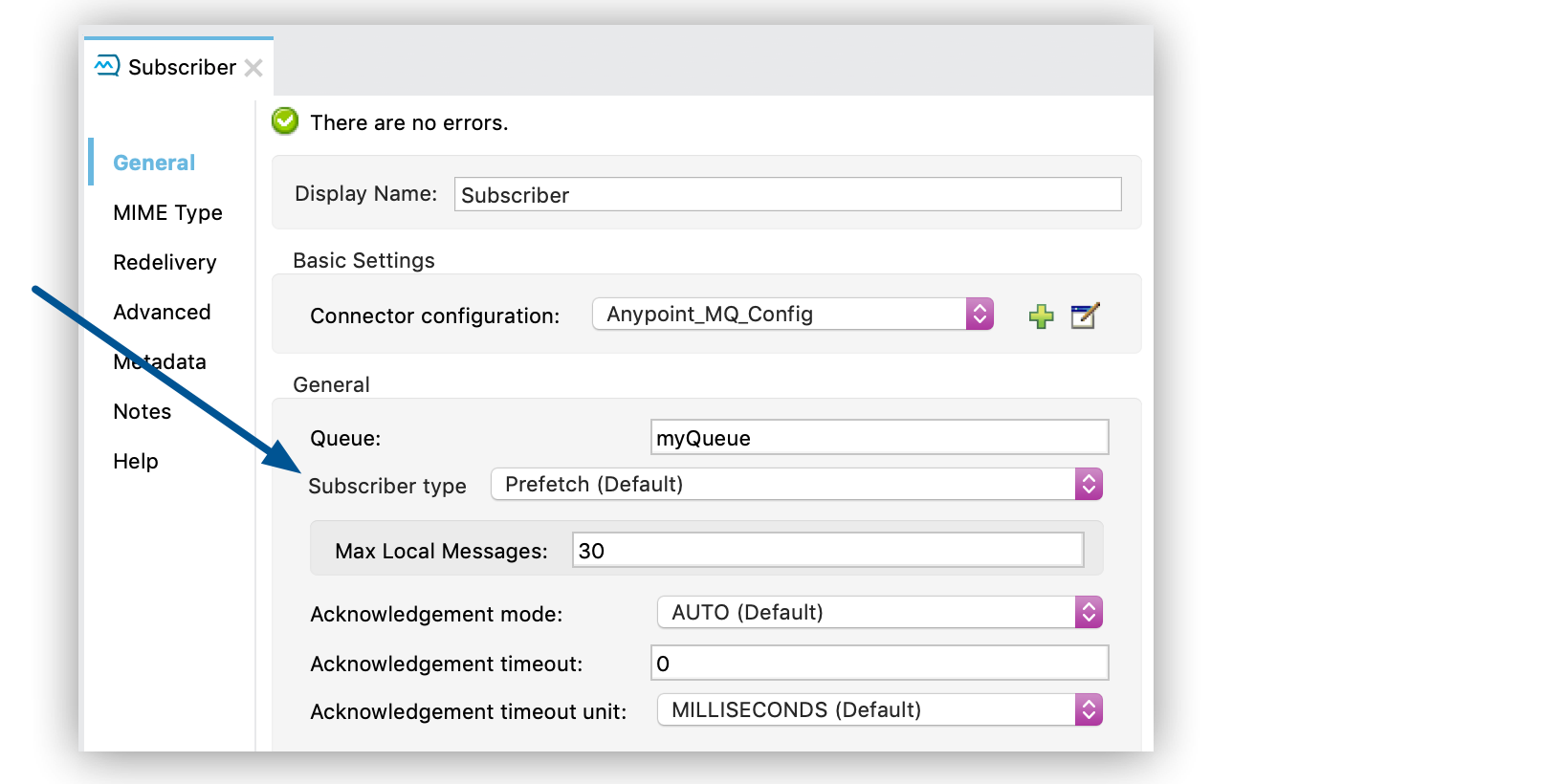
For the prefetch strategy, you configure the maxLocalMessages parameter to specify the target size for a full buffer, which controls how quickly messages are taken from the queue.
To configure the Subscriber source using the prefetch strategy, specify the prefetch subscriber-type.
This example shows the default prefetch strategy, which uses the default buffer size and begins consuming messages from myQueue immediately:
<anypoint-mq:subscriber config-ref="Anypoint_MQ_Config" destination="myQueue">
</anypoint-mq:subscriber>
Use these guidelines to tune the buffer size for your use case:
-
Use a larger buffer size for maximum performance, keeping in mind that the messages kept locally won’t be available for any other consumer.
When a consumer takes a message from the queue and stores it in the local buffer, the message appears as in-flight for any other consumer and prevents them from consuming it. The message remains in this in-flight state for as long as necessary for the app to begin the processing.
-
Use a smaller buffer size to process messages as they are published to the queue.
The smaller buffer restricts app-level throughput and avoids blocking competing consumers.
When using
prefetchmode, setmaxLocalMessagesto a value greater than1to avoid message-processing latency issues. WhenmaxLocalMessagesis set to1, latency can occur when the connector prefetches the message but the app doesn’t consume it, and the message returns to the queue for reprocessing.
FIFO Queues and the Prefetch Strategy
When using the prefetch strategy, the acknowledgementTimeout timer begins when the message is taken from the queue.
Anypoint MQ attempts to honor the expiration time specified by acknowledgementTimeout.
However, Anypoint MQ extends the expiration timeout if the time that the message remains in the buffer reaches 80% of the timeout value.
Don’t use prefetch mode in the following situations:
-
Applications with long processing times that use the
maxConcurrencyattribute to limit concurrent processing.These options can cause messages to remain in the buffer longer, which can result in the messages expiring and being sent back to the queue.
-
When using FIFO queues
Because Anypoint MQ can’t guarantee ordering when using
prefetchmode, don’t use it with FIFO queues.Using
prefetchmode for applications with long processing times can consume significant resources because Anypoint MQ monitors the ACK TTL for all messages in the local buffer and extends the TTL to avoid sending messages back to the queue.
Polling Strategy
If your app requires predictable and controlled message consumption rather than maximum throughput, you can configure the Subscriber as a polling strategy. The Subscriber source checks for new messages in the queue at a fixed scheduling rate. Every time the poll is triggered, the Subscriber source retrieves up to 10 messages and dispatches them to the flow individually in order. When backpressure is enabled and maxConcurrency is set on the flow, the fetch size is further capped to the flow’s remaining capacity. See Backpressure and Max Concurrency for details.
Messages aren’t consumed immediately. Instead, they remain in the queue until the next poll is triggered. Each poll retrieves up to 10 messages at a time. For example, if your queue has 15 messages, one poll retrieves the first 10 and the remaining 5 wait for the next poll.
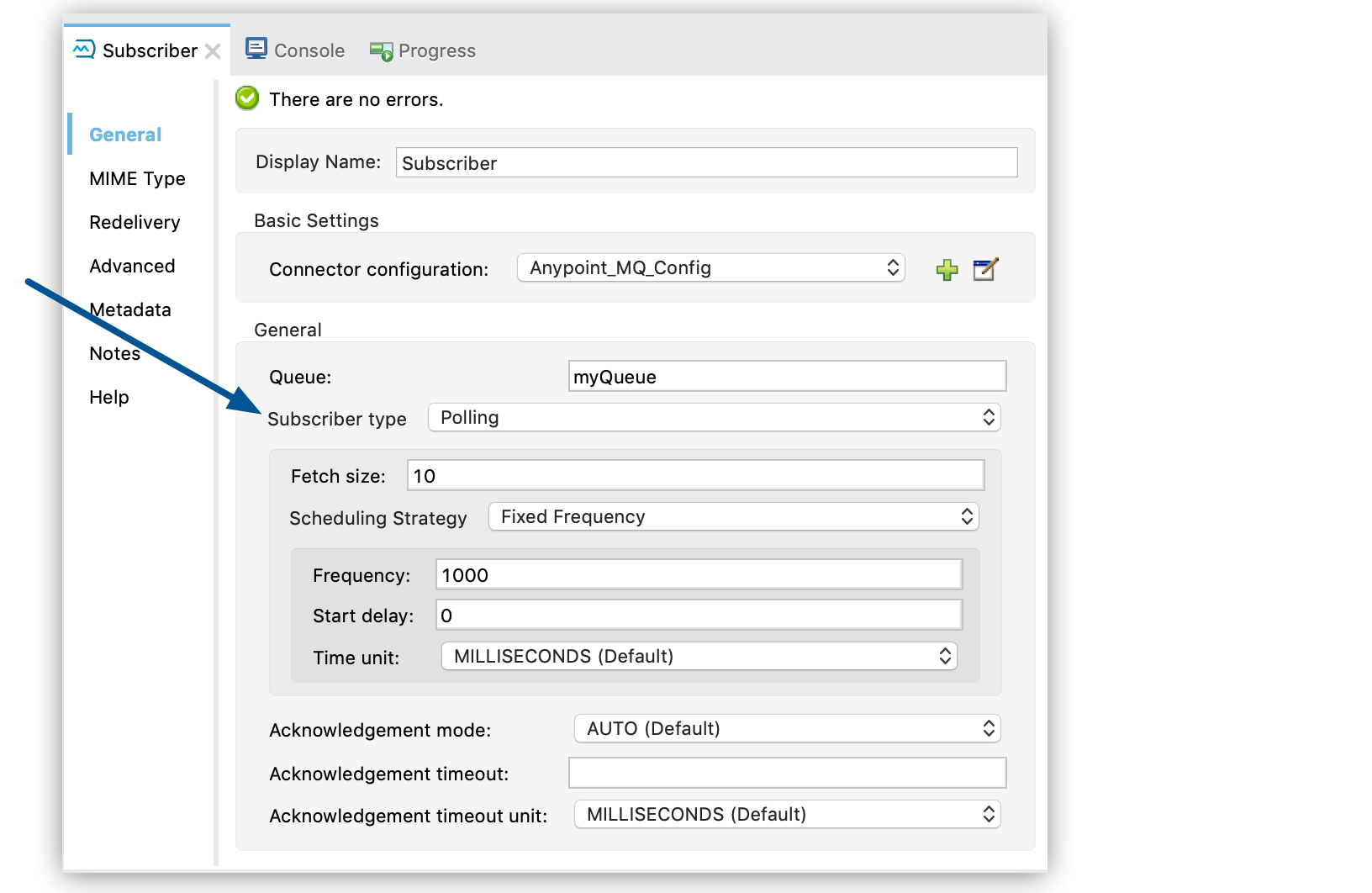
To configure the Subscriber source using the polling strategy, specify the polling subscriber-type.
This example shows the default polling strategy, which polls myQueue every 1 second and retrieves up to 10 messages per poll:
<anypoint-mq:subscriber doc:name="Subscriber" config-ref="Anypoint_MQ_Config" destination="myQueue">
  <anypoint-mq:subscriber-type >
    <anypoint-mq:polling >
      <scheduling-strategy >
        <fixed-frequency />
      </scheduling-strategy>
    </anypoint-mq:polling>
  </anypoint-mq:subscriber-type>
</anypoint-mq:subscriber>
The default polling strategy attempts to retrieve up to 10 messages from the declared destination every 1 second, dispatching each message to the flow individually as a MuleMessage instance.
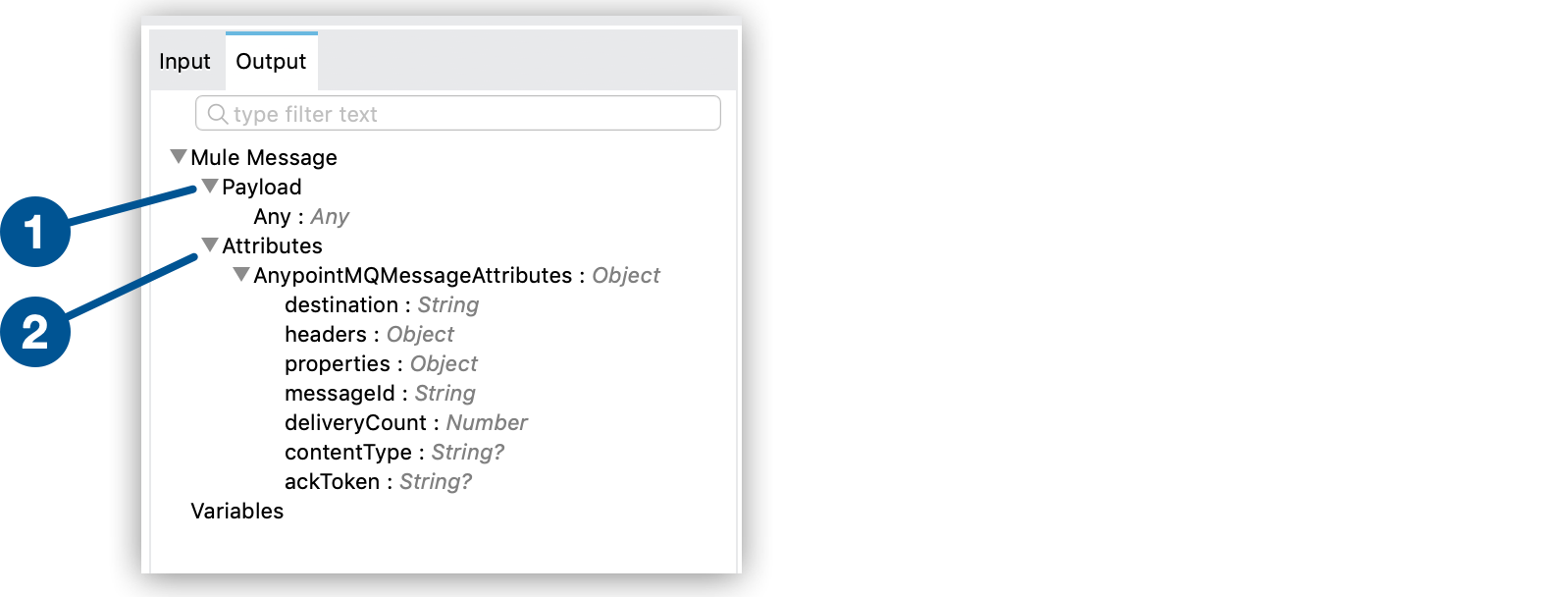
The resulting MuleMessage has:
-
The message body as its payload
-
The message metadata in the message attributes
You can customize the polling strategy using the standard Mule runtime engine scheduling strategies:
Customized Fixed Polling
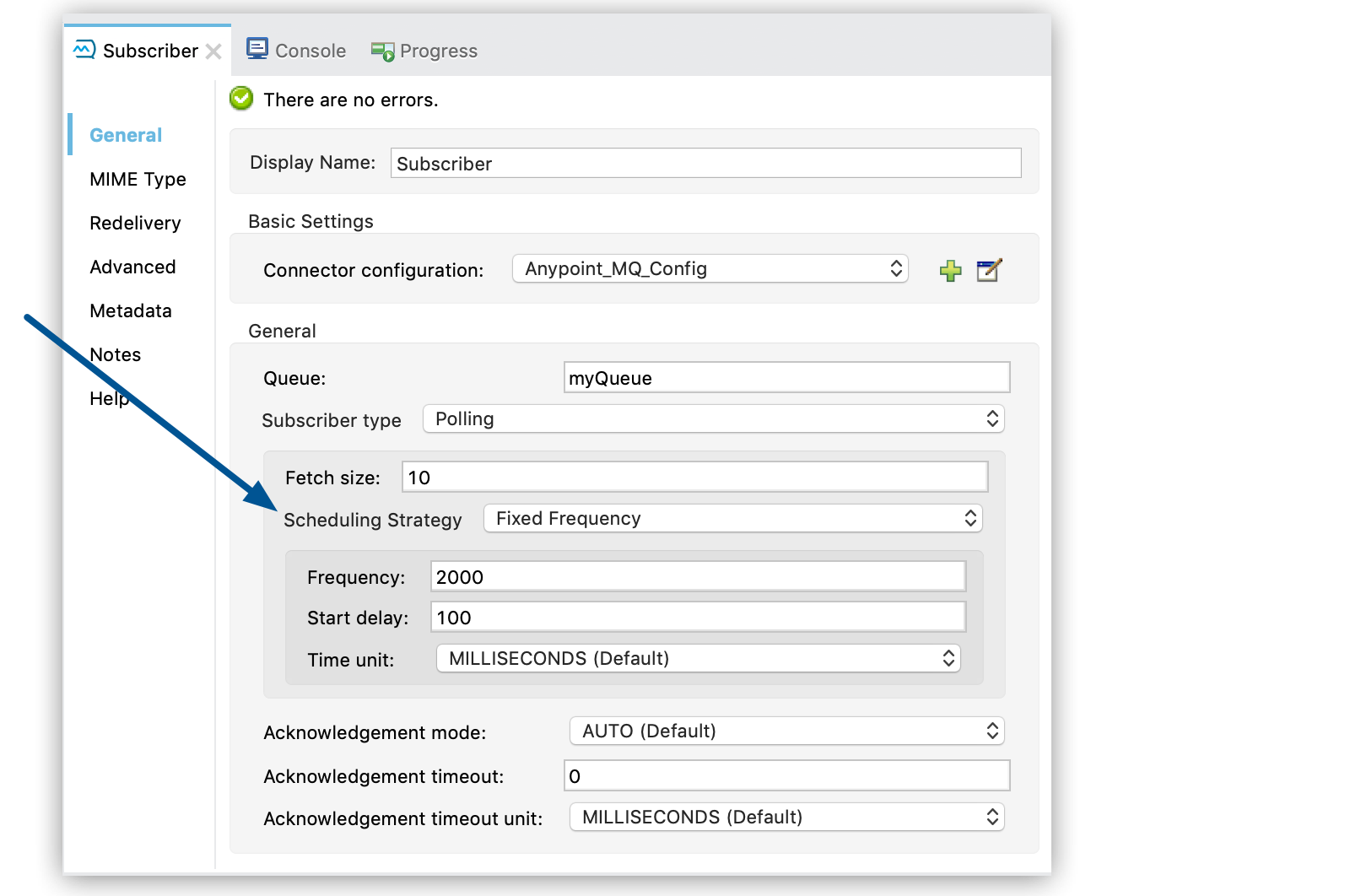
You can customize the frequency at which the Subscriber source polls for new messages by specifying a fixed-frequency scheduling strategy within the polling strategy. Use this configuration when you want to control the polling interval, for example, to reduce broker requests during low-traffic periods.
This example shows the polling strategy configured with a customized fixed-frequency schedule:
<anypoint-mq:subscriber config-ref="Anypoint_MQ_Config" destination="myQueue">
  <anypoint-mq:subscriber-type >
    <anypoint-mq:polling>
      <scheduling-strategy >
        <fixed-frequency/>
      </scheduling-strategy>
    </anypoint-mq:polling>
  </anypoint-mq:subscriber-type>
</anypoint-mq:subscriber>
Cron-Based Polling
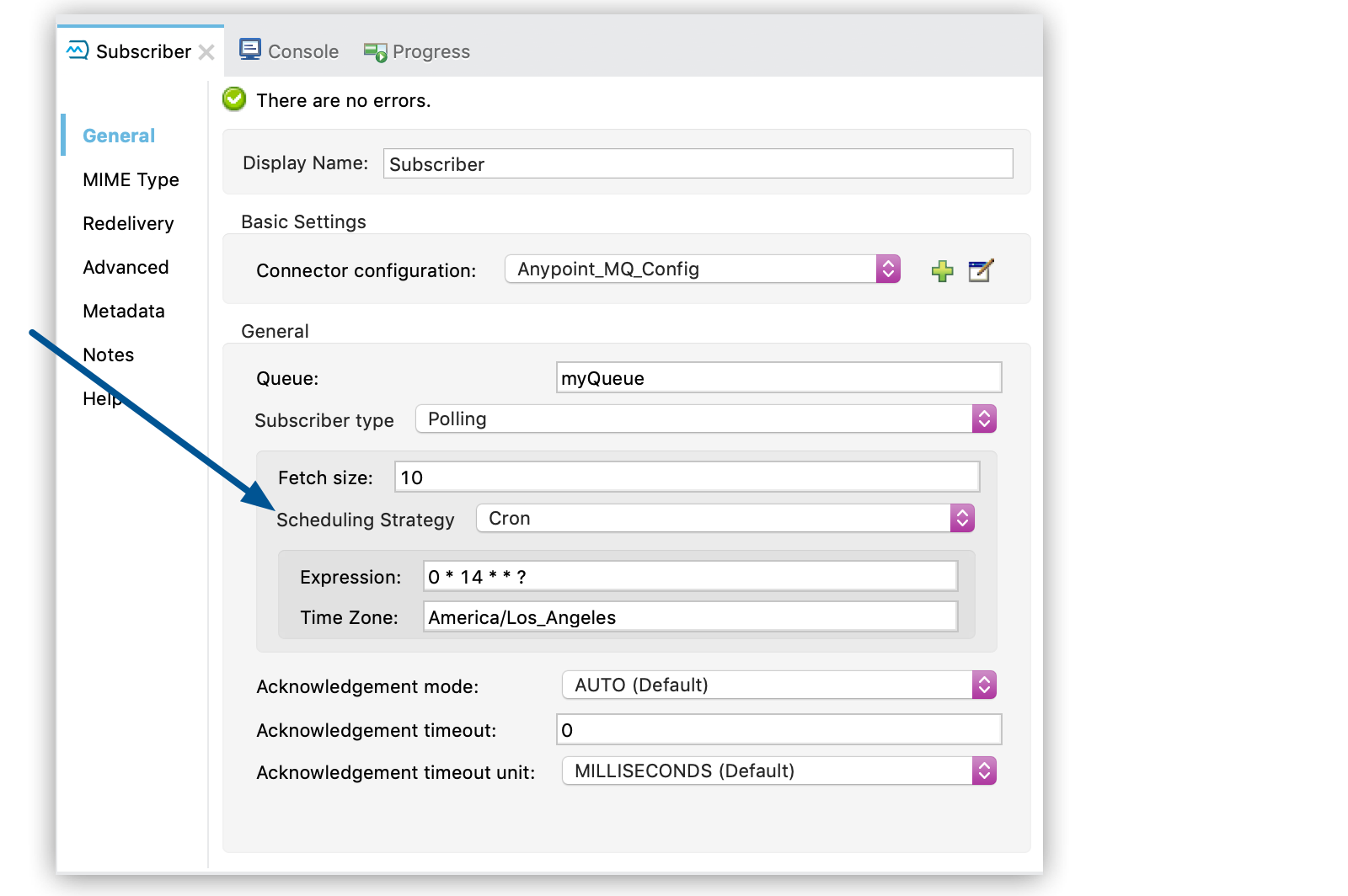
The Anypoint MQ Subscriber can also use a cron scheduling strategy, which enables you to schedule polling jobs such as "Run every minute starting at 2pm and ending at 2:59pm, every day". Use this configuration when message intake should align with a specific time window rather than run continuously.
This example shows the polling strategy configured with a cron expression that polls every minute between 2:00pm and 2:59pm Pacific time:
<anypoint-mq:subscriber config-ref="Anypoint_MQ_Config" destination="myQueue">
  <anypoint-mq:subscriber-type >
    <anypoint-mq:polling >
      <scheduling-strategy >
        <cron expression="0 * 14 * * ?" timeZone="America/Los_Angeles" />
      </scheduling-strategy>
    </anypoint-mq:polling>
  </anypoint-mq:subscriber-type>
</anypoint-mq:subscriber>
Backpressure and Max Concurrency
Backpressure for the polling strategy is opt-in and disabled by default. Existing applications are unaffected unless you explicitly enable it.
When enabled, the polling strategy paces message retrieval to match your flow’s actual processing capacity. It tracks how many messages the flow is currently processing and holds off fetching more until capacity is available. Capacity is released only when a message finishes processing (success or error), not when it is dispatched to the flow. When used with FIFO queues and message groups, backpressure also improves fairness — preventing a backlog in one message group from stalling processing of others.
| Backpressure affects only when messages are fetched. Acknowledgment behavior (AUTO, MANUAL, and IMMEDIATE modes), redelivery, and error handling are unchanged. |
The feature is controlled by the system property anypoint.mq.subscriber.backpressure.enabled (default false). The property is global to the application: it applies to every polling strategy subscriber in that app and has no effect on prefetch strategy subscribers.
Enable Backpressure
To enable backpressure, set the anypoint.mq.subscriber.backpressure.enabled system property to true.
This property is set to false by default.
To set this application property in Runtime Manager:
-
Sign in to Anypoint Platform and click Runtime Manager in the navigation menu.
-
Deploy a new app or change the settings for a deployed app.
-
On the Properties tab, specify the value for the property, for example:

Alternatively, set the property in Run Configurations in Anypoint Studio. For more information, see System Properties in Mule Apps.
When backpressure is enabled, the number of messages fetched per poll is capped to your flow’s remaining capacity.
Fetching Behavior by Configuration
The following table shows how backpressure affects message fetching depending on whether it is enabled and whether maxConcurrency is set on the flow:
| Configuration | Fetching behavior |
|---|---|
Backpressure disabled (default) |
The polling subscriber fetches up to the configured fetch size on each poll, regardless of how many messages the flow is currently processing. |
Backpressure enabled, |
The polling subscriber fetches up to the configured fetch size on each poll. With no |
Backpressure enabled, |
The polling subscriber fetches only as many messages as the flow has remaining capacity for. Fetching pauses when the flow reaches |
Adopt Backpressure
No action is required to upgrade. Backpressure is off by default and existing applications are unaffected.
To enable and configure backpressure:
-
Enable backpressure by setting
-Danypoint.mq.subscriber.backpressure.enabled=true. Validate in a non-production environment first and confirm theenabledstartup log line. -
Set Max Concurrency on your flow to the number of messages you want processed in parallel. This becomes the in-flight fetch cap.
-
If you need strict ordering, use the polling strategy with
maxConcurrency = 1and expect a higher API request volume.
To roll back at any time, remove the property or set it to false and restart. No redeployment of a different artifact is required.
Message Acknowledgment
You can acknowledge received messages automatically only if the flow execution finishes successfully or as your app consumes them, before processing them.
-
Automatic
By default, the Subscriber source uses the
AUTOacknowledgment mode. With this mode, the messages that the Subscriber source retrieves are acknowledged automatically after message flow processing succeeds. This means that the Subscriber source receives a message, dispatches it to the flow, and waits to see how the message processing finishes. It executes an ACK only when the processing finishes without exceptions.If the execution of the processing flow finishes with a propagated exception, the message is automatically not acknowledged and is returned to the queue for redelivery.
For more information, see Automatic Acknowledgment.
-
Immediate
When you use the
IMMEDIATEacknowledgment mode, the consumed message is acknowledged (deleted from the queue) and then dispatched to the Mule flow for processing. If the message acknowledgment fails, the message is discarded. The message isn’t dispatched to the flow and remains in-flight until the acknowledgment timeout.If the app restarts between being acknowledged and dispatched, the message might not be available again because it was deleted from the queue. To prevent message deletion until after processing, use the
AUTOorMANUALacknowledgment mode instead.Using the Subscriber source with the prefetch strategy and the
IMMEDIATEacknowledgment mode sometimes results in thread accumulation and an unresponsive application.For more information, see Immediate Acknowledgment.
-
Manual
When you use the
MANUALacknowledgment mode, the app logic decides when to perform the acknowledgment of the message, using the ACK or NACK sources.To perform the manual acknowledgment, you need the value of
ackTokenprovided as part of the resulting message attributes.For more information, see Manual Acknowledgment.
For information about acknowledgment timeouts, see Acknowledgment Timeout.
| Backpressure does not affect acknowledgment behavior. The AUTO, MANUAL, and IMMEDIATE modes work the same way regardless of whether backpressure is enabled. Redelivery, acknowledgment timeouts, and error handling are also unchanged. |
Circuit Breaker Capability
The Subscriber source provides circuit breaking capability, which enables you to control how the connector handles errors that occur while processing a consumed message.
For example, when connecting to an external service, you can use the circuit breaker to handle any downtime of that service. The circuit breaker allows the system to stop making requests and allows the external service to recover under a reduced load.
Using Anypoint MQ in a Mule 4 app means having a Mule flow with an MQ subscriber that consumes messages from a queue and processes them using an external service. When this service isn’t available:
-
The request fails.
-
An error results.
-
Message processing finishes as either a failure or as a custom error for handling the message, such as sending it to a dead letter queue (DLQ).
When the external service is not available, every attempt to process a message results in a failure, forcing the app to loop, consuming messages that cannot succeed. You can avoid this behavior by notifying the subscriber of the error in a way that prevents it from consuming more messages for a certain period.
Circuit Breaker Processes
The circuit breaker capability that the Subscriber source provides is bound to the error handling mechanism provided by Mule. It uses the error notification mechanism to count errors related to an external service, which is known as a circuit failure. You can bind any error to a circuit failure. For example, you can bind HTTP:TIMEOUT, FTP:SERVICE_NOT_AVAILABLE, or even a custom error from your app, such as ORG:EXTERNAL_ERROR.
If a Mule flow finishes its execution with an error, the Subscriber source checks if the error is one of the onErrorTypes that indicates an external service error, and counts consecutive occurrences until errorsThreshold is reached.
When errorsThreshold is reached, the circuit trips and remains open for the duration specified by tripTimeout.
While the circuit is open, all polled or consumed messages are not acknowledged (NACK)
and Anypoint MQ halts any future operations (poll, ACK, NACK, and Publish) until tripTimeout elapses.
After tripTimeout elapses, the circuit breaker transitions to a new state.
If the new state is Closed, clients can consume messages on the next poll.
The behavior varies depending on whether you deploy the app to CloudHub with a single worker or multiple workers:
- Single worker
-
The worker processes messages individually from the queue and opens the circuit breaker when the number of errors reaches the value of
errorsThreshold. - Multiple workers
-
Each worker has an associated circuit breaker and tracks the values of
errorsThresholdandtripTimeoutindividually. Each worker processes messages individually from the queue and opens the circuit breaker when the number of errors reaches the value oferrorsThresholdset on the worker.
By default, the circuit breaking feature is disabled.
Circuit Breaker States
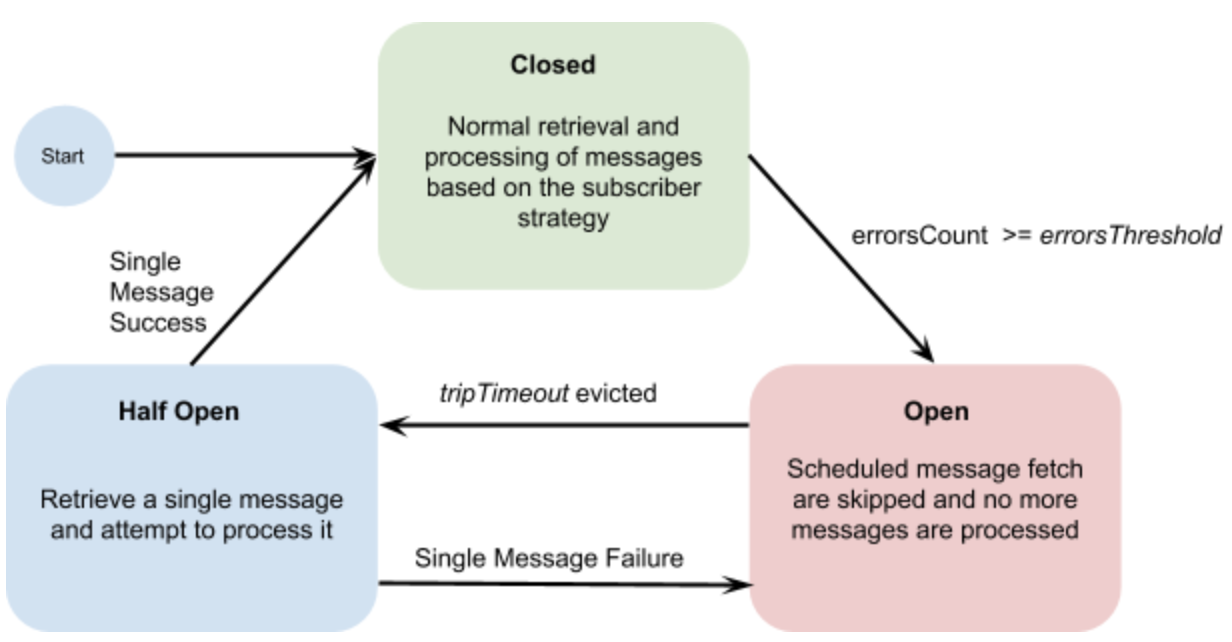
The circuit breaker has three states: Closed, Open, and Half Open. The behavior of the app changes based on the current state. See the Microsoft Circuit Breaker pattern for more information.
-
Closed
The starting state where the Subscriber source retrieves messages normally from MQ based on its configuration, effectively working as if the circuit breaker is not present.
-
Closed-Open Transition
When the number of failures occurs in succession during message processing, without successes, and reaches the
errorsThresholdvalue, the circuit breaker trips and the circuit breaker transitions to an Open state.Messages that were already dispatched to the flow then finish processing, regardless of whether the result is success or failure.
Messages kept locally that are in-flight for the broker but haven’t been dispatched yet are not acknowledged and returned to the queue for redelivery to another consumer.
-
Open
The Subscriber source doesn’t attempt to retrieve messages, and skips the iterations silently until
tripTimeoutis reached. -
Half Open
After
tripTimeoutelapses, the Subscriber source goes to a Half Open state. In the next poll for messages, the Subscriber source retrieves a single message from the service and uses that message to check if the system has recovered before going back to the normal Closed state.When the Subscriber source successfully fetches a single message, dispatches it to the flow, and processing finishes successfully, the Subscriber source returns to normal and immediately attempts to fetch more messages.
If Mule flow processing fails with one of the expected
onErrorTypes, the circuit goes back to an Open state and resets thetripTimeouttimer.
Configure the Circuit Breaker
You can configure a Circuit Breaker as either a Global Circuit Breaker or a Private Circuit Breaker.
Either way, the configuration parameters are the same:
-
onErrorTypesThe error types that count as a failure during the flow execution. An error occurrence counts only when the flow finishes with an error propagation. By default, all errors count as a circuit failure.
-
errorsThresholdThe number of
onErrorTypeserrors that must occur for the circuit breaker to open. -
tripTimeoutHow long the circuit remains open once
errorsThresholdis reached. -
circuitNameThe name of a circuit breaker to bind to this configuration. By default, each queue has its own circuit breaker.
Global Circuit Breaker
Use a Global Circuit Breaker when you want to share the circuit state across multiple subscribers, as if subscribers are part of the same "circuit".
-
In Anypoint Studio, click the Global Elements tab in the canvas.
-
Select Create > Component Configuration > Circuit Breaker.
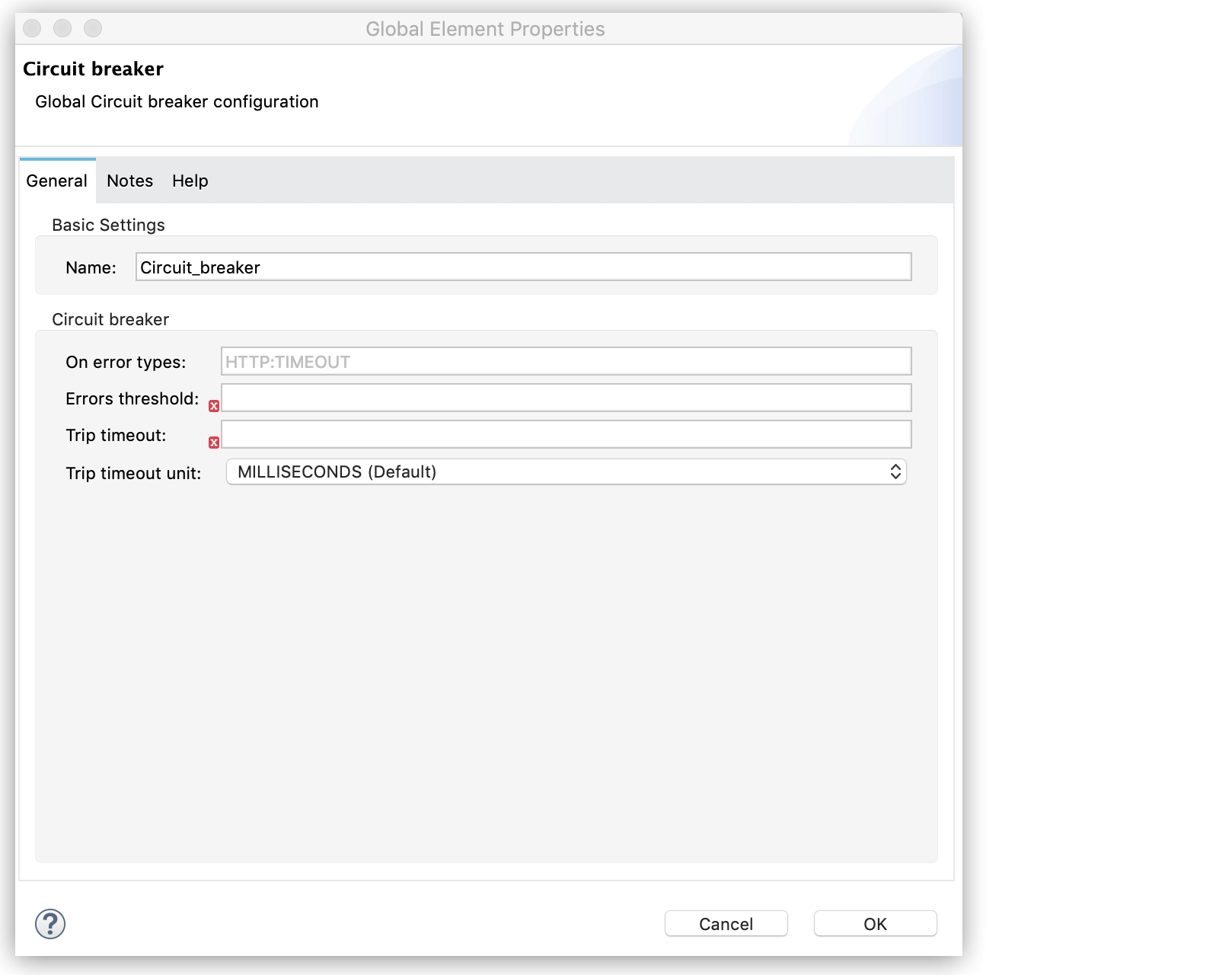
In the configuration wizard, populate these fields as needed. Once the configuration is complete, you can reference this
Circuit_breakerdeclaration from any Anypoint MQ Subscriber.
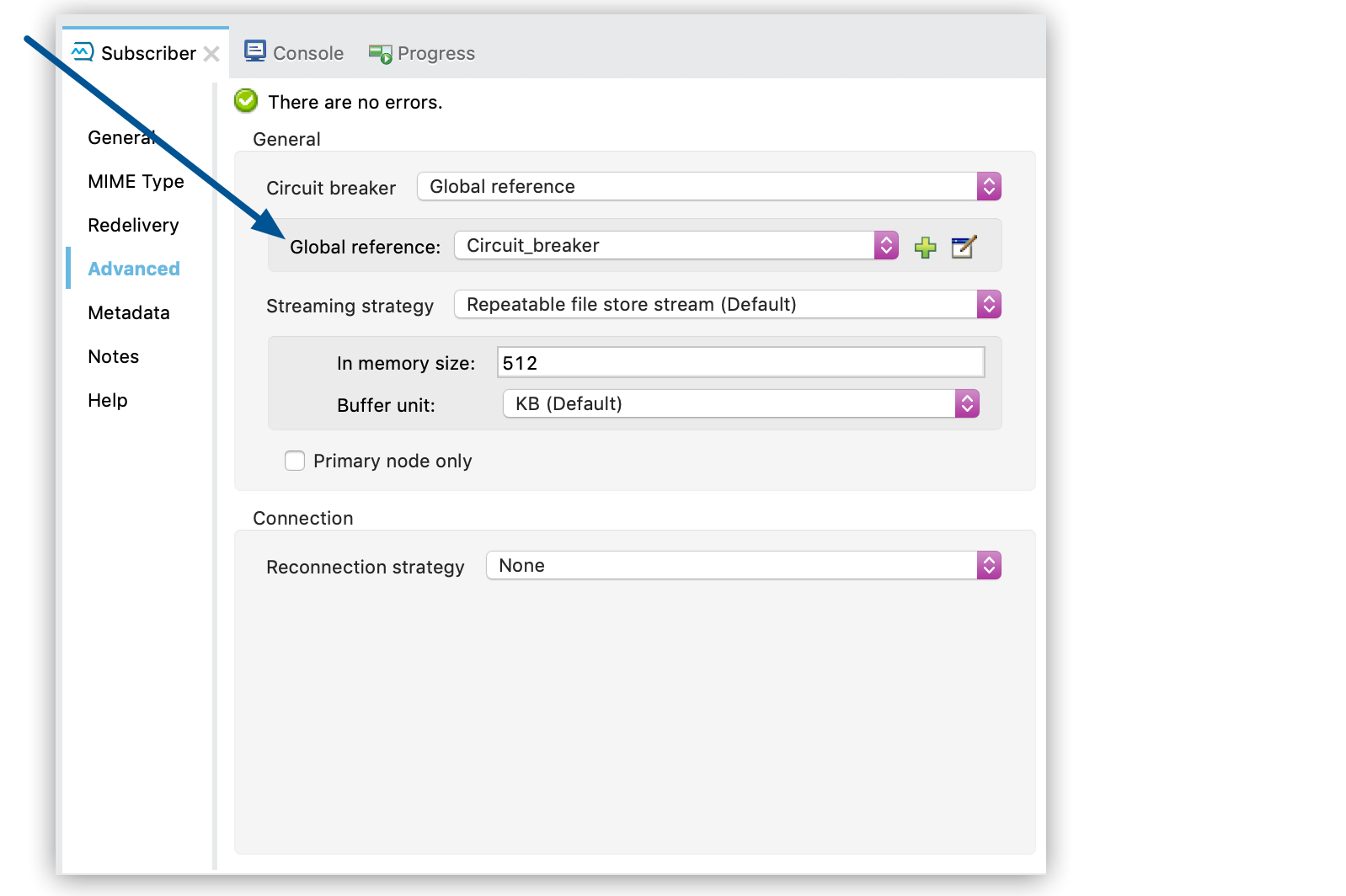
To reference a circuit breaker:
-
Select the Subscriber source in the canvas.
-
Click the Advanced tab.
-
Select Circuit Breaker > Global Reference and select a global circuit breaker configuration from the list.
Private Circuit Breaker
You declare a Private Circuit Breaker internally on a single subscriber. This circuit declaration is used only in the flow where the Subscriber source is declared, isolated from all the other circuits.
To use this configuration:
-
Select the Subscriber source in the canvas.
-
Click the Advanced tab.
-
Select Circuit breaker > Edit Inline, and then complete the fields.
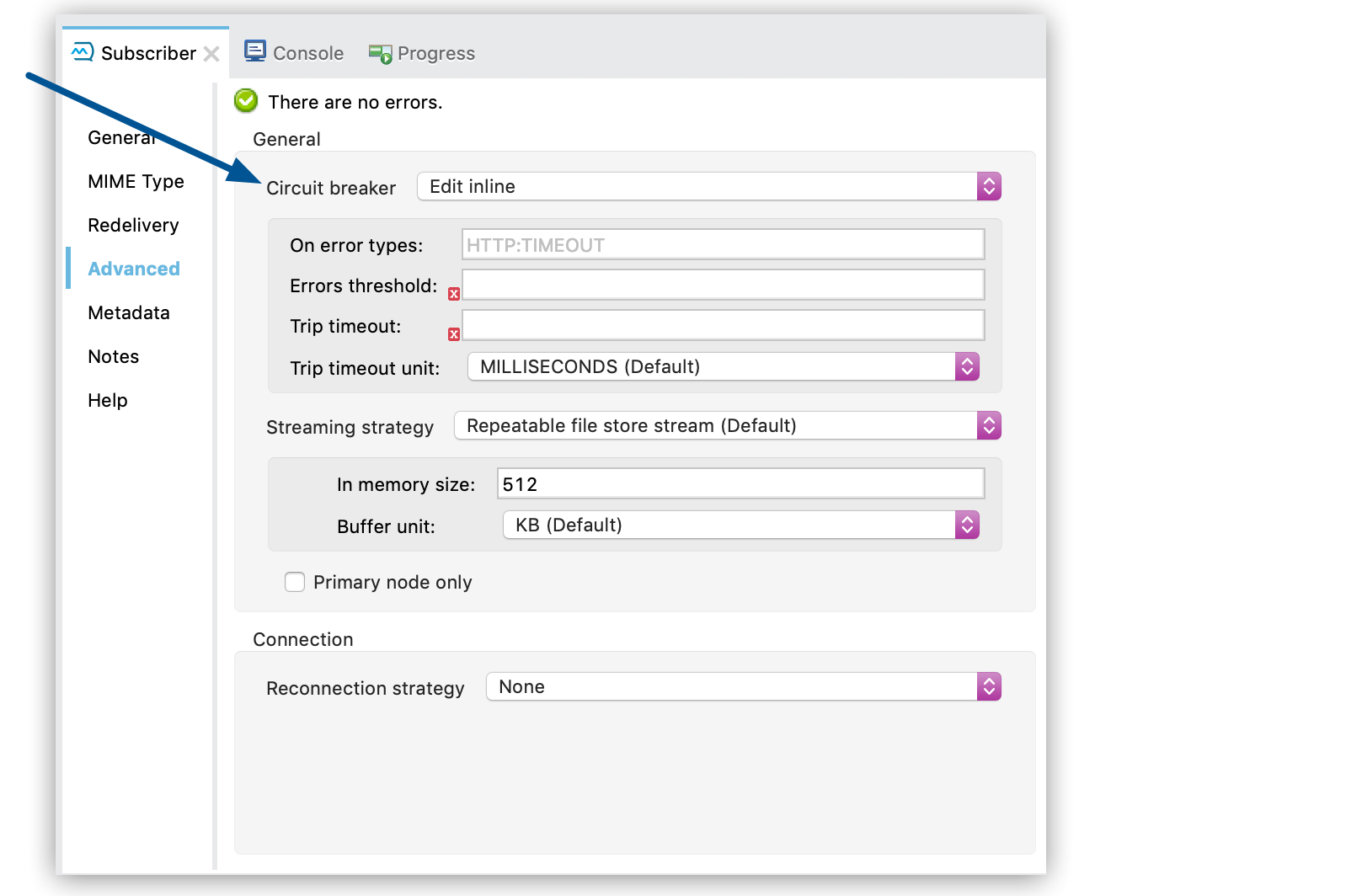
Circuit Breaker Examples
Circuit Configuration for a Single Subscriber
In this example, a single subscriber consumes messages from a queue and posts the messages to another service using its REST API. You can stop processing messages after 5 requests to the external service result in a timeout. Once processing stops, the Subscriber source waits for 30 seconds for the service to recover before retrying with a new message.
For this example, you need one config with these circuit breaker parameters:
<anypoint-mq:config name="Anypoint_MQ_Config">
    <anypoint-mq:connection url="${providerUrl}"
    clientId="${clientId}"
    clientSecret="${clientSecret}"/>
</anypoint-mq:config>

<flow name="subscribe">
   <anypoint-mq:subscriber config-ref="Anypoint_MQ_Config"
      destination="${subscribedQueue}">
        <anypoint-mq:circuit-breaker
          onErrorTypes="HTTP:TIMEOUT"   <!-- (1) -->
          errorsThreshold="5"           <!-- (2) -->
          tripTimeout="30"              <!-- (3) -->
          tripTimeoutUnit="SECONDS"/>
   </anypoint-mq:subscriber>
    <http:request config-ref="RequesterConfig"
       path="/external" method="POST"/> <!-- (4) -->
</flow>
(1) |
Configures the error types to trip the circuit. When an error occurs for an |
(2) |
Sets the threshold for how many consequent messages must occur to consider the circuit to be in a failure state. |
(3) |
Specifies how long to wait before resuming new message polling after the circuit breaker trips because |
(4) |
Defines the operation to throw the error expected by the |
The circuit breaker ignores all errors that aren’t listed in the onErrorTypes parameter. In this example, the circuit breaker ignores errors such as HTTP:BAD_REQUEST.
Share a Circuit from Different Queues
In many cases, a single common service processes messages from different queues. This example configures the circuitName parameter to bind both subscribers to a single circuit:
<anypoint-mq:config name="Anypoint_MQ_Config">
    <anypoint-mq:connection url="${providerUrl}"
       clientId="${clientId}"
       clientSecret="${clientSecret}"/>
</anypoint-mq:config>

<anypoint-mq:circuit-breaker
    name="InvoiceProcess"                    <!-- (1) -->
    onErrorTypes="FTP:RETRY_EXHAUSTED, HTTP:SERVICE_UNAVAILABLE" <!-- (2) -->
    errorsThreshold="10"
    tripTimeout="5"
    tripTimeoutUnit="MINUTES"/>

<flow name="subscribe">
    <anypoint-mq:subscriber destination="${reservationsQueue}"
       config-ref="Anypoint_MQ_Config"
        circuitBreaker="GlobalCircuit"/>     <!-- (3) -->
    <flow-ref name="invoiceProcess">
</flow>

<flow name="otherSubscribe">
    <anypoint-mq:subscriber
      destination="${paymentsQueue}"
        config-ref="Anypoint_MQ_Config"
        circuitBreaker="GlobalCircuit"/>    <!-- (3) -->
    <flow-ref name="invoiceProcess">
</flow>

<sub-flow name="invoiceProcess">
  <ftp:write path="${auditFolder}"          <!-- (4) -->
	   config-ref="ftp-config"/>
  <http:request config-ref="requestConfig"  <!-- (5) -->
	   path="/external"/>
</sub-flow>
(1) |
Sets the |
(2) |
Identifies two errors that can affect the processing of messages from the Subscriber source and passes each as a CSV list. |
(3) |
For both subscribers, references the global circuit breaker configuration. |
(4) |
Might throw several errors, but only |
(5) |
The HTTP connector might throw an |
In this scenario, both subscribers stop polling for messages as soon as the error count reaches the errorsThreshold="10" value, counting both FTP:RETRY_EXHAUSTED and HTTP:SERVICE_UNAVAILABLE errors. When the tripTimeout value elapses, one of the subscribers polls for a message and uses it to test the circuit, enabling the polling for both subscribers if the processing of that message succeeds.
FIFO Queues
FIFO queues are most suitable for single-consumer scenarios. When one consumer is accessing a message, all other consumers are blocked until the first batch is processed. No messages are delivered until all in-flight messages are acknowledged or not acknowledged.
With message groups, multiple consumers can access messages in a FIFO queue at the same time. In this case, one consumer accesses messages in a group and another consumer accesses messages in another group. Message order is preserved within each message group.
FIFO queues do not support retrieving messages by message group ID.
To preserve message processing order, set the value of maxConcurrency to 1 for flows that consume messages from a FIFO queue. When using the polling strategy with backpressure enabled and maxConcurrency = 1, each fetch retrieves one message at a time, which can result in a significantly higher API request volume. See Backpressure and Max Concurrency for details.
|
When you configure the polling strategy with fetchSize=1 and maxConcurrency=1 on a FIFO queue with message groups, the subscriber fetches one message per poll and dispatches it to the flow. Before the first message is acknowledged, the next poll can fetch a second message, which waits to be processed until the flow finishes processing the first one. Both messages are considered in-flight at the broker level until they’re acknowledged. This configuration preserves message order but can result in two in-flight messages per message group at a time, which is expected behavior.
|
FIFO Queues and Clustering
FIFO queues behave the same in a clustered environment as in a non-clustered environment.
FIFO queues consume messages in the specified order. After the message is consumed, any further message processing can be distributed to other nodes. In this case, if the consumer acknowledges a message before it is fully processed, message order might be lost during message processing.
-
In an on-premises, high availability clustering environment, the Subscriber source in the Anypoint MQ connector runs on all nodes by default.
You can change the behavior to run as a primary node by selecting Primary node only in the Advanced tab.
-
In CloudHub with multiple workers, all workers are run as a primary node.
In this case, all workers running the application consume from the same FIFO queue.