View Mule API Analytics Charts in API Manager
Mule API Analytics charts in API Manager summarize requests, top client applications, and average latency for a deployed API instance across one hour, three hours, one day, seven days, or one month, with a 30-day retention window.
In API Manager, click the instance name to open the charts when your user has View APIs Configuration permission; see Grant Permission to Access an Environment for access setup.
You can include policy violation traffic on the same charts when you have View Policies permission.
Requests Summary Chart
The requests summary chart lists the total number of requests to your API instance by the duration you choose. The chart shows the HTTP status codes specified by W3C. For example:
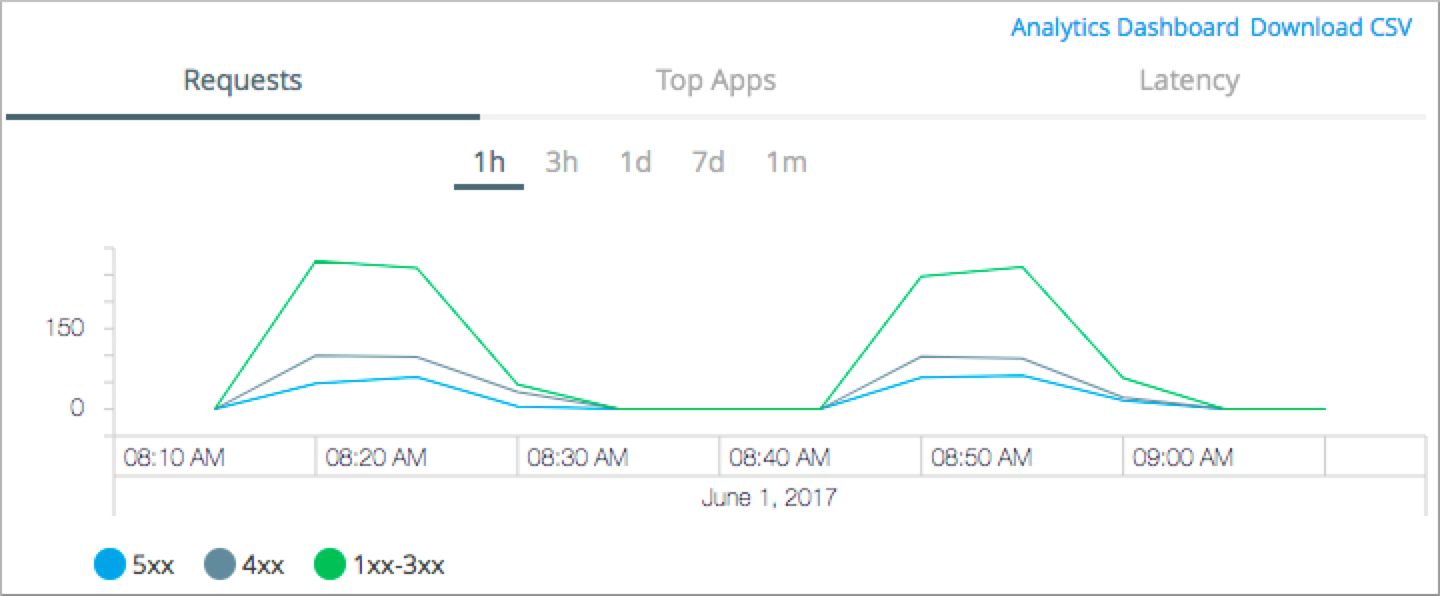
Graph lines are provided for:
-
Green - Successful requests that returned a status code from 1xx to 3xx.
-
Dark Gray - Client failed requests that returned a status code of 4xx.
-
Blue - Server failed requests that returned a status code of 5xx.
Top Apps Summary Chart
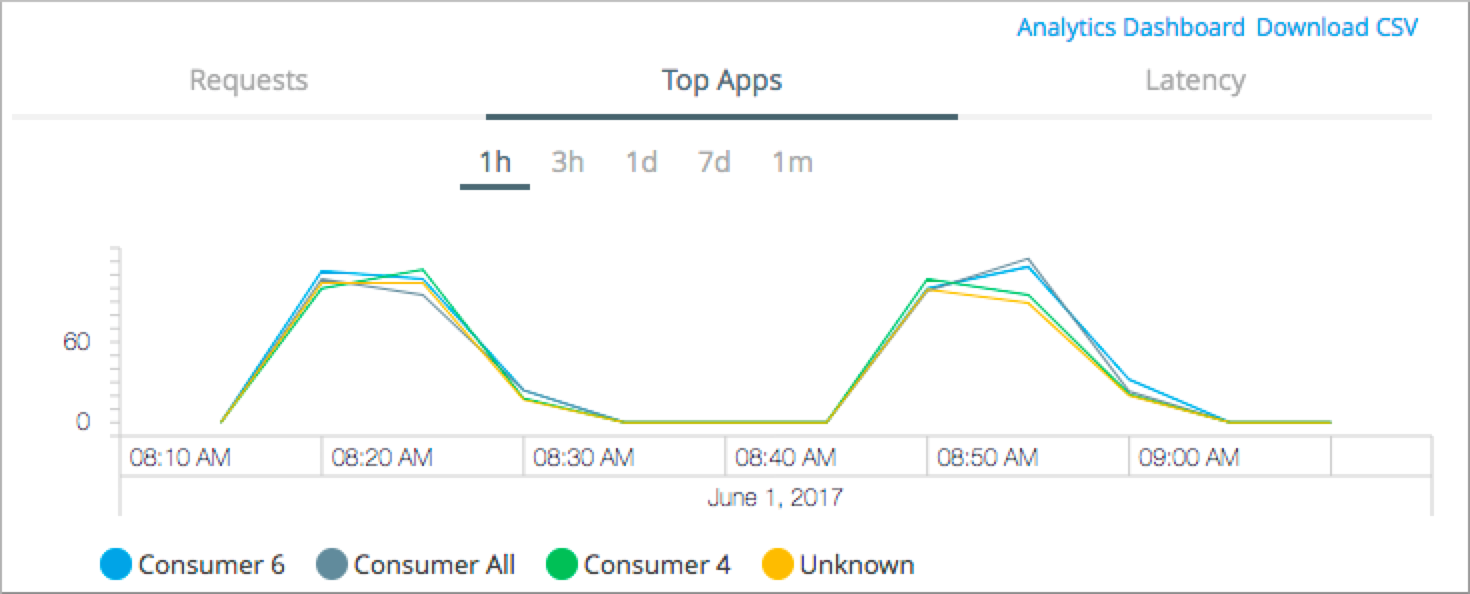
The top apps summary chart lists the number of requests made to the API instance by each application for the top 5 applications calling that API instance. Each color represents one of the top 5 applications accessing the API. The y-axis plots the number of calls made to the API instance.
The graph lists the number of requests over the duration you select, for example:
Latency Summary Chart
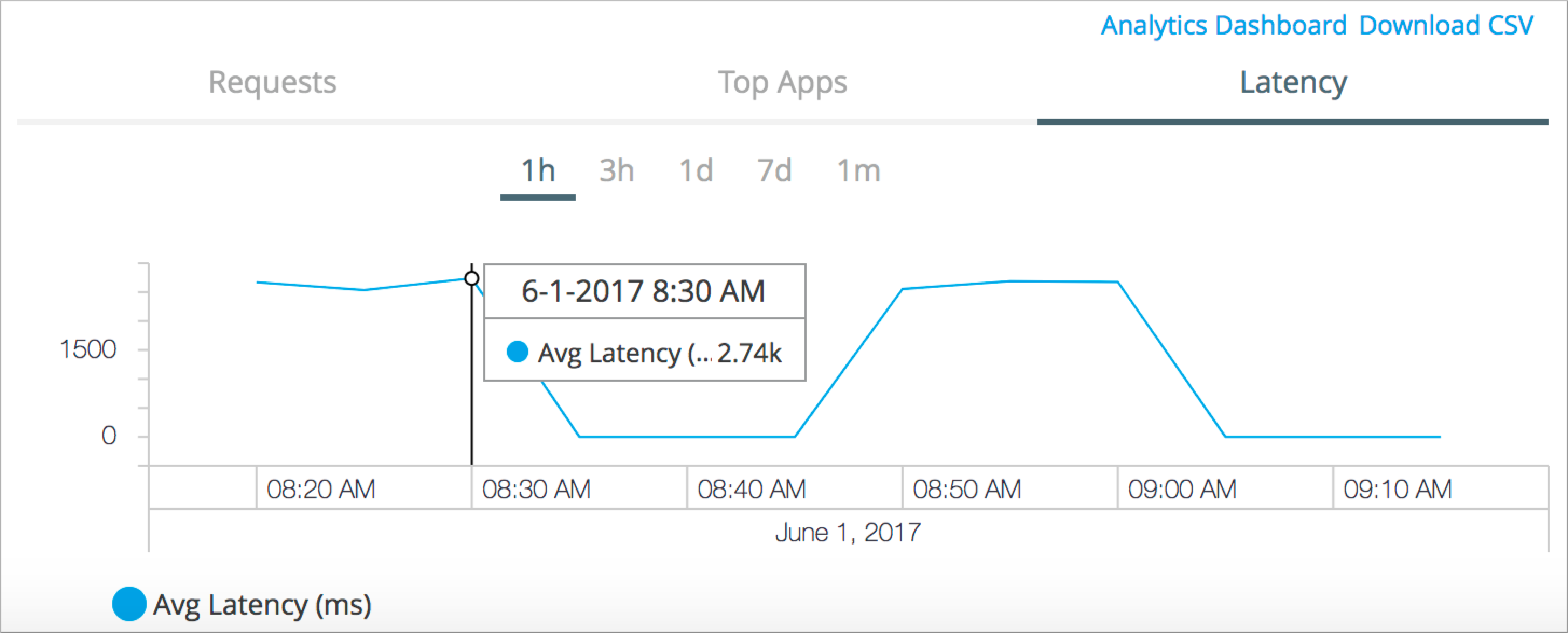
The latency summary chart lists the average API latency for the period selected. The higher the latency, the lower the performance. The y-axis in the chart lists the average latency in milliseconds (ms).
For example, the chart can show that the worst average performance in the one-hour period was at 8:30 am.
Policy Violations on Charts
Users must have the View Policies permission set to view policies or edit a Policy Violation alert.
|
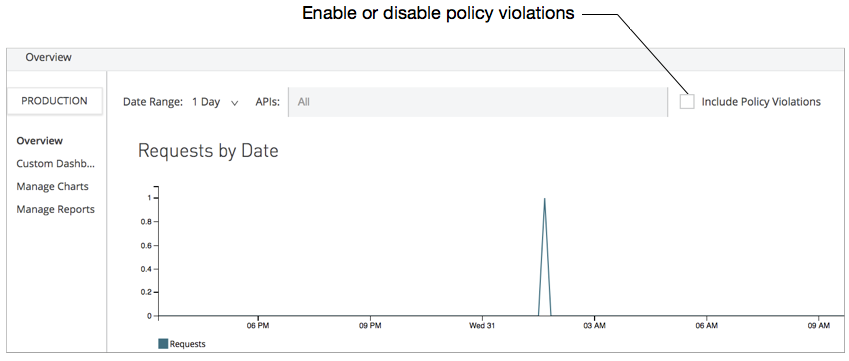
Enable or disable the tracking of policy violations by checking the Include Policy Violations checkbox on a Mule API Analytics chart screen. The chart shows traffic rejected, or not rejected, by a policy.