
Get a SOAP Header
Retrieve a SOAP header value from an incoming request when you exercise APIs with SoapUI and Anypoint Studio. This walkthrough reads the API key from the OrderTshirt envelope and surfaces it through DataWeave in the OrderTshirt:\soapkit-config flow. You update Transform Message, rerun the app, and confirm the header appears in the response.
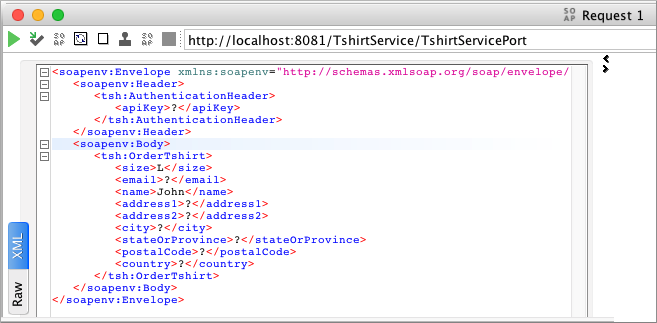
-
In SoapUI, modify the
OrderTshirtrequest by entering a value for the API key.For example, enter
987654321between the<apiKey>tags. -
In Studio, in the
OrderTshirt:\soapkit-configflow, select Transform Message. -
Edit the DataWeave code to get the API key, which is a header property:
%dw 2.0 output application/java ns ns0 http://mulesoft.org/tshirt-service --- { body : { ns0#OrderTshirtResponse: { orderId: "I got a request from " ++ payload.body.ns0#OrderTshirt.name ++ " using the following auth header " ++ (payload.headers["AuthenticationHeader"].ns0#AuthenticationHeader.apiKey default "") } } write "application/xml" } -
Save and run the project again.
-
In SoapUI, send a request to the
OrderTshirtendpoint. + The following response appears:<soap:Body> <soap:Envelope xmlns:soap="http://schemas.xmlsoap.org/soap/envelope/"> <ns0:OrderTshirtResponse xmlns:ns0="http://mulesoft.org/tshirt-service"> <orderId>I got a request from John, using the following auth header 987654321</orderId> </ns0:OrderTshirtResponse> </soap:Body> </soap:Envelope>