
Troubleshoot Transit Gateway Attachments
These are some of the possible errors you might encounter when attempting to attach to a transit gateway.
Unable to Attach to a Transit Gateway
If you see the Resource Share Not Found error when attempting to attach to the
transit gateway:
-
Verify that the ID and Owner values that you specified are correct.
-
Verify that the region matches the transit gateway region.
-
Click the pencil icon to edit these values.
Unable to Delete a Transit Gateway
If the Transit Gateways page doesn’t list any VPCs, but you can’t delete the transit gateway and you see the Can’t remove this transit gateway error,
the transit gateway might be attached to a VPC that belongs to another business group that you don’t have access to.
Unable to View a Transit Gateway
Runtime Manager always adds transit gateways at the root business group level. To view a transit gateway, you need CloudHub Network Viewer permission.
Unable to Modify a Transit Gateway
To modify a transit gateway, you need CloudHub Network Admin permission.
Transit Gateway Status is Unknown
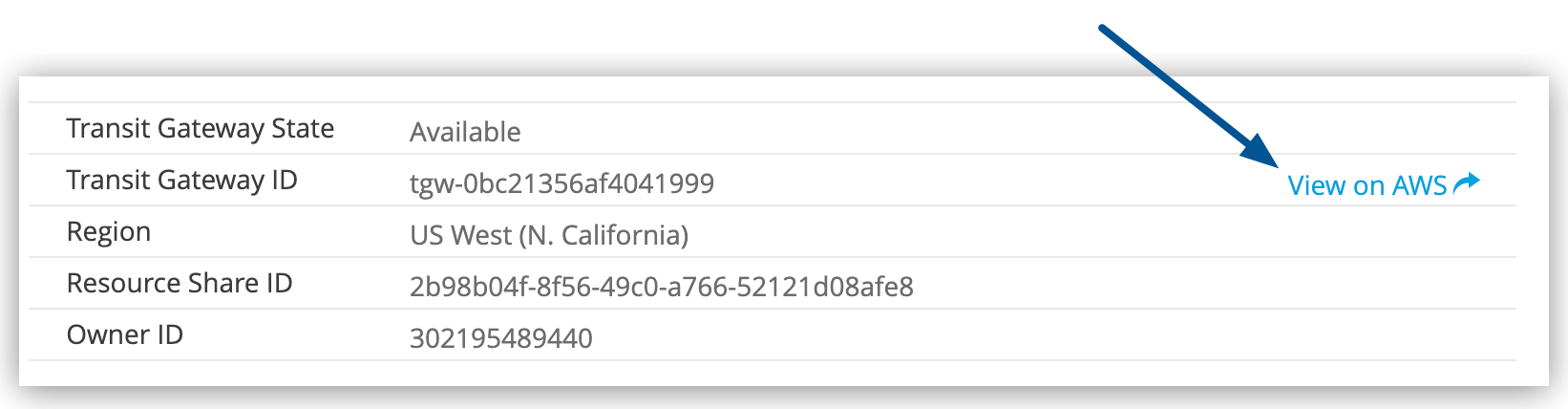
If the status for the transit gateway is Unknown, the resource share on AWS has been either disabled or deleted.
Click the View on AWS button on the Transit Gateways page to resolve the issue on AWS:
VPC Attachment Rejected
If you see the The attachment was rejected in AWS error when attempting to attach the VPC to the transit gateway, remove the VPC and reattach it.
Subnet Already Added to the Route Table
If you see the This subnet has already been added to this route table error, add a different
subnet to the table.
Invalid CIDR Subnet
If you see the Please enter a single subnet in CIDR notation error, check that the subnet is in the correct CIDR format.
Attach VPC Button Is Disabled
If the Attach VPC button is disabled, all the VPCs you have access to are already attached to the transit gateway.
Connections Limit Has Been Reached
If you see an error such as Connections limit has been reached (max=4, used=4) for the organization, you have consumed all your network connections entitlements (VPC/VPN licenses).
Contact your account team to purchase additional licenses.