
Application Monitoring and Automatic Restarts
CloudHub monitors all applications and enables you to receive notifications and diagnostic information if your application becomes unresponsive.
You can enable automatic restarts so that your application can recover automatically without your intervention.
How Application Monitoring Works
CloudHub uses the Mule Agent health check endpoint to determine the readiness of a deployment. This monitoring method provides a thorough check to ensure that the application is deployed and applies gateway policies.
Every 30 seconds, CloudHub checks the health check endpoint. If CloudHub detects that the health check endpoint fails three times in a row, the logs print a warning.
CloudHub triggers a notification to the console to alert you that a worker for an application stopped responding.
If you configure email alerts, the unresponsive worker also triggers an email alert based on the Worker Not Responding event.
Enable Automatic Restarts
You can enable automatic restarts when you deploy a new application or redeploy an existing application.
-
Deploy a new app
-
In Runtime Manager, click Applications in the menu on the left.
-
Click Deploy Application and select CloudHub from Deployment Target.
-
Select the Automatically restart application when not responding option:
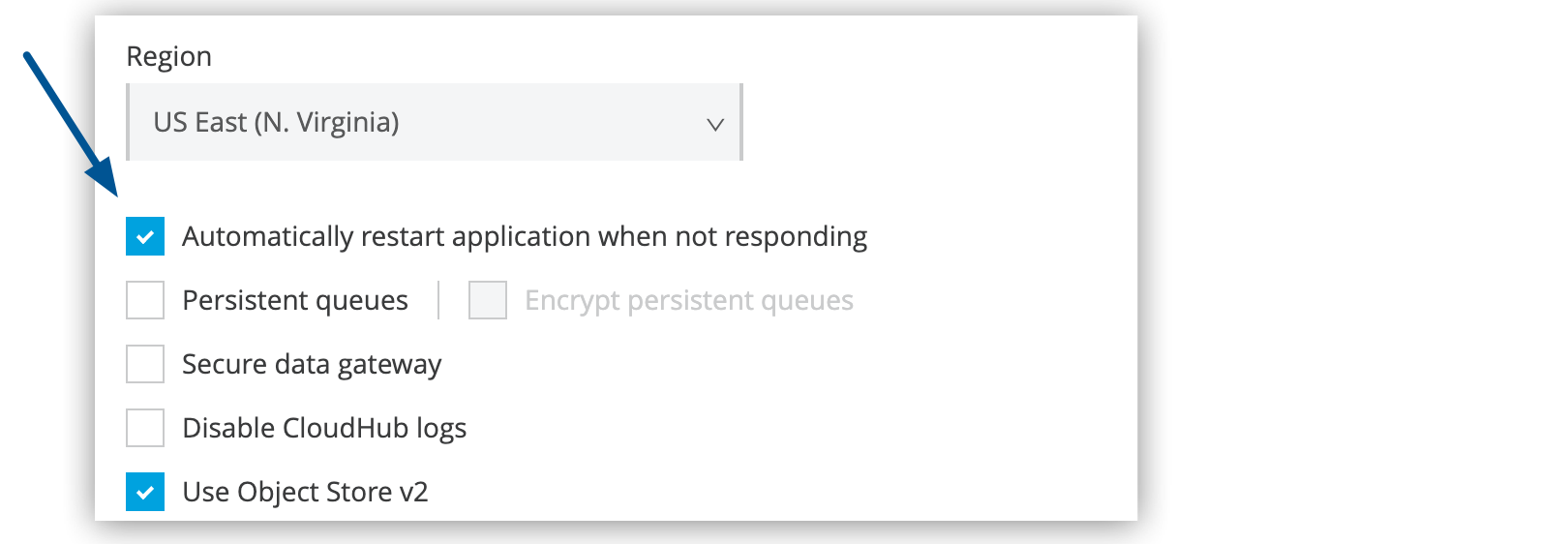 Figure 1. The arrow shows the Automatically restart application when not responding option.
 -
Click Deploy Application.
-
-
Redeploy an existing app
-
In Runtime Manager, click Applications in the menu on the left.
-
Click the app status to display the details pane on the right
-
Click the Manage Application button to display the Settings page for the app.
-
Select the Automatically restart application when not responding option:
Figure 2. The arrow shows the Automatically restart application when not responding option. -
Click Apply Changes.
-
If you change the flag monitoringEnabled via API, the application doesn’t restart automatically and you must restart it manually.
|
How Automatic Restarts and Relaunches Work
If you select the Automatically restart application when not responding option, CloudHub monitors the worker and automatically attempts recovery using two mechanisms: application restarts and application relaunches.
Application Restarts
CloudHub continuously checks the health of the worker JVM. If the JVM becomes unresponsive, CloudHub restarts the application on the same worker instance.
-
If the restart succeeds, health monitoring continues.
-
If the restart fails, CloudHub attempts up to five restarts.
After five restart attempts, CloudHub stops trying to restart the application on that worker.
Application Relaunches
After CloudHub exhausts all restart attempts, it evaluates the worker state and attempts an application relaunch. During an application relaunch, CloudHub terminates the failed worker and provisions a new worker instance.
CloudHub attempts up to three application relaunches.
If all relaunch attempts fail:
-
CloudHub stops automatic recovery.
-
CloudHub sends you a notification.
-
You must manually redeploy the application to restore it.
The logs show the details of the restart and relaunch procedures.