
Configure Azure Active Directory Authentication for MS SQL Server using the Database Connector
Anypoint Connector for Database (Database Connector) enables you to configure Azure Active Directory Authentication for MS SQL Server by setting the IntegratedSecurity value in the connection configuration. The following example shows how to configure this value in Anypoint Studio:
-
In Studio, navigate to the Global Elements tab.
-
Click Create.
-
In the filter box, search
database. -
Select Database Config.
-
Click OK.
-
In the Database Config window, for Connection, select MS SQL Server Connection.
-
In the Advanced tab, set Connection properties to Edit inline.
-
Click the green plus sign.
-
Set Key to
Integratedsecurity. -
Set Value to
true. -
Click Finish.
-
Complete the remaining connection settings for the database.
-
Click OK.
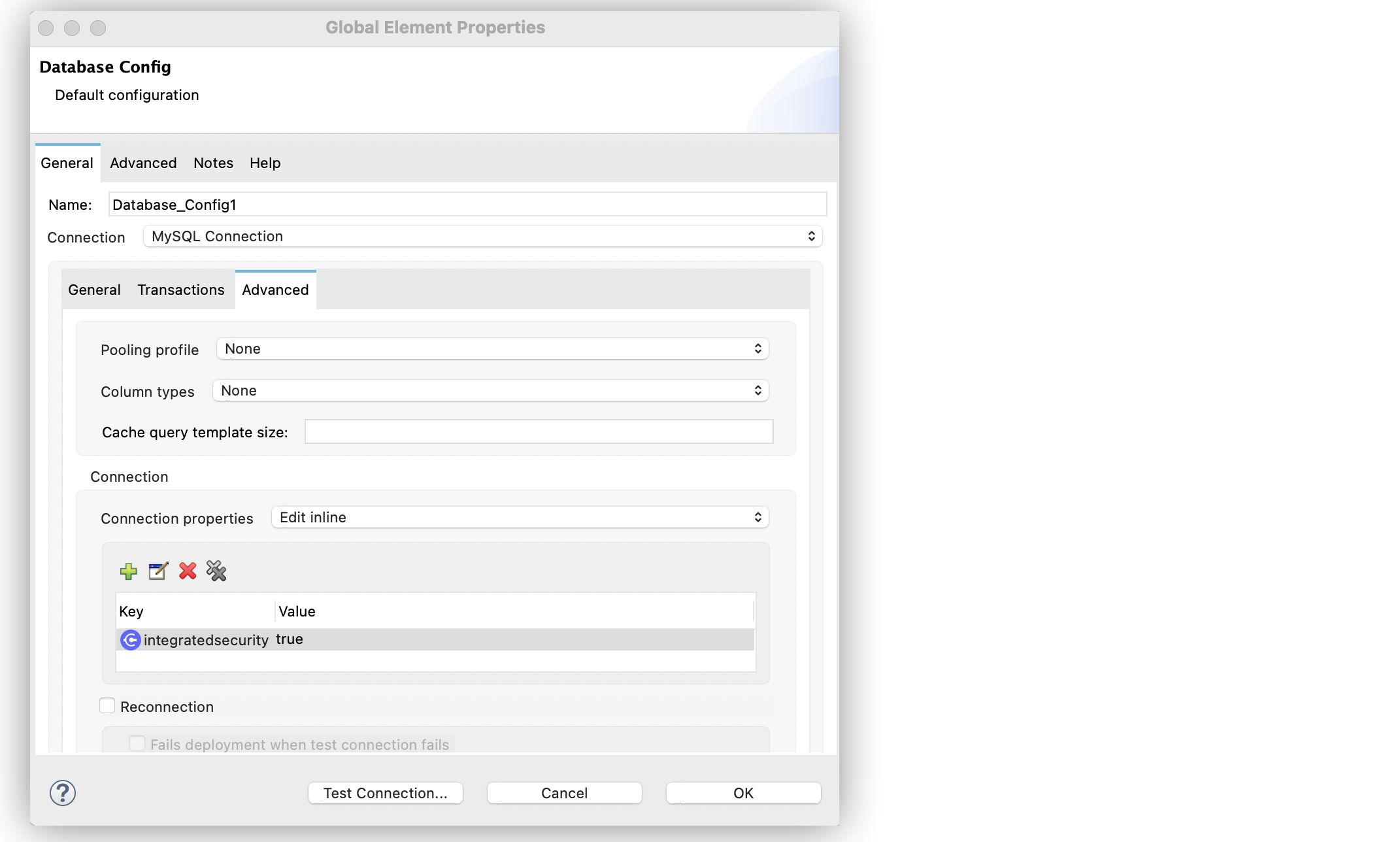
In the Configuration XML editor, the key="integratedsecurity configuration looks like this:
<db:config name="Database_Config1" doc:name="Database Config" >
		<db:my-sql-connection >
			<db:connection-properties >
				<db:connection-property key="integratedsecurity" value="true" />
			</db:connection-properties>
		</db:my-sql-connection>
	</db:config>
Windows Authentication Limitations on CloudHub and Runtime Fabric
Windows Authentication (Integrated Security or NTLM) for MS SQL Server is generally not supported, or is highly impractical, for Mule applications deployed to Linux-based environments such as CloudHub 1.0, CloudHub 2.0, and Runtime Fabric. These environments can’t be joined to a Windows domain.
For these environments, use one of these options:
-
SQL Server authentication (recommended)
Connect with a SQL Server login and password.
-
Kerberos authentication
Use this option if your organization requires integrated authentication. See Kerberos authentication to Microsoft SQL Server from Mule 4 apps hosted in CloudHub or RTF.
|
In CloudHub 2.0 and Runtime Fabric, the Microsoft SQL Server JDBC driver attempts Windows Authentication whenever the user name is in domain format, such as |