
Connect to Gmail with Email Connector Examples
To connect Anypoint Connector for Email (Email Connector) to your Gmail account, configure a global element for the IMAPS, POP3S, or SMTPS server connection that you want to use.
For new integrations, use OAuth 2.0 with Gmail Connector, which is the preferred Google authentication method for Gmail API access. If you use Email Connector with username and password, Google requires an app password with 2-Step Verification enabled.
Configure an App Password in Your Gmail Account
To send emails to a Gmail account via Email Connector, you must configure an app password in your Gmail account.
Use the app password instead of your regular Gmail email password, which enables you to use email protected by MFA (Multi-Factor Authentication).
Configure an IMAPS Connection
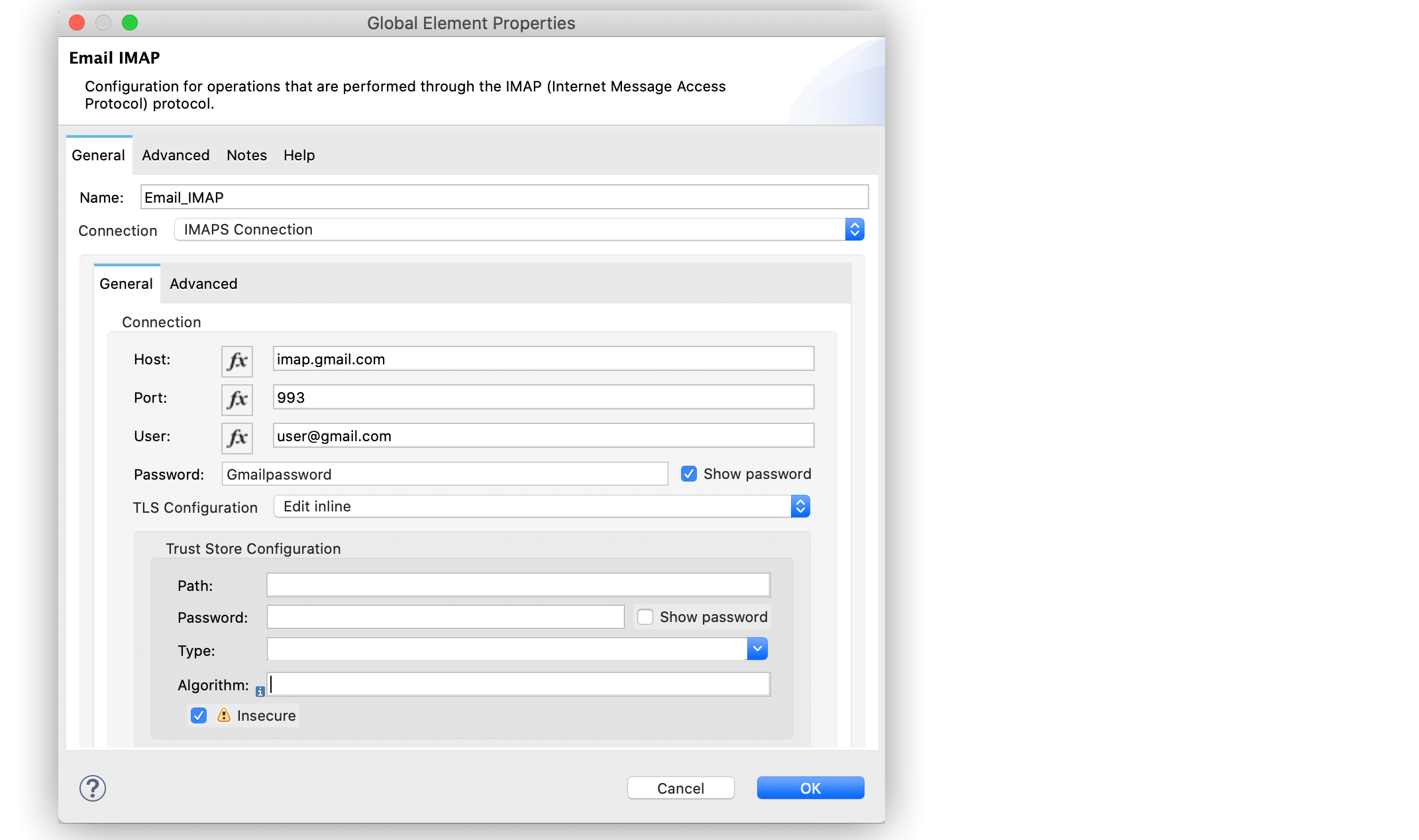
To connect Email Connector to your Gmail account using an IMAPS connection, configure a global element:
-
In Studio, navigate to the Global Elements view.
-
Click Create to open the Choose Global Type view.
-
In Filter, type
email, select Email IMAP, and click OK. -
In the Email IMAP window, for the Connection field, select IMAPS Connection.
-
In the General section, enter the following values:
-
Host
imap.gmail.com -
Port
993 -
User
user@gmail.com -
Password
appPassword
-
-
In the Trust Store Configuration section, select the Insecure checkbox.
-
Click OK.
In the Configuration XML editor, the configuration looks like this:
<email:imap-config name="Email_IMAP">
  <email:imaps-connection host="imap.gmail.com"
    port="995" user="user@gmail.com"
    password="mypassword">
    <tls:context>
        <tls:trust-store insecure="true"/>
    </tls:context>
  </email:imaps-connection>
</email:imap-config>
Configure a POP3S Connection
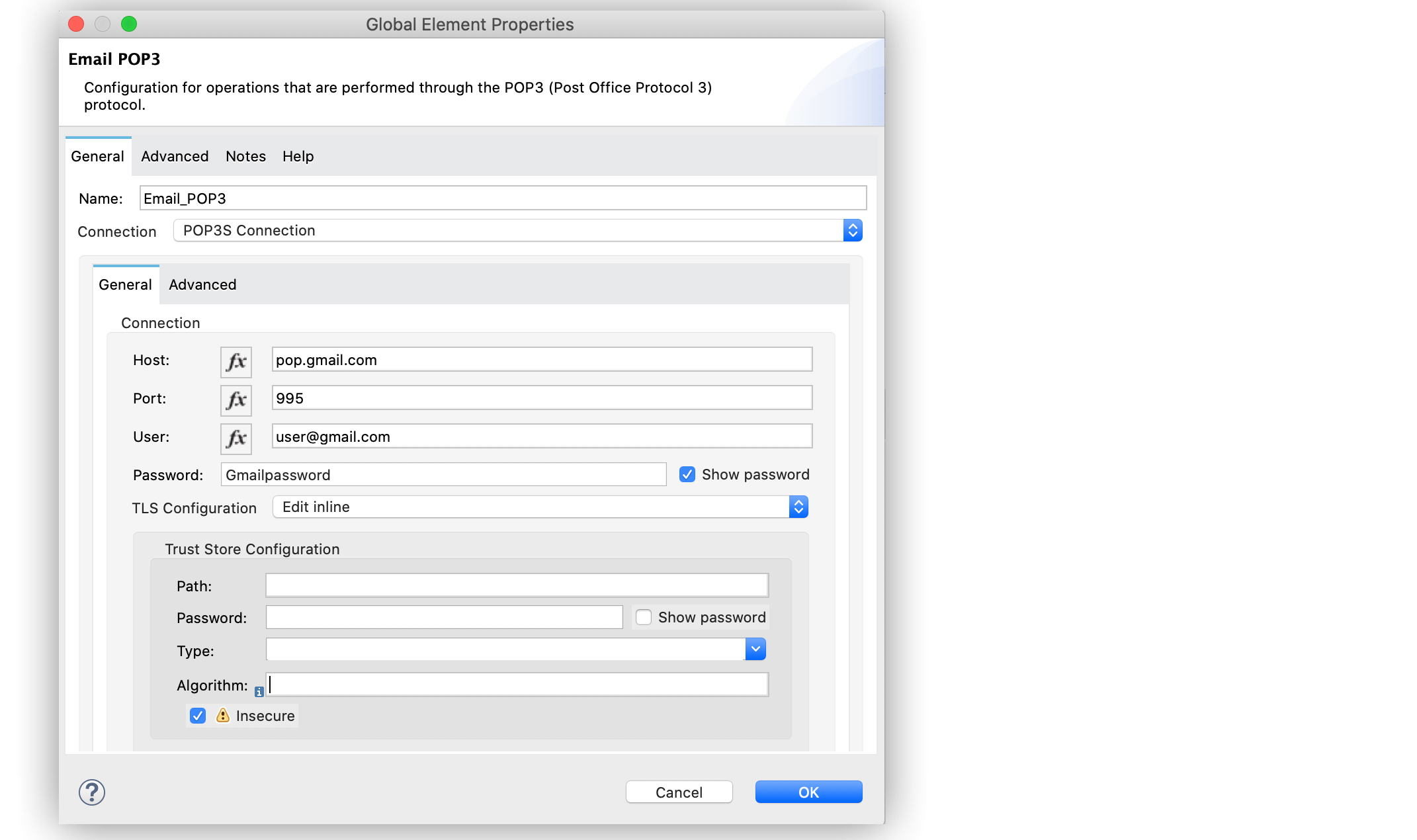
To connect Email Connector to your Gmail account using a POP3S connection, configure a global element:
-
In Studio, navigate to the Global Elements view.
-
Click Create to open the Choose Global Type view.
-
In Filter, type
email, select Email POP3, and click OK. -
In the Email POP3 window, for the Connection field, select POP3S Connection.
-
In the General section, enter the following values:
-
Host
pop.gmail.com -
Port
995 -
User
user@gmail.com -
Password
appPassword
-
-
In the Trust Store Configuration section, select the Insecure checkbox.
-
Click OK.
In the Configuration XML editor, the configuration looks like this:
<email:pop3-config name="Email_POP3">
    <email:pop3s-connection host="pop.gmail.com"
      port="995"  user="user@gmail.com"
      password="appPassword">
        <tls:context>
            <tls:trust-store insecure="true"/>
        </tls:context>
    </email:pop3s-connection>
</email:pop3-config>
Configure an SMTP Connection
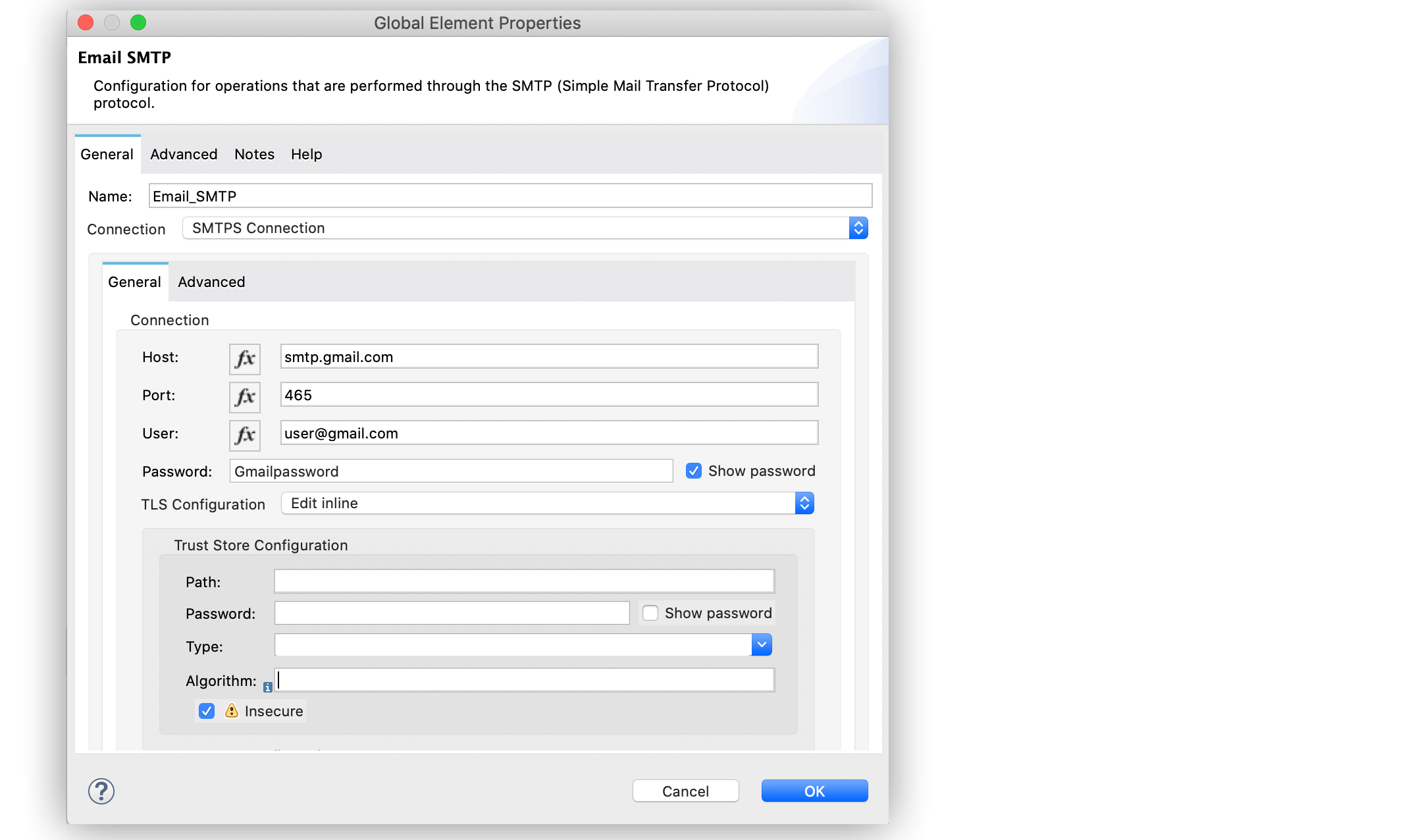
To connect Email Connector to your Gmail account using an SMTPS connection, configure a global element:
-
In Studio, navigate to the Global Elements view.
-
Click Create to open the Choose Global Type view.
-
In Filter, type
email, select Email SMTP, and click OK. -
In the Email SMTP window, for the Connection field, select SMTPS Connection.
-
In the General section, enter the following values:
-
Host
smtp.gmail.com -
Port
465 -
User
user@gmail.com -
Password
appPassword
-
-
In the Trust Store Configuration section, select the Insecure checkbox.
-
Click OK.
In the Configuration XML editor, the configuration looks like this:
<email:smtp-config name="Email_SMTP" from="sender@gmail.com">
    <email:smtps-connection host="smtp.gmail.com"
      port="465" password="appPassword"
      user="user@gmail.com">
        <tls:context enabledProtocols="TLSv1.2,SSLv3">
            <tls:trust-store insecure="true"/>
        </tls:context>
    </email:smtps-connection>
</email:smtp-config>
Troubleshoot SMTPS Connection Issues
Google no longer supports the Less Secure Apps setting for Gmail accounts.
If SMTP authentication fails when you use Email Connector with Gmail:
-
Verify that 2-Step Verification is enabled for the Gmail account.
-
Generate an app password and use that password in your Email Connector configuration.
-
Confirm that you’re not using your normal Gmail account password.
For details, see Sign in using app passwords.