
Consume Messages with the JMS Connector
Anypoint Connector for JMS (JMS Connector) Consume operation enables you to consume a message at any time in the flow, from any given specified destination.
Consume a Message from a Queue
In the following example, you configure the Consume operation to consume new messages in the queue specified in the Destination field. The operation returns a Mule message each time a JMS message is available in the queue. The Mule message consists of:
-
The message content as payload
-
The message metadata in the message attributes
The metadata has three parts that map all the information available in a JMS message:
-
AckId
-
Headers
-
Properties
By default, the message consumed is acknowledged ("ACKed") only when the execution of the flow receiving the message completes successfully. If you want to control the ACK of the message after some processing, configure the ackMode to MANUAL.
For more information regarding a Message ACK, review the Manage Message Acknowledgement documentation.
To configure the source in Studio, follow these steps:
-
In the Mule Palette view, select JMS > Consume.
-
Drag Consume to the Studio canvas.
-
In the Consume configuration screen, optionally change the value of the Display Name field.
-
In the Consume configuration screen, in Destination, specify the name of the destination from which to consume the message, for example,
#[vars.destination].
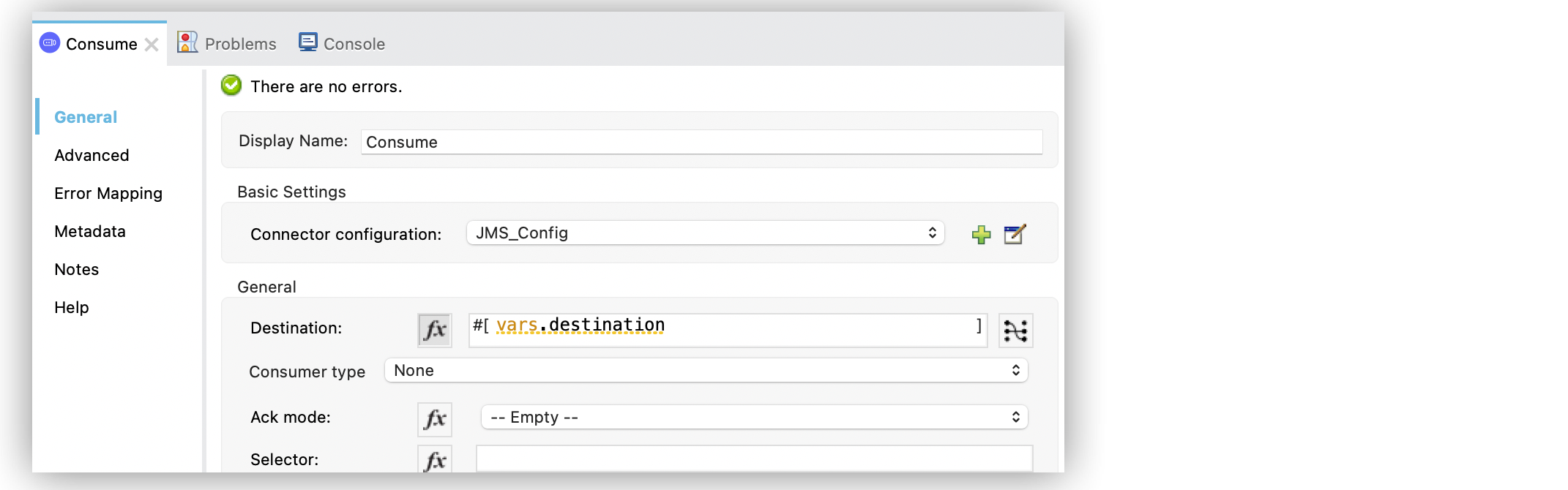
In the XML editor, the <jms:consume> configuration looks like this:
<jms:consume config-ref="JMS_config" destination="#[vars.destination]"/>Consume a Message from a Topic Subscription
In the following example, you configure the Consume operation to consume new messages from a topic subscription by setting the Consumer type field to Topic consumer.
To configure the source in Studio, follow these steps:
-
In the Mule Palette view, select JMS > Consume.
-
Drag Consume to the Studio canvas.
-
In the Consume configuration screen, optionally change the value of the Display Name field.
-
In the Consume configuration screen, in Destination, specify the name of the destination from which to consume the message for example
#[vars.destination]. -
Set the Consumer type field to Topic consumer:
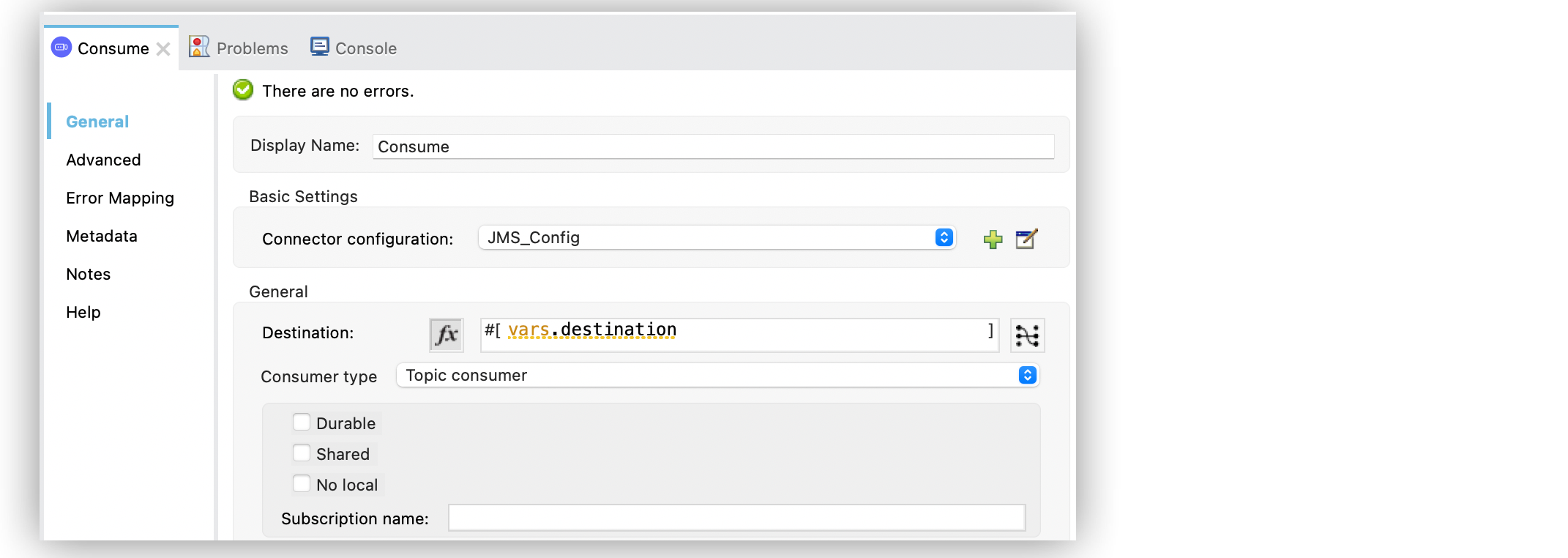
In the XML editor, the <jms:consume> and <jms:topic-consumer/> configuration looks like this:
<jms:consume config-ref="JMS_config" destination="#[vars.destination]">
    <jms:consumer-type>
        <jms:topic-consumer/>
    </jms:consumer-type>
</jms:consume>
Wait for a Message
By default, the Consume operation waits for a message for up to 10000 milliseconds, after which you receive the error JMS:TIMEOUT.
To better suit your use case, configure the Maximum wait and Maximum wait unit fields.
To wait indefinitely for a message to arrive, set the Maximum wait field to -1, which prevents a JMS:TIMEOUT error.
Poll for a Message
When polling for a message with a certain frequency, you don’t want the consumer to block waiting for the message, but instead just try to consume it if one is present.
In this case, set the Maximum wait field to 0, which indicates that no waiting occurs, and neither an error is thrown if no message is available in the specified destination.
The output of the Consume operation is null when no message is present for consumption and no error is thrown.
Filter Incoming Messages
JMS Connector supports filtering messages to consume based on the standard JMS selector language you specify in the Selector field of the Consume operation. By doing so, you receive only the messages matching the selector language, ignoring any other messages in the destination.
In the following example, you configure a priority queue that processes messages faster than others queues:
-
In Studio, select the Consume operation from your flow.
-
Set the Destination field to
openTickets. -
Set the Selector field to
JMSPriority=8:
JMS Connector On New Message Filtering messages image::jms-consume-selector.png[In the Consume operation screen, set the Selector field to filter incoming messages]
In the XML editor, the selector configuration looks like this:
<jms:consume config-ref="JMS_config" destination="openTickets" selector="JMSPriority=8"/>Configure Mime Types and Encoding
JMS Connector determines a message’s mime type (contentType) based on the MM_MESSAGE_CONTENT_TYPE property. However, when you must manage the message’s content, configure the Content-Type field to the particular content type value you need.
By default, JMS Connector assumes that Mule runtime engine default encoding matches the encoding in the message if no other information is provided. Use the Encoding field to configure a different type of encoding.
In the following example, you configure the content-type and encoding:
-
In Studio, select the Consume operation from your flow.
-
Set the Content-Type field to
application/JSON. -
Set the Encoding field to
UTF-8.
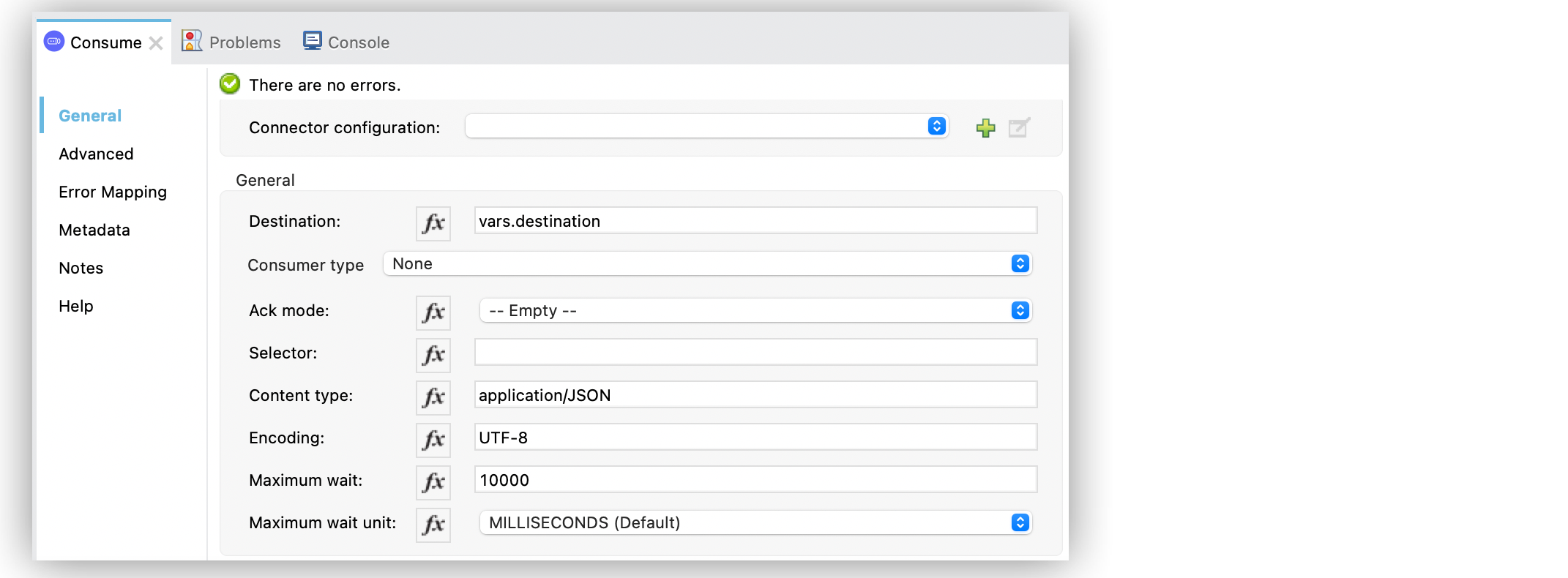
In the XML editor, the contentType and encoding configuration looks like this:
<jms:consume destination="#[vars.destination]" contentType="application/JSON" encoding="UTF-8"/>