
Set Up the Environment and Access Permissions
Create an environment and manage the roles of users who administer Anypoint MQ features in Anypoint Platform for your organization by using Access Management.
Before You Begin
-
Create an environment for permissions.
Follow the steps in To Create a New Environment.
-
Make sure you have the permissions required to use Anypoint MQ.
Anypoint MQ Permissions
| Required Permissions | Grants the Ability to | Notes |
|---|---|---|
View clients |
View all client apps, including client app IDs and client secrets for each client app. |
|
View destinations |
|
|
Clear destinations |
|
|
Manage clients |
|
|
Administer destinations |
|
|
Manage destinations (deprecated) |
|
This permission is deprecated. Assign these permissions instead:
|
Destination subscriber for a given environment |
|
|
Destination publisher for a given environment |
|
|
Read MQ stats |
View organization and environment statistics. |
To assign user permissions, follow the steps in Grant Permissions to Users.
To use teams to assign permissions, follow the steps in Using Teams to Manage User Permissions.
Anypoint MQ access is controlled at the environment and business group levels, not per individual queue or message exchange.
Permissions such as Destination Publisher and Destination Subscriber are granted at the environment level and apply to all destinations in that environment.
There is no native mechanism to restrict access to a single queue or message exchange.
Switch Environments
To switch environments:
-
In Anypoint Platform, go to MQ.
-
Click the environment button.
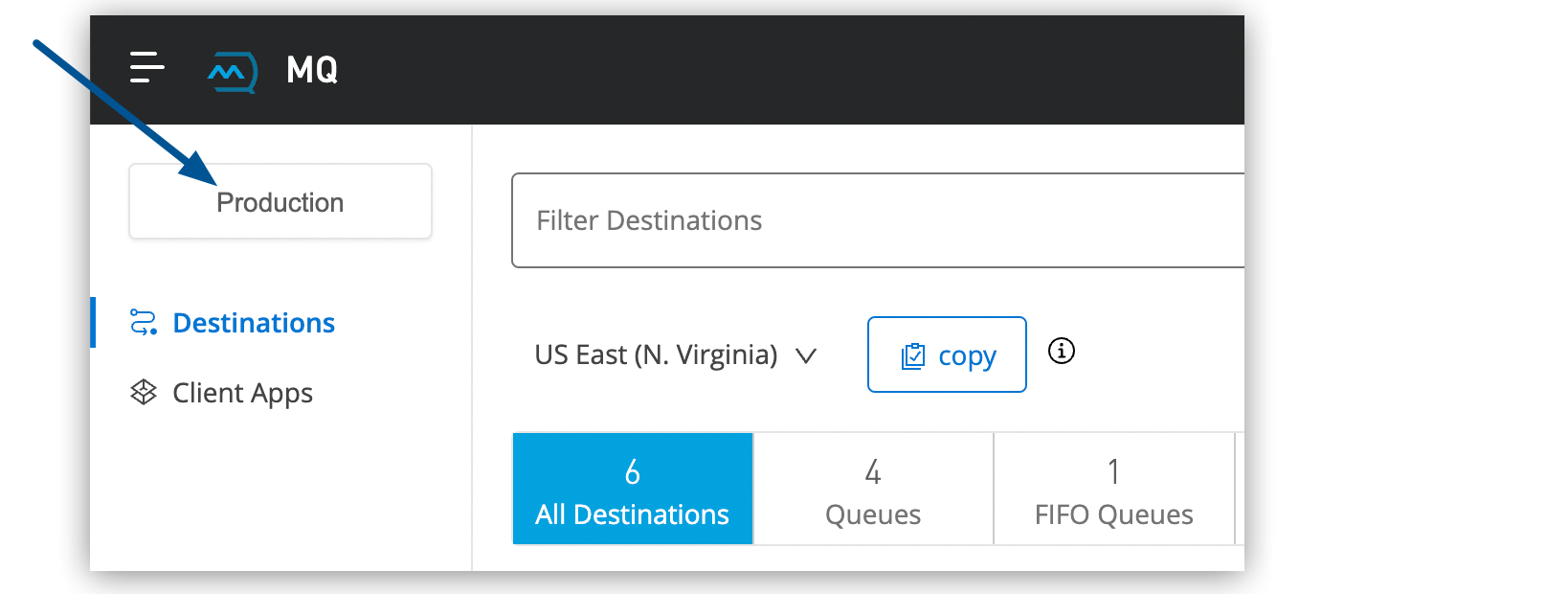
-
To switch to a different environment, click the name of that environment (for example, Sandbox, if you previously created a sandbox environment) and then click Switch.
-
To change your default environment, click Open your profile to change the default environment and choose a different environment from the Default environment list.
-