
Publishing Your gRPC API to Exchange
Publish your gRPC API specification or Protobuf library (fragment) to Anypoint Exchange so that other team members can discover, reuse, and implement it.
In Exchange, published gRPC API projects appear as assets of type gRPC API. Published Protobuf libraries (reusable fragments) appear as assets of type API Fragment.
Before You Begin
-
Design a gRPC API specification in Anypoint Code Builder, or create a Protobuf library project for reusable types and services.
-
Have some familiarity with business groups.
When you publish your API spec to Exchange, Anypoint Code Builder requests the name of the business group.
Publish a gRPC API Project to Exchange
To publish your gRPC API project (or Protobuf library project) to Exchange:
-
Log in to your Anypoint Platform account.
-
In Explorer, open your gRPC API project and click the Publish API Project to Exchange icon.
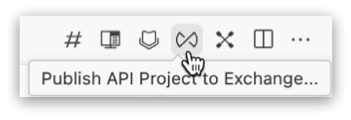
You can also right-click the API project in Explorer and select API > Publish API Project to Exchange.
Alternatively, open the Command Palette and run:
MuleSoft: Publish API Project to Exchange -
If prompted, click Allow and follow the prompts to sign in to Anypoint Platform.
-
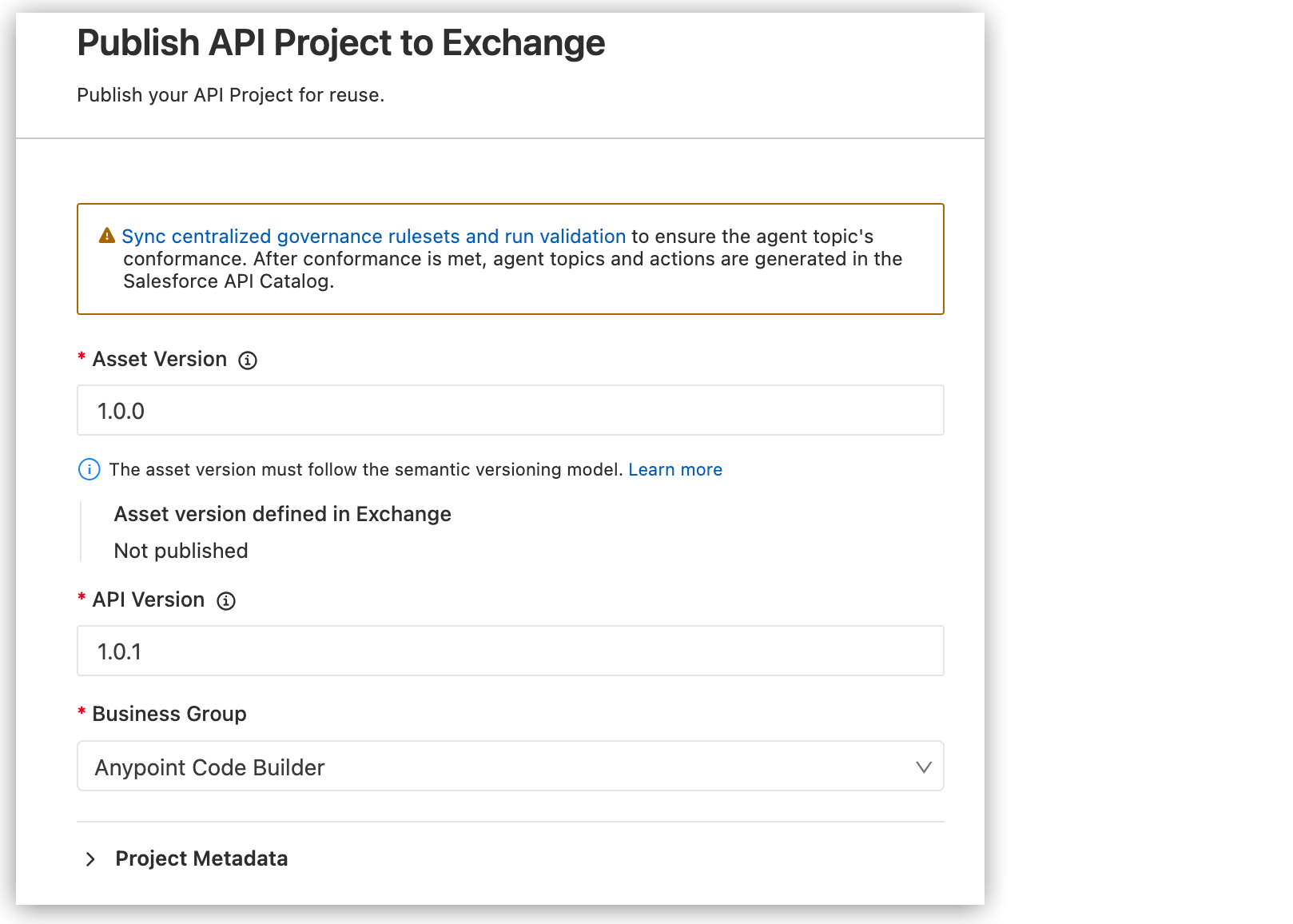
Confirm or change each item in Publish API Project to Exchange:
-
Asset Version – For example,
1.0.0for a first publish. -
API Version – Optional for API fragments (Protobuf libraries).
-
Business Group – The business group where the asset is published.
-
-
Optionally, expand Project Metadata and update asset name, tags, categories, or other metadata. Click Apply after making changes.
-
Optionally, in the banner click Sync centralized governance rulesets and run validation to validate the project against applied rulesets. You must be logged in and have a business group defined in the project metadata.
-
Click Publish.
Anypoint Code Builder builds the project and publishes the asset to Exchange. When publishing is complete, you see a message that the API specification (or fragment) successfully published to Exchange.
If the project has validation or build errors, fix them before publishing. Check the Problems tab and the output panel for details.
-
Click View Asset to open the published asset in Exchange.
-
When prompted to implement the API, choose Yes to scaffold the gRPC specification into a new project, or No to skip. See Implementing a gRPC API Specification with Anypoint Code Builder for implementing a gRPC API spec.
Locate Your gRPC API in Exchange
After publishing, find your gRPC API or Protobuf library in Anypoint Exchange:
-
Log in to Anypoint Platform and open Anypoint Exchange (see Locate Your API in Exchange for links).
-
Search or browse for the asset by name. gRPC API projects appear as assets of type gRPC API. Protobuf library projects appear under the appropriate fragment type.
Other developers can discover the asset, add it as a dependency for implementation, or import it as a Protobuf library into their gRPC API design projects.