
Implementing a gRPC API Specification with Anypoint Code Builder
After you publish your gRPC API specification to Anypoint Exchange, use Anypoint Code Builder to scaffold it into a Mule implementation project. Scaffolding generates the routing logic and a flow for each RPC method defined in your .proto file so you can implement and run the gRPC service in a Mule application.
Scaffolding is supported for gRPC API specifications that are published to Anypoint Exchange.
Anypoint Code Builder uses the service and method definitions in your Protobuf specification to autogenerate an interface that includes:
-
A flow for each RPC method (unary, client streaming, server streaming, or bidirectional streaming)
-
A gRPC listener configuration for incoming requests
You can scaffold a gRPC API specification from Exchange into a new project or into an existing integration project:
-
To scaffold a gRPC spec from Exchange into a new project, see Scaffold a gRPC API into a New Project.
-
To scaffold a gRPC spec from Exchange into an existing project, see Import a gRPC API Spec into an Existing Project.
-
To update your project with the latest changes to a gRPC spec in Exchange, see Re-scaffold a gRPC API Specification into a Project.
After scaffolding, implement the business logic in each flow, then run and deploy your Mule app as described in Developing Integrations.
Before You Begin
-
Design a gRPC API specification in Anypoint Code Builder, then publish it to Exchange. Scaffolding is supported only for gRPC API specs published to Anypoint Exchange as a gRPC API asset. The specification must be available in Exchange before you can scaffold it into a project.
-
Verify that your Mule runtime supports gRPC. gRPC uses HTTP/2; Mule runtime 4.11 or later is required. See Version Settings for Mule, Java, and Connectors.
-
Optionally, create your integration project (Mule app).
Scaffold a gRPC API into a New Project
Use Anypoint Code Builder to scaffold a gRPC API specification from Exchange into a new Mule project:
-
In the activity bar, click the
 (Anypoint Code Builder) icon.
 -
From Create, click Implement an API:
-
Complete the Implement an API Specification form:
Field Name Field Value Project Name
Unique name for your implementation project.
Project Location
Your home directory or another directory you create.
Don’t create the project within another project directory.
Search an API Specification from Exchange
Name of the gRPC API specification in Exchange.
Use search filters and select the Type that corresponds to gRPC API to narrow results to gRPC specifications.
Mule runtime
Mule runtime version 4.11 or later (required for gRPC).
Java Version
Java version compatible with your Mule runtime.
Add to workspace
Optionally select or deselect to add the new project to the current workspace. Deselect to create the project in the chosen location without opening it in the current workspace.
-
Search for the gRPC API spec, select it, and click Add Asset (or equivalent) to add the selected spec to the form.
-
Click Create Project.
If prompted, trust the authors of the files in the folder.
The scaffolding engine runs and generates the Mule project from the gRPC API specification. During this process, Anypoint Code Builder downloads and generates the compiled Protobuf descriptor file (
.protobin) from the selected gRPC spec. The descriptor is stored in thesrc/main/resources/grpc/directory and is referenced by the gRPC server configuration and RPC operations in the Mule project.Once scaffolding completes, Anypoint Code Builder shows a notification such as Scaffolding finished successfully and the project reloads.
When you create the project, Anypoint Code Builder:
-
Adds the gRPC API spec as a dependency in your project’s
pom.xmlfile. -
Adds the Mule and Java versions to the project’s
mule-artifact.jsonfile. -
Scaffolds the gRPC specification into the new Mule project and opens the configuration XML file.
-
The configuration XML file includes the interface for your implementation project. It also has a flow for each RPC method in the spec and a gRPC listener configuration. For streaming RPC patterns (server streaming or bidirectional streaming), additional server-side operations such as Respond Server Stream and End Stream are available to control how messages are sent and when the stream is closed.
Add your business logic to each flow and run or deploy the application.
Generate Project Structure
After scaffolding finishes, the new Mule project contains:
-
flows.xml(insrc/main/mule/)–Contains a flow for each RPC method defined in the gRPC service. Each flow includes a gRPC listener source and a logger. Update the logic in these flows to implement your use case. -
global-configs.xml(insrc/main/mule/)–Defines the HTTP Listener configuration and the gRPC server configuration (grpc-server-config). The gRPC server config references the generated Protobin descriptor so the run-time can serve the gRPC API. -
grpc-properties.properties(insrc/main/resources/)–Properties for the gRPC server, such asgrpc.server.host,grpc.server.port, andgrpc.server.descriptorFile. -
src/main/resources/grpc/–Folder containing the generated.protobindescriptor file used by the gRPC connector at run time. The descriptor is stored in a subfolder organized by the asset’s unique ID and version (for example,src/main/resources/grpc/<id>/<version>/<name>.protobin). You can confirm successful generation by opening this folder in the project explorer.
Import a gRPC API Spec into an Existing Project
If you created an integration project, you can scaffold a gRPC API specification from Exchange into that project using the same MuleSoft: Import Asset from Exchange command. For gRPC API assets, Anypoint Code Builder automatically generates the Protobuf descriptor file (.protobin) as part of the import and scaffolding flow. Anypoint Code Builder creates a separate configuration XML file for the gRPC interface in your integration project.
-
In Anypoint Code Builder, open your integration project in the Explorer view.
-
Open the Command Palette.
Show me how
-
Use the keyboard shortcuts:
-
Mac: Cmd+Shift+p
-
Windows: Ctrl+Shift+p
-
-
Select View > Command Palette.
-
-
Provide the following command:
MuleSoft: Import Asset from Exchange -
Depending on the language of your API spec, select one of these options:
-
Rest API for OAS or RAML
-
GraphQL API
-
-
If prompted, click Allow to allow sign in using Anypoint Platform and select the business group.
-
Type the name of the API spec, and press Enter.
-
Wait for Anypoint Code Builder to load a list of matches to the name.
-
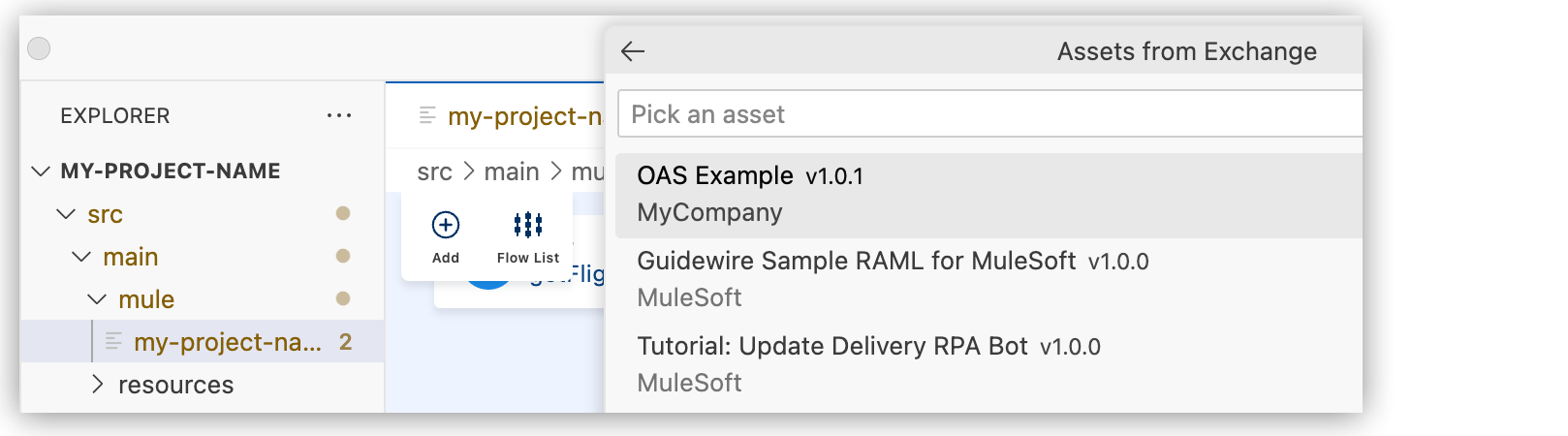
From the list of asset types, select gRPC API.
-
Select the gRPC API specification to import.
-
At the prompt, select the version of the gRPC API spec (for example,
1.0.0). -
When prompted to scaffold the API dependency, select Yes.
When you scaffold the gRPC API dependency, Anypoint Code Builder:
-
Adds the gRPC API spec as a dependency in your project’s
pom.xmlfile. -
Adds a new configuration XML file for the gRPC interface to the project.
-
The new configuration XML file includes flows for each RPC method in the spec and a gRPC listener configuration. Implement the business logic in each flow within the Mule app.
Re-scaffold a gRPC API Specification into a Project
Re-scaffolding updates your implementation or integration project with the latest changes and version of a gRPC API specification in Anypoint Exchange. Re-scaffolding updates the configuration XML and dependencies in your project.
-
In Anypoint Code Builder, open your implementation or integration project in the Explorer view.
-
Open the Command Palette.
Show me how
-
Use the keyboard shortcuts:
-
Mac: Cmd+Shift+p
-
Windows: Ctrl+Shift+p
-
-
Select View > Command Palette.
-
-
Provide the following command:
MuleSoft: Import Asset from Exchange -
Depending on the language of your API spec, select one of these options:
-
Rest API for OAS or RAML
-
GraphQL API
-
-
If prompted, click Allow to allow sign in using Anypoint Platform and select the business group.
-
Type the name of the API spec, and press Enter.
-
Wait for Anypoint Code Builder to load a list of matches to the name.
-
From the list of asset types, select gRPC API.

-
Select the same gRPC API specification (or the updated asset).
-
At the prompt, select the newer version of the gRPC API spec (for example,
2.0.0). -
When prompted to scaffold the API dependency, select Yes.
Anypoint Code Builder updates the project with the new flows and configuration. Review the configuration XML and adjust your business logic as needed.