
Managing Custom Metadata
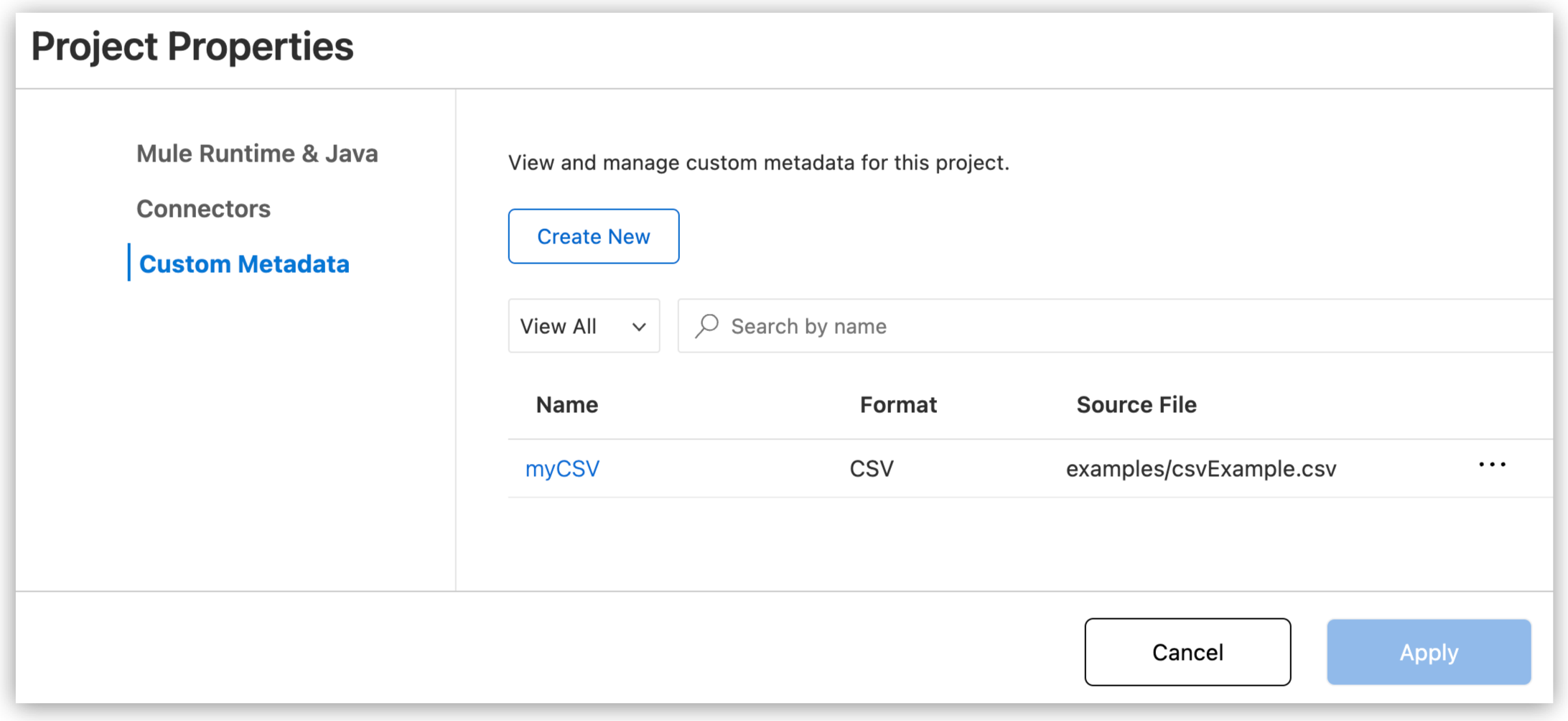
Define and assign custom metadata to accurately represent your organization’s unique data structures within your integration projects. Create metadata for inputs and outputs using common formats so your data transformations stay accurate. Custom metadata connects your visual development tools to your data requirements, facilitating easier testing and workflow creation.
Supported Metadata Types
Anypoint Code Builder supports these metadata types:
-
CSV
-
Copybook
-
Excel
-
Fixed Width
-
Flat File
-
JSON
-
Object
-
Simple type
-
XML
Create Custom Metadata
To create custom metadata:
-
Click Create New.
-
Enter a unique name for the metadata.
-
Select the metadata type, such as CSV, JSON, or XML.
-
Add additional required details for the metadata, depending on the type selected, such as the definition or source type, schema, and class. You must also upload a sample file for some metadata types.
-
Select to wrap the element in a collection, which converts the custom metadata into an array. The enrichment element in the
application-types.xmlfile is updated automatically with the conversion. -
Click Save and Close.
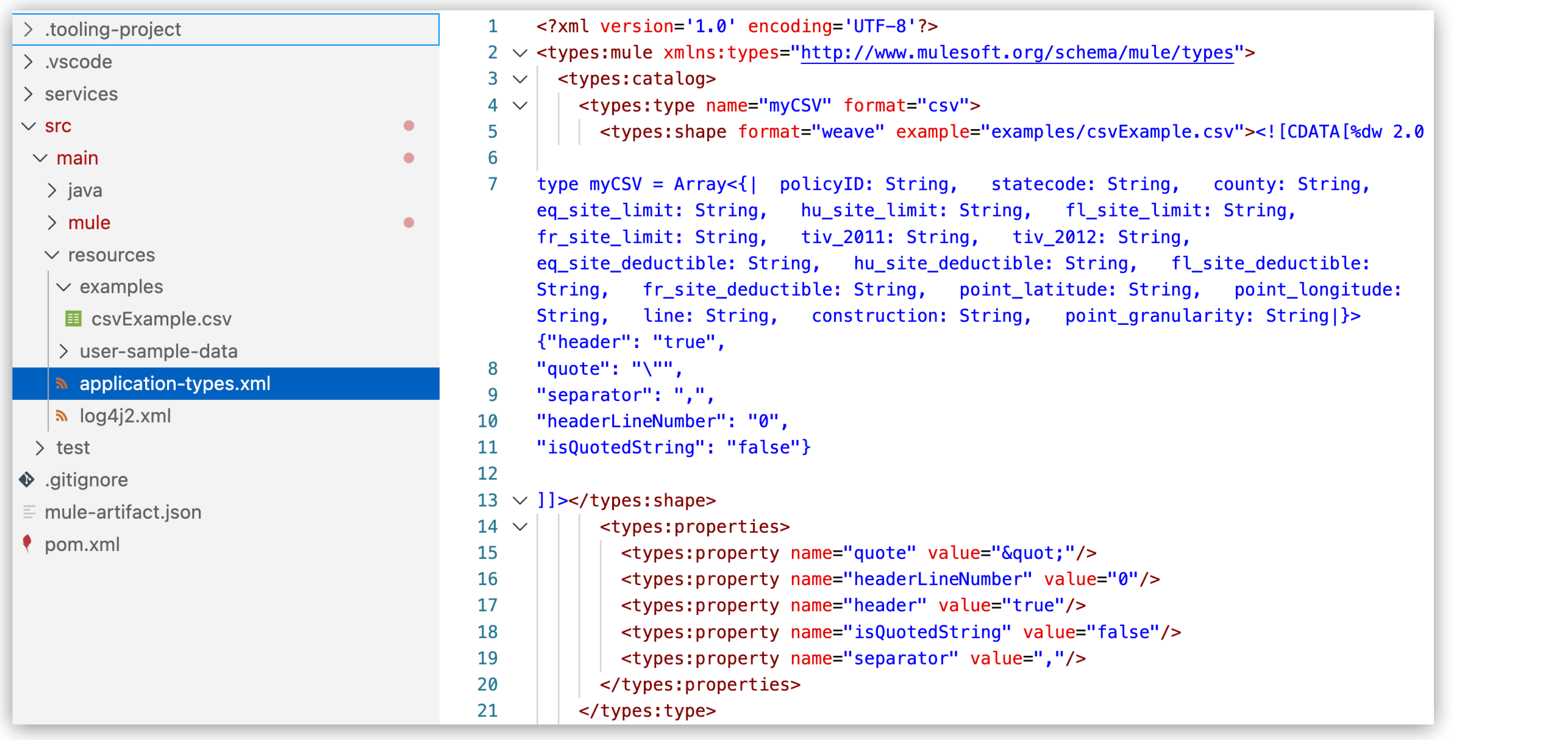
The custom metadata is stored in the application-types.xml file in your project’s resources folder. Sample files and custom metadata created in Anypoint Code Builder are compatible with Anypoint Studio and vice versa.
| To apply custom metadata to a component, add or open the component in the canvas and then apply the metadata using the custom metadata options from the Metadata tab, Expression Builder, or Transformation Builder. For more information, see Set Custom Metadata on the Metadata or Data Tab and see Set Custom Metadata in Transformation Builder. |
Edit Custom Metadata
To edit custom metadata, click the three dots next to the source file and then click Edit. Make your changes and then click Save and Close. The changes are applied to all components that use the custom metadata.
Preview Custom Metadata
To preview custom metadata, click the name of the metadata. The preview shows the metadata in the selected format.
Delete Custom Metadata
To delete custom metadata from the Custom Metadata tab, click the three dots next to the source file and then click Delete. The metadata is deleted from all components that use it.
You can also delete custom metadata when editing by clicking Delete Custom Metadata from the three dots menu.