
Mule Runtime Issues and Errors
Anypoint Code Builder includes bundled Mule runtime versions that enable instant project opening and design. When you run or debug applications, Anypoint Code Builder checks for the exact runtime version specified in your project. If the exact version isn’t available locally, error dialogs appear to help you resolve the issue.
Don’t change the default locations of Mule. If you receive an error that Mule isn’t found or installed, configure the Mule Home path.
When you configure Mule runtime, ensure you define the mule.homeDirectory property.
The mule.runtime.muleRuntimesDirectory and mule.runtime.muleHome properties are legacy configurations no longer used.
|
-
Mule runtime versions: The Mule runtime versions are located in the
{yourACBHome}/runtimesdirectory.Default value:
/Users/{user}/AnypointCodeBuilder/runtime. -
Mule Home: The full path that points to the root files of the Mule instance.
Default value:
/Users/<user-name>/AnypointCodeBuilder/runtime/<mule-runtime-installation>
Mule Runtime Is Not Installed
The error Mule Runtime Is Not Installed, You Must Configure a Mule Runtime to Enable This Feature occurs if Mule Home is misconfigured or empty and a feature requires a running Mule instance. For example, auto completion and debugging features require Mule to run.
To troubleshoot this issue, use this procedure:
-
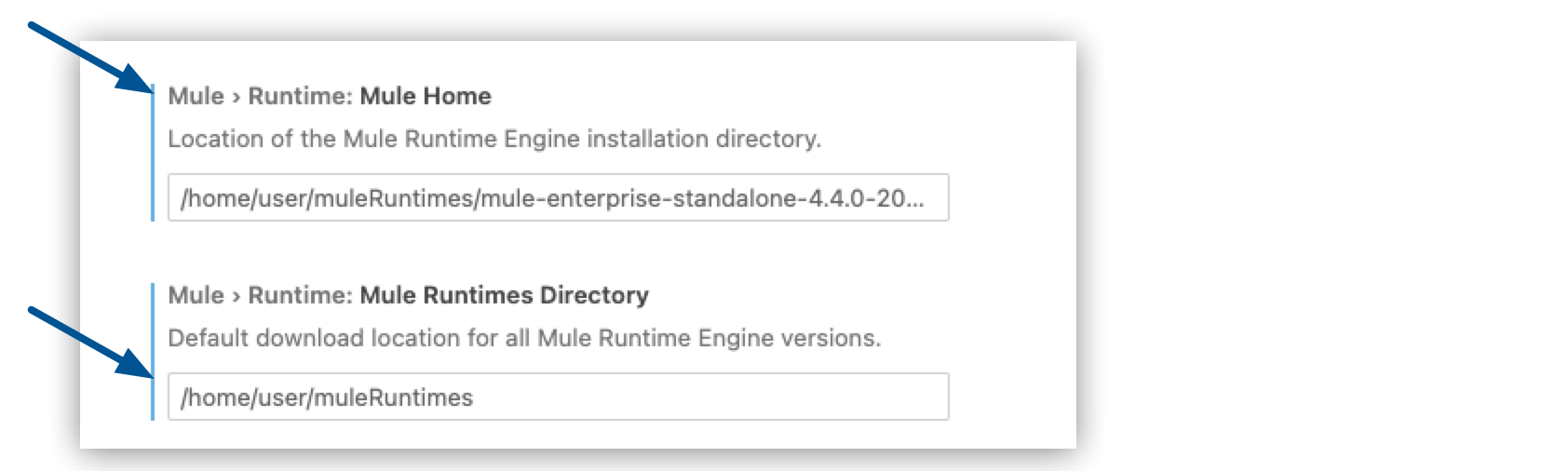
Locate the Mule > Runtime: Mule Home property:
-
Provide the full path to the folder that contains Mule runtime. This field must not be empty.
No Mule Runtime Found
The warning No Mule runtime found. To perform this action, you must have Mule runtime configured. occurs if:
-
Mule isn’t configured properly when you open Anypoint Code Builder
-
The Mule Home field is misconfigured or empty
To troubleshoot this issue, use this procedure:
-
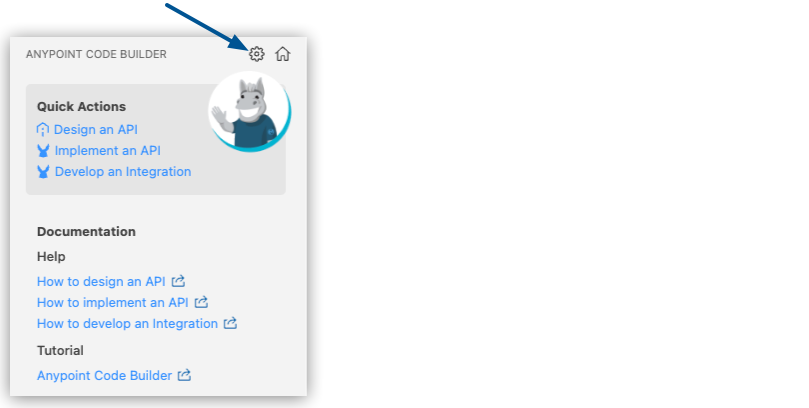
Go to your Anypoint Code Builder view, and select Open ACB Settings.
-
Locate the Mule > Runtime: Mule Home property:
-
Provide the full path to the folder that contains Mule runtime. This field must not be empty.
Please Download and Install a JDK to Compile Your Project
This request is not from MuleSoft or Anypoint Code Builder:

For supported Mule workflows, Anypoint Code Builder resolves Java from the JDK packaged under your AnypointCodeBuilder directory. Using that local JDK source helps avoid machine-specific Java setup issues and improves project startup reliability.
Instead of using this feature, you can use the command Download Mule Runtime and Java Versions. See Version Settings for Mule, Java, and Connectors.
Mule Runtime Version Not Defined
The error Mule runtime version not defined occurs when your project doesn’t specify a Mule runtime version in the project’s mule-artifact.json file.
To resolve this issue:
-
Click Open Project Properties in the error dialog, or run the command
MuleSoft: Open Mule Project Properties. -
In Project Properties, select a Mule runtime version.
-
Click Apply.
Java Version Not Defined
The error Java version not defined occurs when your project doesn’t specify a Java version in the project’s mule-artifact.json file.
To resolve this issue:
-
Click Open Project Properties in the error dialog, or run the command
MuleSoft: Open Mule Project Properties. -
In Project Properties, select a Java version.
-
Click Apply.
Mule Runtime Version Not Found (Compatible Version Available)
The error Mule runtime [version] not found occurs when you try to run or debug an application, but the exact Mule runtime version specified in your project isn’t available locally. However, a compatible local version is available.
To resolve this issue, you have two options:
-
Continue with compatible version: Click Continue to use the latest local compatible version. The dialog shows which version to use.
-
Select a different version: Click Open Project Properties to select a different local Mule runtime version or install the exact version using the
MuleSoft: Install Runtimecommand.
Mule Runtime Version Not Found (No Compatible Version)
The error Mule runtime [version] not found occurs when you try to run or debug an application, but the exact Mule runtime version specified in your project isn’t available locally, and no compatible version is available.
To resolve this issue:
-
Click Open Project Properties in the error dialog.
-
In Project Properties, either:
-
Select a locally available Mule runtime version from the dropdown, or
-
Use the
MuleSoft: Install Runtimecommand to download the required version.
-
-
Click Apply.
Java Version Not Found
The error Java [version] not found occurs when you try to run or debug an application, but the Java version specified in your project isn’t available locally.
To resolve this issue:
-
Click Open Project Properties in the error dialog.
-
In Project Properties, either:
-
Select Java 17 (or another available version) from the dropdown, or
-
Use the
MuleSoft: Download Mule Runtime and Java Versionscommand to download the required Java version.
-
-
Click Apply.
Mule Runtime and Java Version Not Found
The error Mule runtime [version] and Java [version] not found occurs when you try to run or debug an application, but both the Mule runtime and Java versions specified in your project aren’t available locally.
To resolve this issue:
-
Click Open Project Properties in the error dialog.
-
In Project Properties:
-
Select a locally available Mule runtime version and Java 17 (or another compatible version) from the dropdowns, or
-
Use the
MuleSoft: Install Runtimecommand to download the required Mule runtime version, and use theMuleSoft: Download Mule Runtime and Java Versionscommand to download the required Java version.
-
-
Click Apply.
Reinstall Mule Runtime
If your Mule runtime installation becomes corrupted, you can force a reinstallation:
-
Close Anypoint Code Builder.
-
Navigate to your Mule runtime directory:
${user.home}/AnypointCodeBuilder/runtimes. -
Remove or rename the folder for the runtime version you want to reinstall (for example,
mule-4.6.0). -
Open Anypoint Code Builder.
-
Select the Mule runtime version from Project Properties.
Anypoint Code Builder downloads and reinstalls the selected version. For details on selecting versions, see Select Mule and Java Versions for a Project.
| Your projects and other installed Mule runtime versions are not affected. |