
Step 2. Design an API Spec
API-led development means designing the contract before writing any code. By defining your API spec upfront, you give your team, consumers, and tools a shared contract to build against, which reduces rework and increases reuse.
Design your API spec before building the implementation. An API spec defines the endpoints, parameters, and responses your API supports, giving you and your team a contract to work from.
To design an API, assess the purpose and requirements:
-
Identify the type of API: Is it a simple API, part of an integration, or part of a backend system?
-
Understand the data flows: one-way, two-way, or more.
-
Explore the security requirements.
After you define the scope and flow of your integration project, define an API spec in OAS. You can use MuleSoft Vibes to generate the spec from a plain-language description, or create it manually in Anypoint Code Builder.
API Specs and APIs
An API is a published interface to a resource that anyone with the correct permissions and a properly structured request can access.
An API spec details the functional and expected behavior of an API, as well as the fundamental design philosophy and supported data types. It contains both documentation and API definitions to create a contract that people and software can read.
MuleSoft provides tools that make it easy to create an API spec that you can then share with your team, your customers, or the general public. Using an API spec increases adoption and shortens project completion time.
Step 2.1: Explore Existing API Specs
If you look at existing API specs before writing your own, you can learn how other people have approached situations similar to yours. You can also check whether an API spec with the same objectives isn’t already in development, and reuse it if appropriate.
Looking for an API spec that already does what you need is easy:
-
Look at the public Anypoint Exchange, which is a portal hosted by MuleSoft that contains API specs, connectors, and other assets that you can download and use. You’ll see some of the most popular API specs, connectors, and other assets displayed on the landing page.
-
Select Any Type > REST APIs to display only REST API specs.
-
Click any spec to see the data types and the HTTP requests defined for the API.
-
-
Look at Exchange for your organization (account). Logging in changes the view to your organization’s private Exchange.
-
Log in to Anypoint Platform if needed.
-
In the Anypoint Platform landing page, go to the Exchange section and click Discover & Share.
-
Click any spec to see the data types and the HTTP requests defined for the API. If this is a trial org, you might not see anything yet.
-
After exploring Exchange to see the range of assets available, use Anypoint Code Builder to create a new API spec.
Step 2.2: Access Anypoint Code Builder
-
Open the desktop IDE (VS Code) with Anypoint Code Builder installed.
-
In the activity bar of the IDE, click
 (Anypoint Code Builder).
Step 2.3: Create Your API Spec
You have two options for creating your API spec. Choose the method that works best for your environment:
-
Option A: Use MuleSoft Vibes (AI-Powered): Requires the Mule Developer Generative AI User permission and generative AI enabled in Access Management
-
Option B: Create Manually: Use this option if you don’t have access to MuleSoft Vibes
-
Option A: Use MuleSoft Vibes
-
Option B: Create Manually
-
Open MuleSoft Vibes from the toolbar or from the Build Your Ecosystem with AI card in the canvas.
-
Type this prompt in the chat:
Create an OAS 3.0 API spec called "hello-world-api" with a GET endpoint at /greeting that accepts a required query parameter called "name" and returns a JSON response with a message field containing a personalized greeting. -
Press Enter to send.
MuleSoft Vibes generates your API spec in about 10 seconds. You’ll see the generated spec in the chat response.
-
Click Create Project in the MuleSoft Vibes response.
-
Select your home directory as the project location.
Anypoint Code Builder creates the project and opens
hello-world-api.yamlin the editor.
-
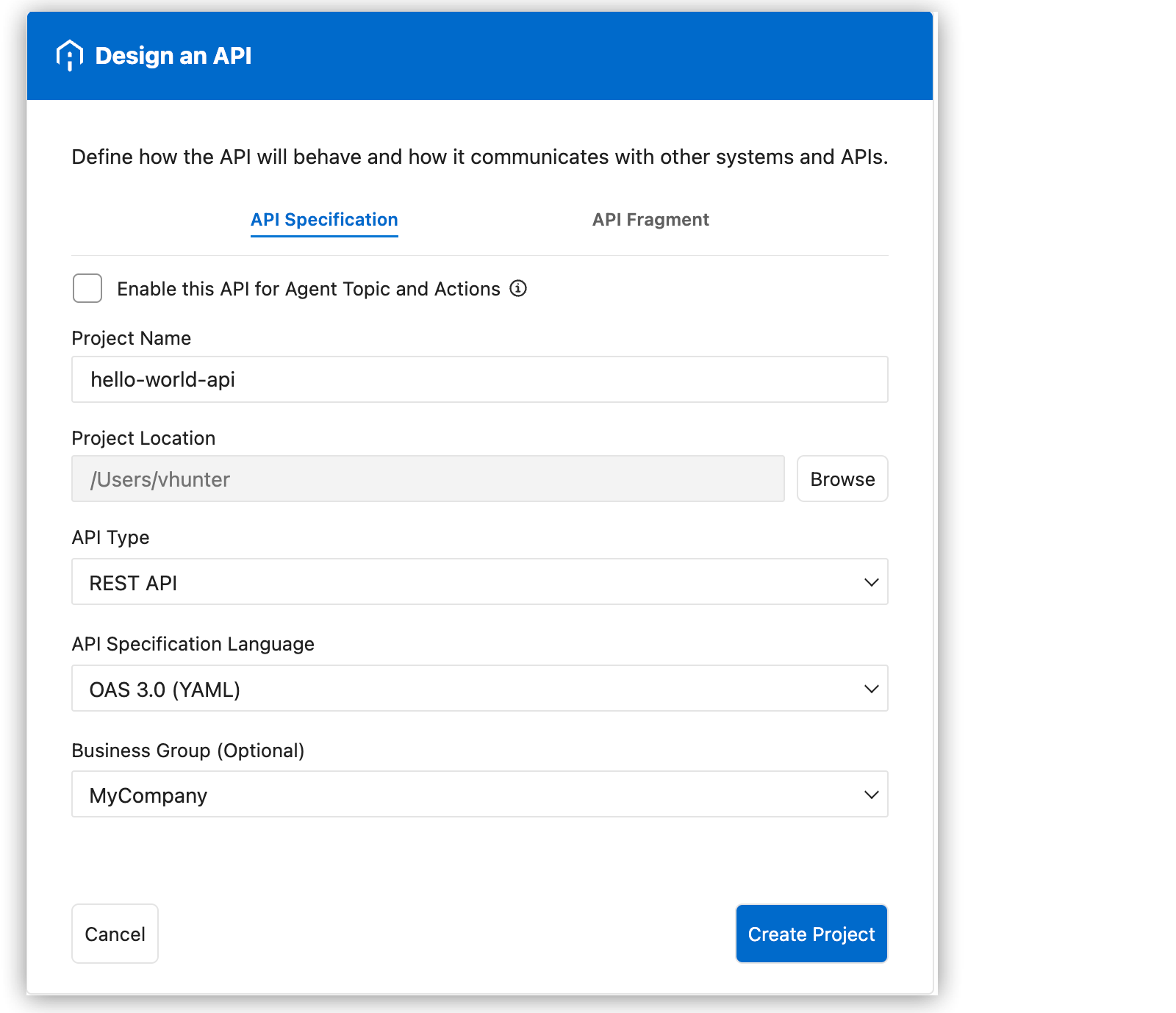
Click Design an API.
-
Complete the API Specification form:
-
Project Name, enter
hello-world-api. -
Project Location, select your home directory.
-
API Type, select REST API.
-
API Specification Language, select OAS 3.0 (YAML).
-
Optionally, select a business group.
-
-
Click Create Project.
Anypoint Code Builder creates the project and opens
hello-world-api.yamlin the editor with a basic template. -
Replace the template content with this API spec:
openapi: 3.0.0 info: title: hello-world-api version: 1.0.0 paths: /greeting: get: parameters: - name: name in: query required: true schema: type: string description: The name to greet responses: '200': description: Success content: application/json: schema: type: object properties: message: type: string example: "Hello, World!" -
Save the file (File > Save or Cmd+S/Ctrl+S).
Step 2.4: Review Your API Spec
You now have a complete API spec open in the editor. Review the structure:
openapi: 3.0.0
info:
  title: hello-world-api
  version: 1.0.0
paths:
  /greeting: (1)
    get:
      parameters: (2)
        - name: name
          in: query
          required: true
          schema:
            type: string
          description: The name to greet
      responses: (3)
        '200':
          description: Success
          content:
            application/json:
              schema:
                type: object
                properties:
                  message: (4)
                    type: string
example: "Hello, World!"| 1 | The endpoint path for the API. Clients send GET requests to /greeting. |
| 2 | Defines the required query parameter that clients must provide. |
| 3 | Defines the possible HTTP responses this endpoint returns. |
| 4 | The JSON response property that contains the greeting message. |
Step 2.5: Test with the Mocking Service
Use the Mocking Service in the API Console to test your spec before implementing it.
-
With
hello-world-api.yamlstill open, click (API Console) in the editor toolbar.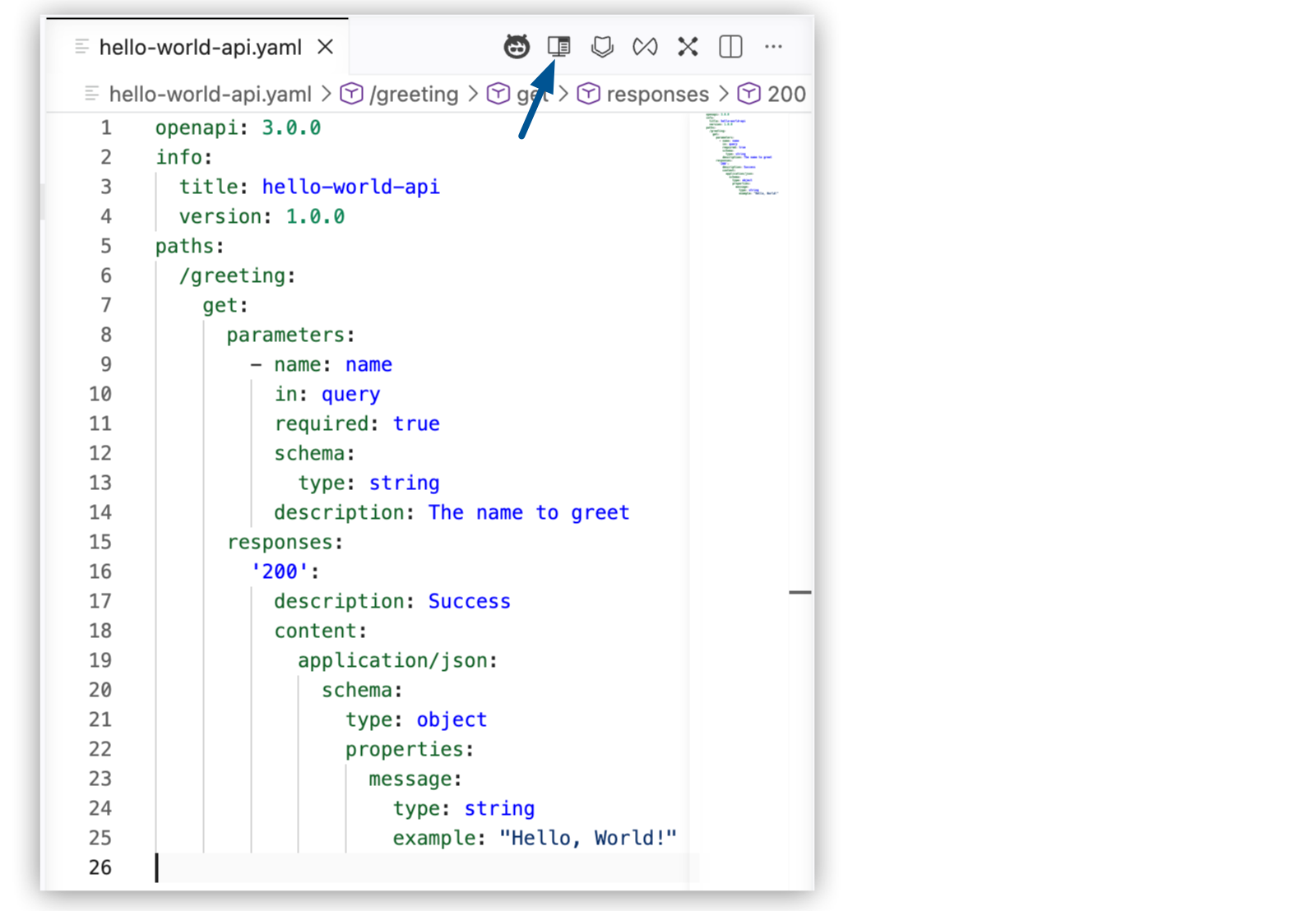
The API Console displays your spec.
-
In the API Console, expand the GET method for the
/greetingresource. -
Click Try It.
-
In the name query parameter field, enter
World. -
Click Send.
-
Verify that API Console returns the response:
{
  "message": "Hello, World!"
}
Congratulations, you’ve designed an API!
What You Learned
You created an OAS 3.0 API spec in Anypoint Code Builder, either by describing your API in plain language using MuleSoft Vibes or by writing the YAML manually. You then used the API Console’s Mocking Service to test the spec and verify it returns the expected response before writing any implementation code.