
Managing Servers
Manage individual servers in your hybrid standalone environment through Runtime Manager’s centralized administration interface. Server management includes accessing configuration settings, controlling server lifecycle operations, managing custom and discovered properties, and maintaining security certificates to ensure optimal performance and secure communication.
Access Server Settings
The server Settings page provides centralized access to all configuration and management options for your hybrid standalone servers. From this page, you can configure custom properties, monitor server health, manage certificates, and perform essential server operations like restart, shutdown, or deletion.
To access the Settings page:
-
From Anypoint Platform, select Runtime Manager.
-
Click Servers.
-
Either:
-
Click the Type column to display the details pane and click Manage Server, Manage Group, or Manage Cluster:
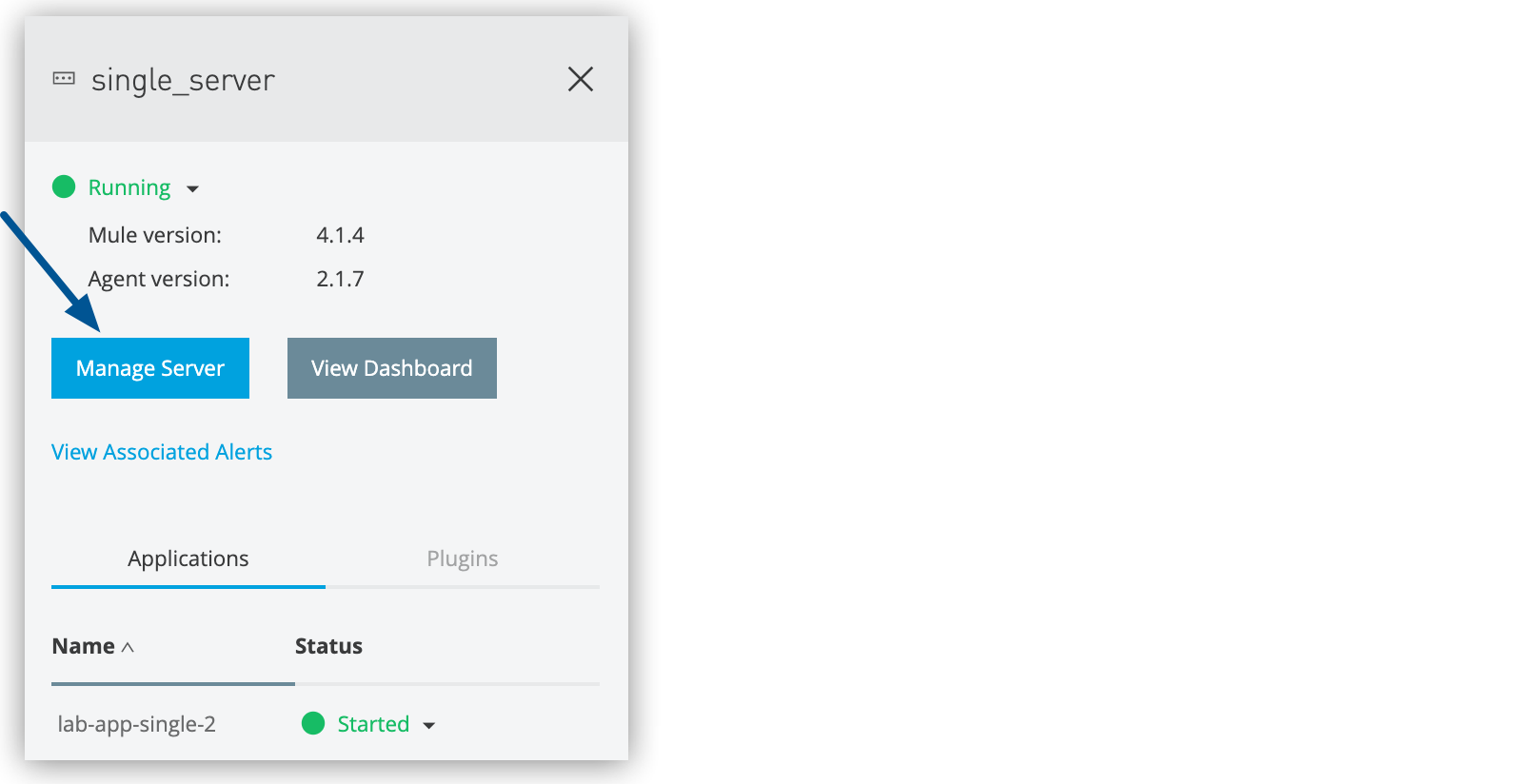 Figure 1. The arrow shows the Manage Server button in the details pane.
 -
Click the name of the server, server group, or cluster on the Servers page and then click Settings:
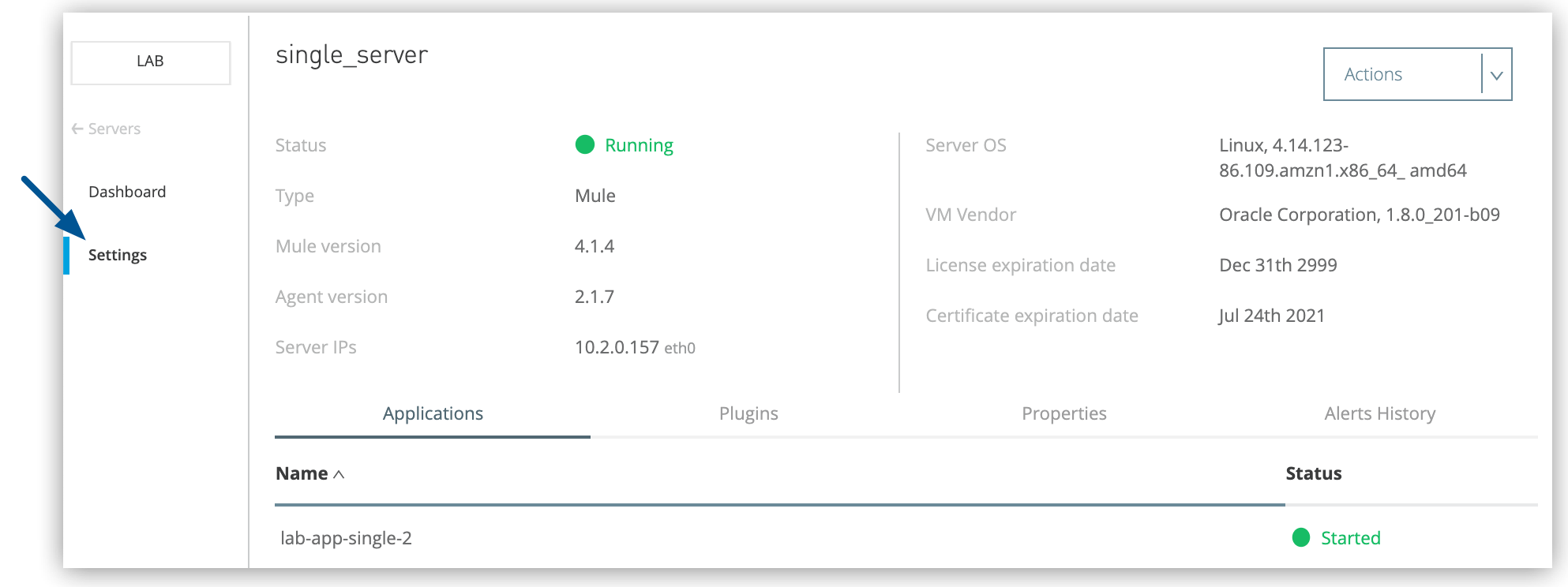 Figure 2. The arrow shows the option to navigate to the Settings page.
-
View Server Information
Runtime Manager provides multiple views to monitor and manage your hybrid standalone servers. Access server information through the servers list, details pane, or comprehensive dashboard views.
Access the Servers List
View all servers, server groups, clusters, and API gateways in your environment:
-
From Anypoint Platform, select Runtime Manager.
-
Click the Servers tab.
The servers list displays key information for each component:
- Name
-
The name of the server, API gateway, server group, or cluster.
- Status
-
Current operational status (Running, Disconnected, Created, etc.).
- Type
-
Component type: Mule server, API gateway, server group, or cluster.
- Version
-
Mule runtime engine or API gateway version number.
View the Details Pane
Access detailed information and quick actions for a specific server:
-
From the Servers list, click the Type column for the server you want to view.
-
The details pane displays on the right side of the screen.
The details pane provides:
Overview Information
-
Current status indicator
-
Mule runtime engine or API gateway version
-
Runtime Manager agent version
-
For clusters: cluster type (unicast or multicast)
Quick Actions
-
Manage Server, Manage Group, or Manage Cluster button to access the Settings page
-
View Dashboard button to open the server dashboard
To view the dashboard for a server in a server group or cluster, click the server name in the details pane.
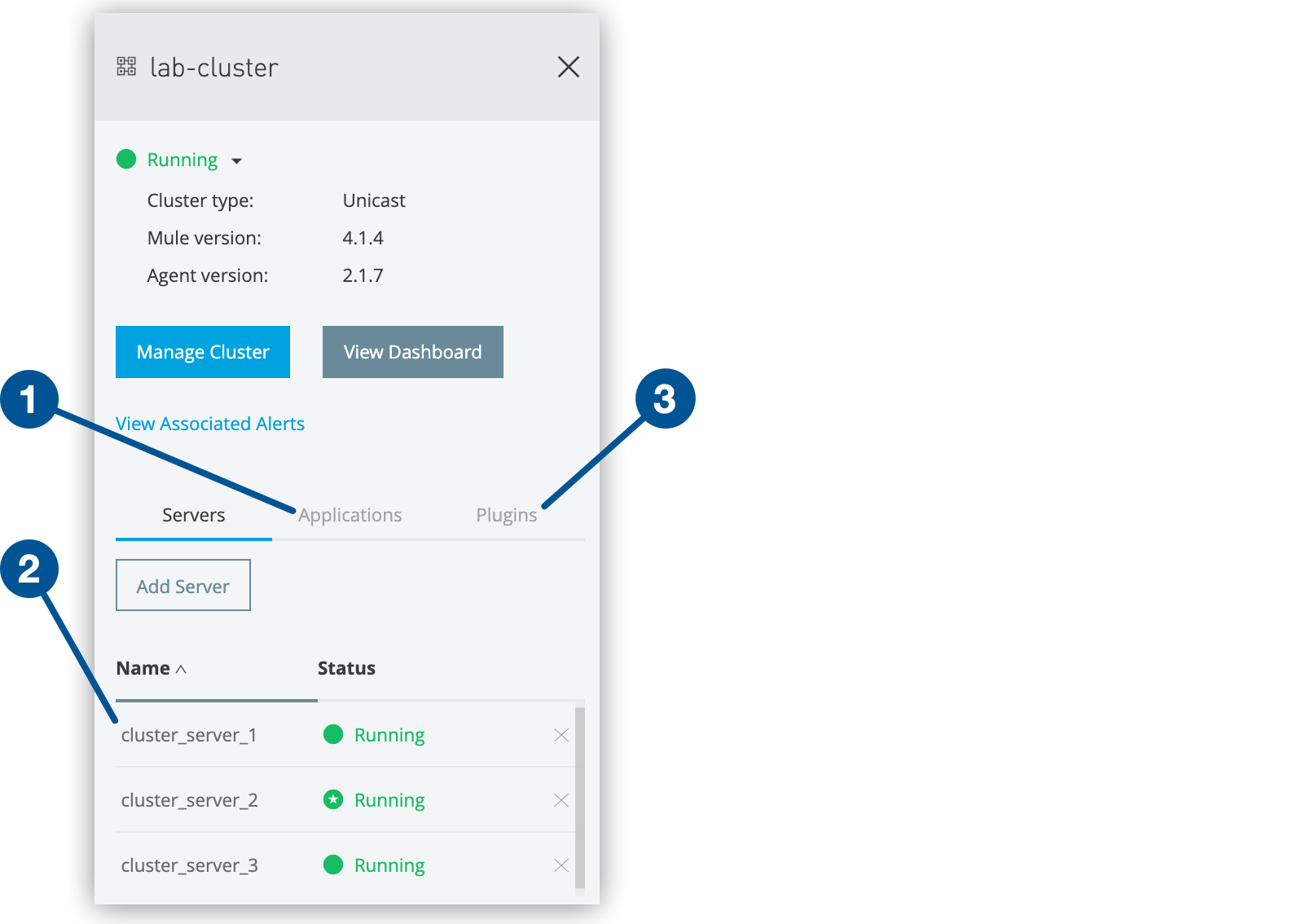
Tabbed Details
Access additional information through the tabs at the bottom of the details pane:
-
Servers tab (for groups and clusters): Lists all member servers and their current statuses.
-
Applications tab: Shows all deployed applications and their operational status.
-
Plugins tab: Displays configured integrations such as Splunk and ELK.
View the Server Dashboard
Access comprehensive performance metrics and application information through the server dashboard:
-
From the Servers list, click the server name.
-
The dashboard displays detailed real-time metrics.
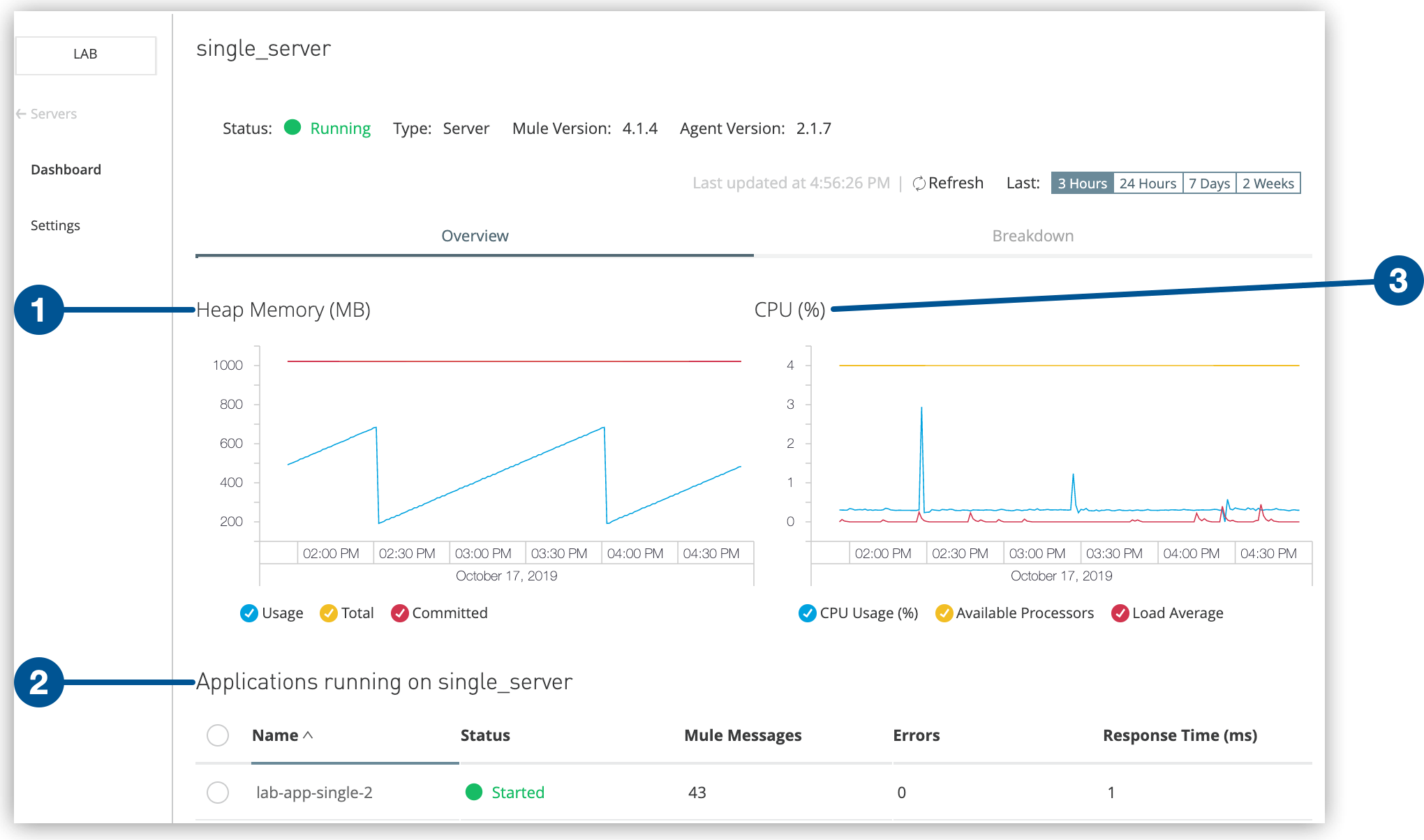
Performance Metrics
The dashboard provides visual graphs for:
-
Heap Memory: JVM memory usage over time
-
CPU: Processor utilization and performance trends
Application Information
The dashboard displays for each deployed application:
-
Application name and deployment status
-
Mule messages processed
-
Error messages and exceptions
-
Resource utilization details
Shut Down, Restart, or Delete Servers
In Runtime Manager, you can shut down, restart, or delete a server.
After shutting down a server, you can’t start it from Runtime Manager. You must manually start the server on the system where Mule runtime engine is installed.
If an error occurs in Runtime Manager during server shutdown or restart, manually start or stop the server on the system where Mule is installed.
To shut down, restart, or delete a server:
-
From Anypoint Platform, select Runtime Manager.
-
Select Servers.
-
Click the server name.
-
Click Settings:
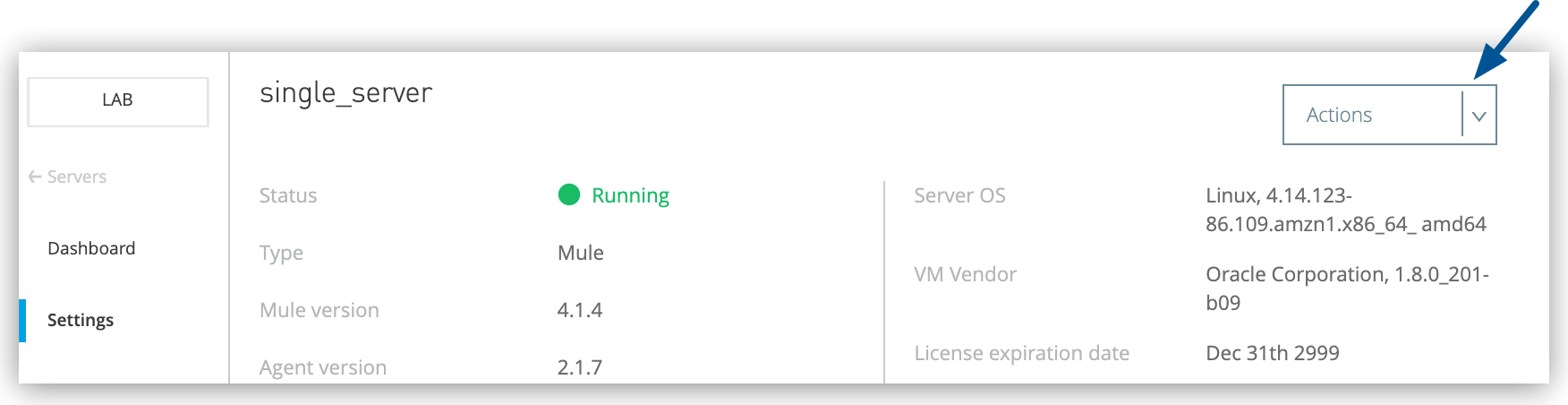 Figure 5. The arrow shows the Actions menu on the Settings page.
 -
From the Actions menu, select:
-
Delete
-
Restart
-
Shutdown
-
Renew Certificate
-
-
In the confirmation window, select the checkbox to confirm your choice.
Configure Server Properties
Runtime Manager enables you to view, create, and manage server properties for your hybrid standalone instances. Server properties are configuration values that control JVM behavior and application settings across your Mule runtime environments.
Property Types
-
Custom Properties
-
Custom properties are user-defined key-value pairs that configure JVM container settings for Mule instances. For example, you can set
ENV=qato specify the server environment orMAX_HEAP=2gfor memory allocation. -
Custom properties are stored in the
$MULE_HOME/conf/wrapper.conffile on the system where Mule is installed.
-
-
Application Properties
-
Application properties defined in Runtime Manager override application properties in
mule-app.properties -
Application properties defined in the
mule-app.propertiesfile override server properties specified in Runtime Manager
-
-
Discovered Properties
Discovered properties are automatically detected configuration values from the remote Mule environment, including:-
JVM arguments
-
Environment properties
-
System properties
-
Runtime Manager retrieves these values through the Runtime Manager agent, which queries the System Java class on the remote server. By default, auto-discovery is disabled for security reasons. When enabled, Runtime Manager stores an encrypted version of these properties in its internal database.
To fully disable this feature, contact your MuleSoft customer success representative.
View and Manage Properties
To view server properties:
-
From Anypoint Platform, select Runtime Manager.
-
Click Servers.
-
Click the Type column to display the details pane.
-
Click Manage Server, Manage Group, or Manage Cluster.
-
On the Settings page, click Properties:
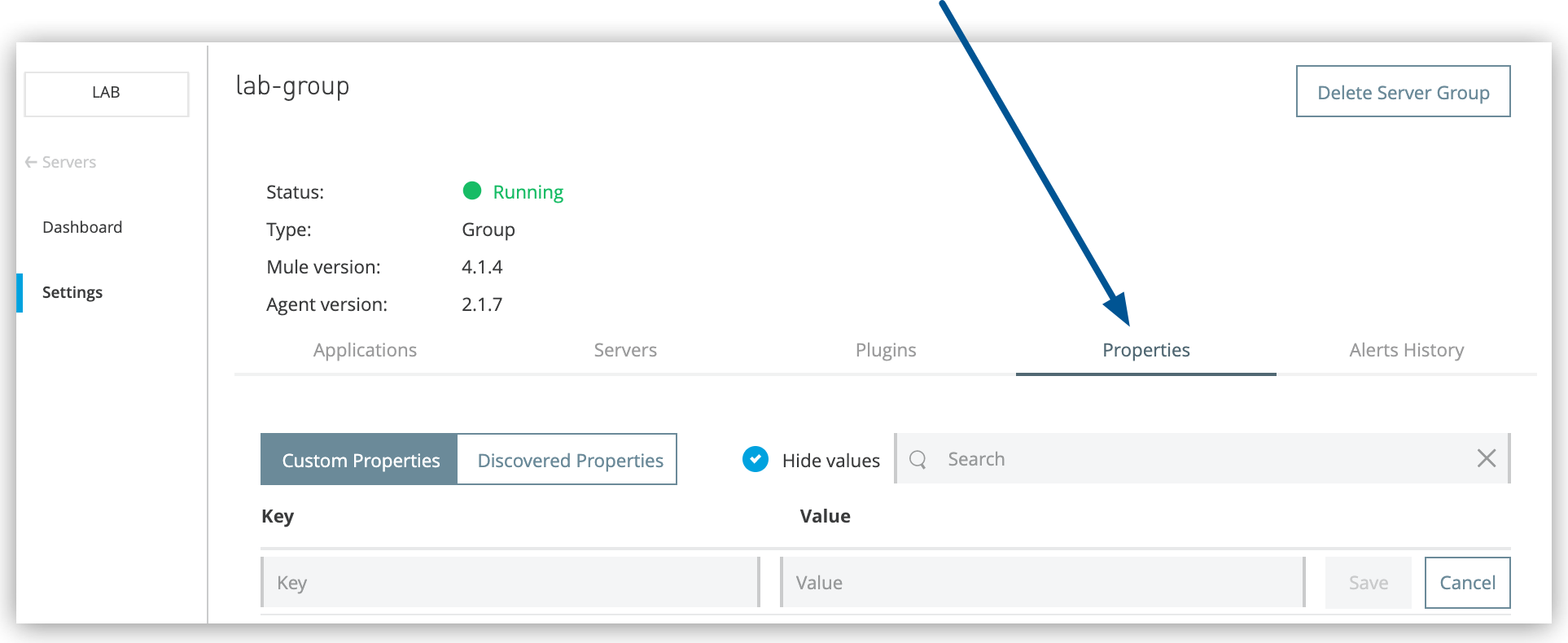 Figure 6. The arrow shows the Properties tab on the Settings page.
From the Properties tab, you can:
-
Search for existing properties
-
View custom and discovered properties
-
Create new custom properties
-
Edit existing properties
View Discovered Properties
To view discovered properties, select Discovered Properties and then click Enable Auto-Discovery:
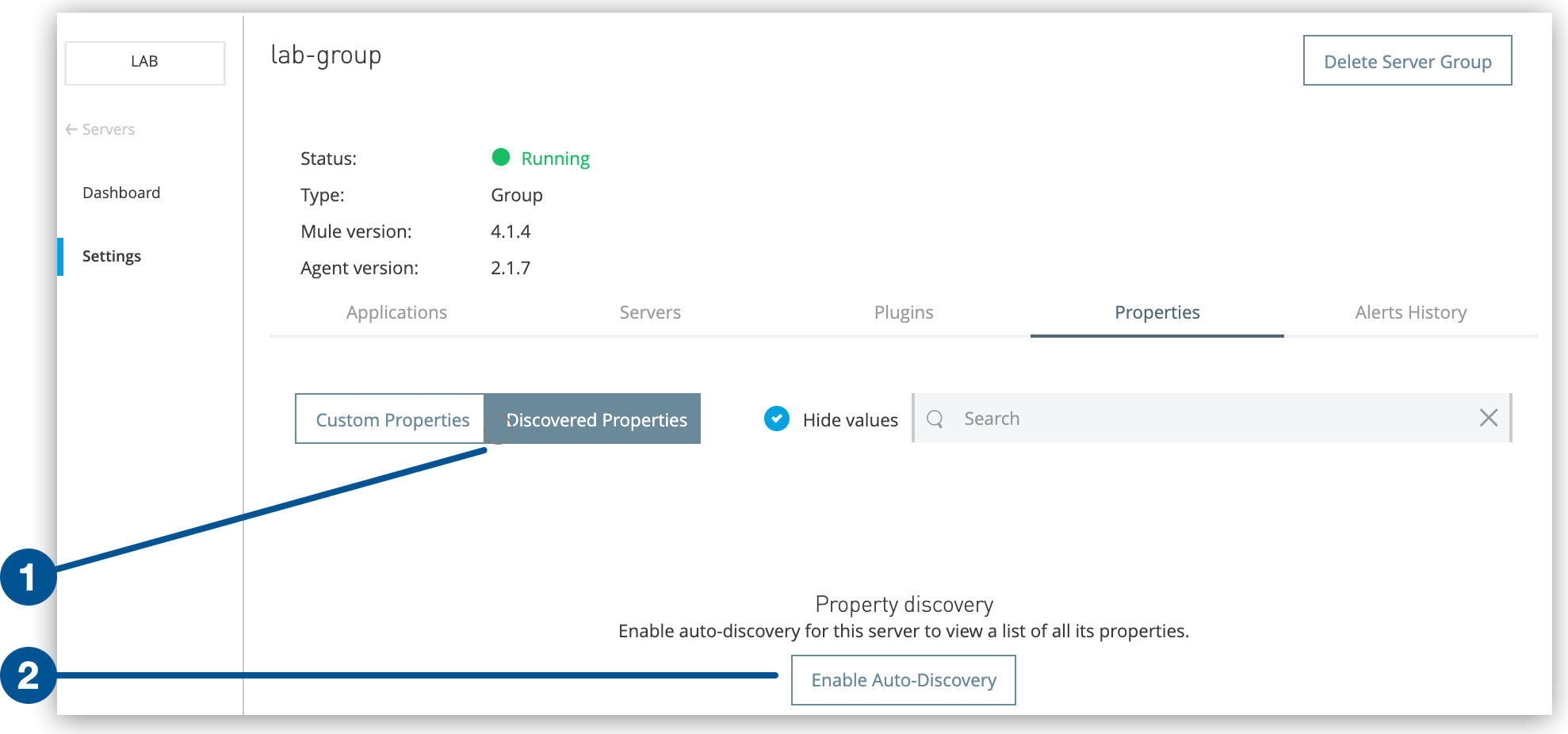
The server must be running to auto-discover server properties.
Create Custom Properties
To create new custom properties:
-
From Anypoint Platform, select Runtime Manager.
-
Click Servers.
-
Click the Type column to display the details pane.
-
Click Manage Server, Manage Group, or Manage Cluster.
-
On the Settings page, click Properties.
-
Click Custom Properties.
-
Enter the property name in the Key field.
-
Enter the property value in the Value field.
-
Click Save.
After creating a custom property, restart the server to apply the new property to the Mule configuration.
Renew Server Certificates
Registering a Mule server in Anypoint Runtime Manager requires a valid certificate provisioned and signed by Runtime Manager. The certificate ensures secure communication between Runtime Manager and the Runtime Manager agent.
When a server certificate expires, Runtime Manager displays Disconnected in the Status column
for the server on the Servers page.
The mule_agent.log file displays a message like this:
com.mulesoft.agent.transport.WSConnection: Failed attempt to connect nro. 1 to the web socket client at runtime-manager.anypoint.mulesoft.com: Connection refused.
For applications deployed to the server, Runtime Manager displays Unknown in the Status column on the Applications page.
View a Certificate Expiration Date
To view the expiration date for a server:
-
From Anypoint Platform, select Runtime Manager.
-
Click Servers.
-
Click the server name.
For servers in a server group or cluster, click the server group or cluster name and then click the server name.
The certificate expiration date appears on the server dashboard:
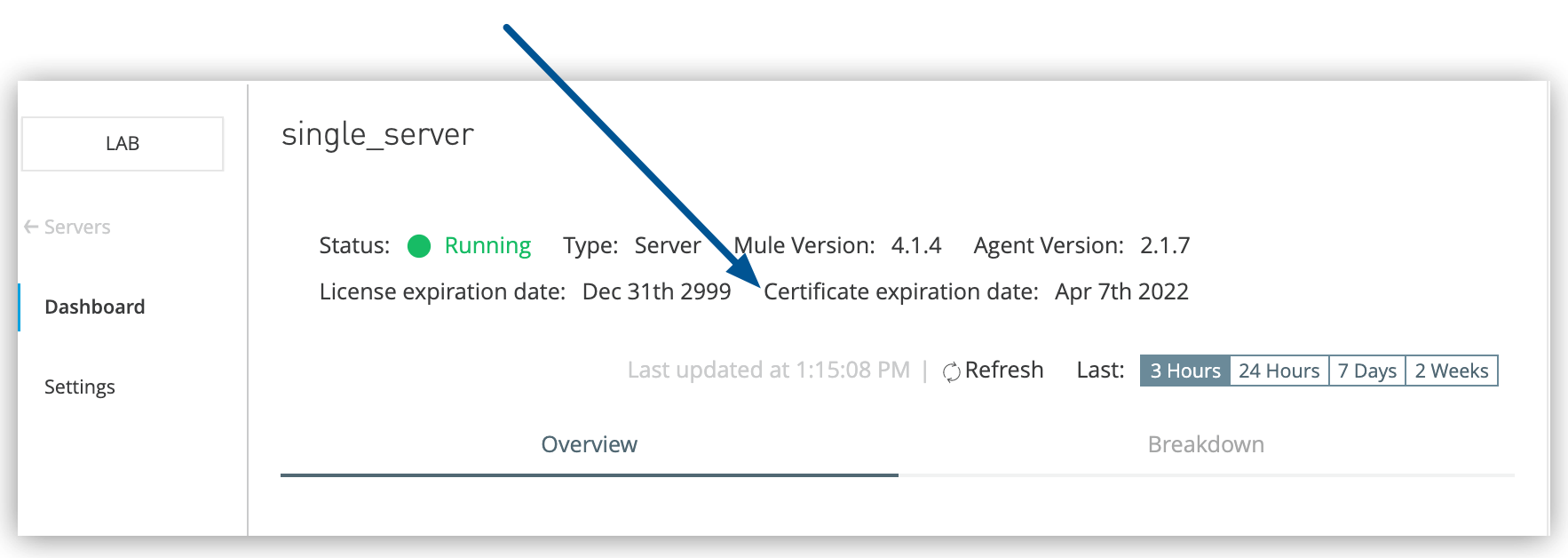 Figure 8. The arrow shows the Certificate expiration date on the Dashboard page.
Renew a Certificate from Runtime Manager
Before a certificate expires, you can renew it directly from Runtime Manager.
You can renew a certificate for a specific server or multiple servers within a cluster or group.
The status for the server must be Running to update its certificate.
To renew a certificate for a standalone server:
-
From Anypoint Platform, select Runtime Manager.
-
Click Servers.
-
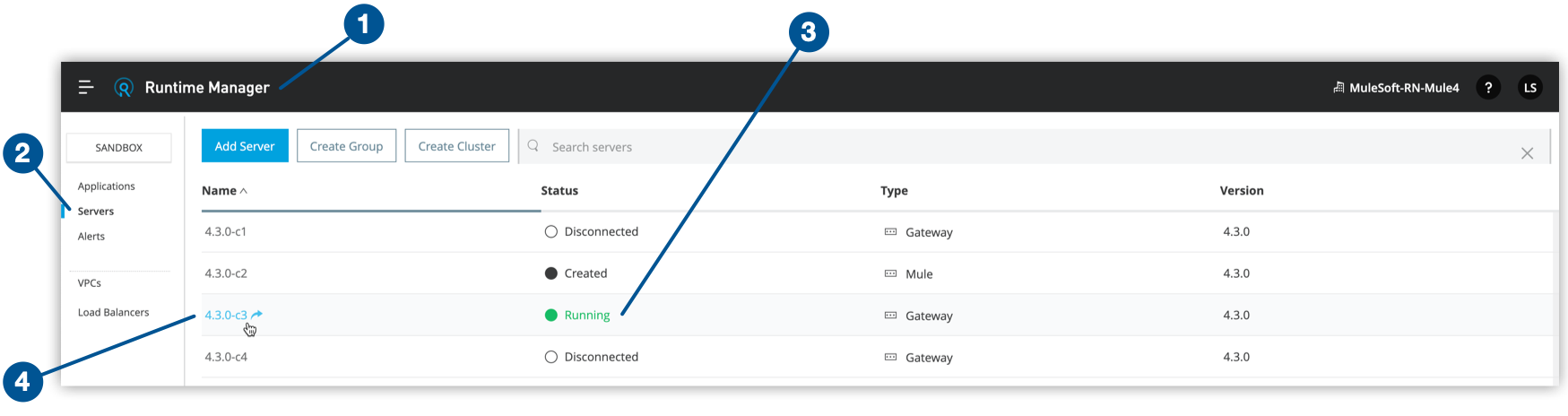
Verify that the server status is
Running. -
Click the server name.
-
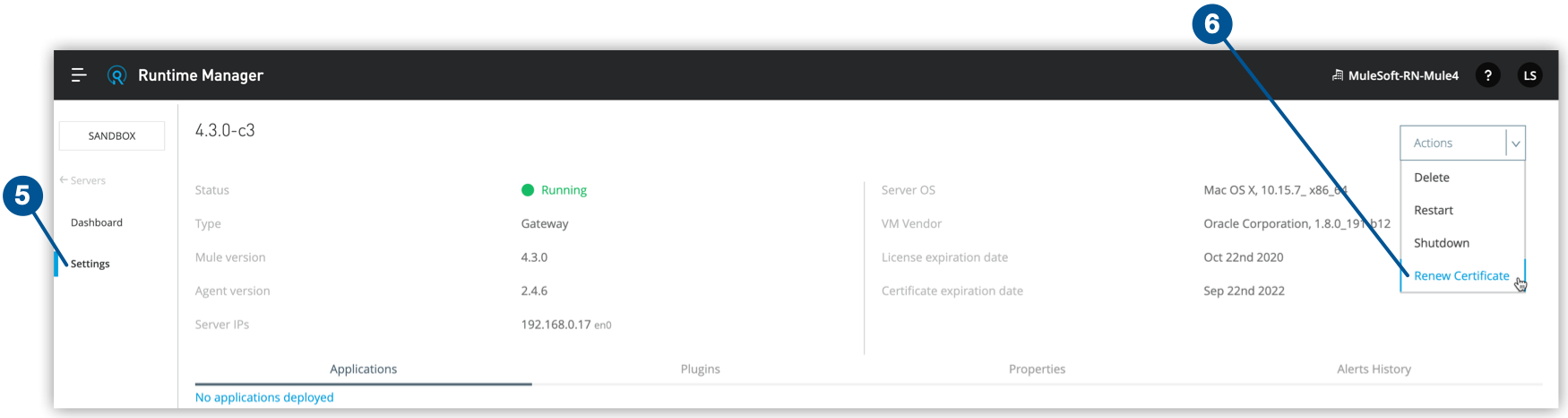
Click Settings.
-
From the Actions menu, select Renew Certificate.
-
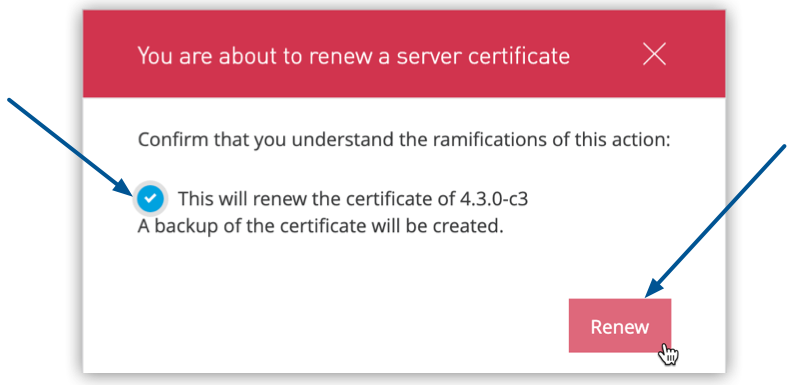
Select the checkbox to confirm your choice, and then click Renew.
-
Check Certificate expiration date to verify that the certificate is renewed successfully, and restart Mule runtime to start using the new certificates.
To renew a certificate for servers in a cluster or group:
-
From Anypoint Platform, select Runtime Manager.
-
Click Servers.
-
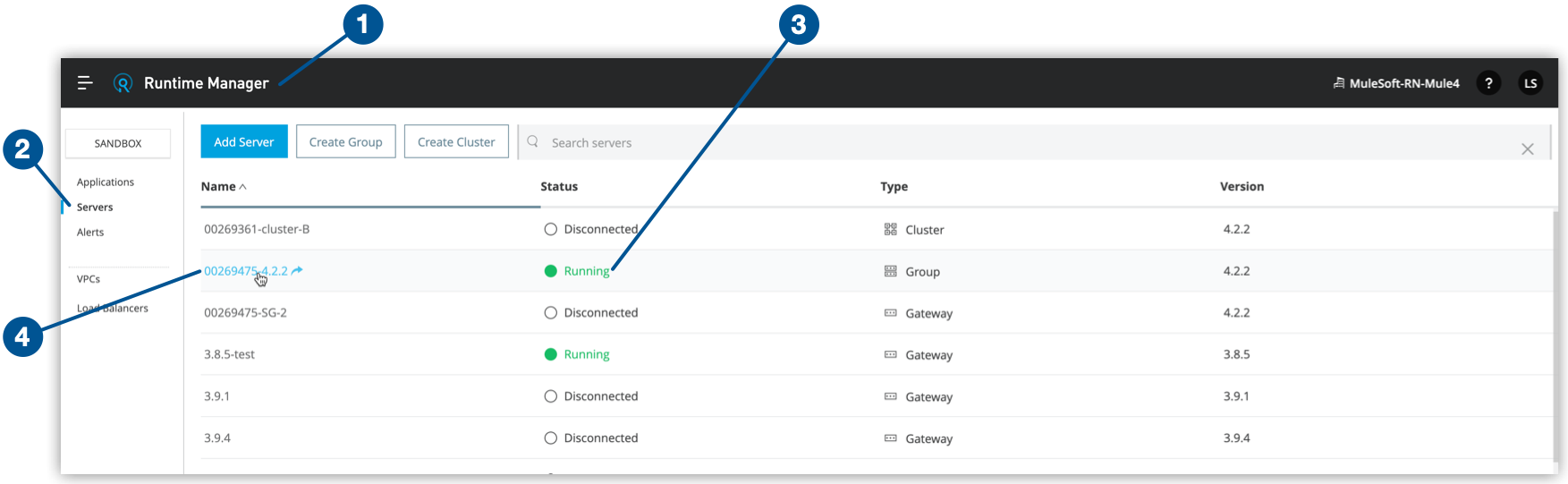
Verify that the server status is
Running. -
Click the group or cluster name.
-
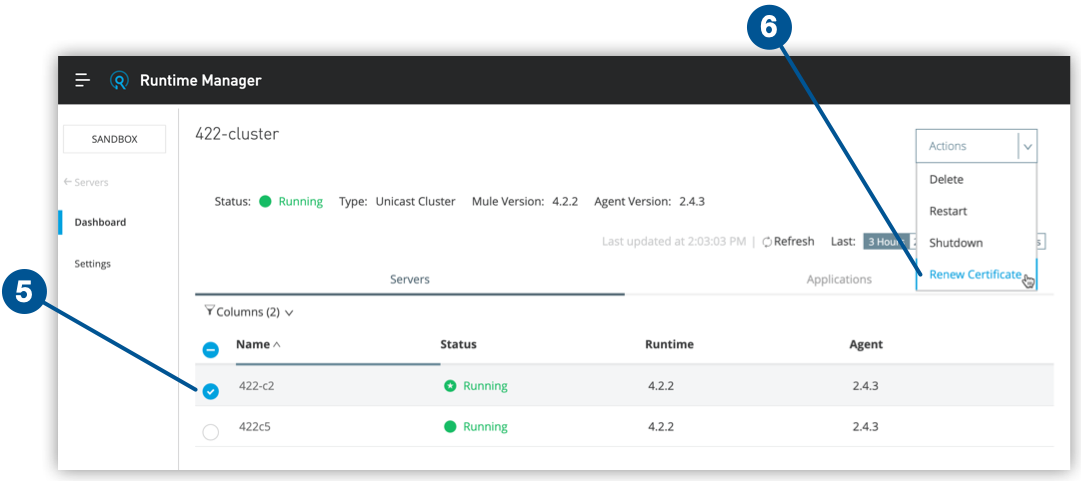
Check the radio button to select the server or servers you want to update.
-
From the Actions menu, select Renew Certificate.
-
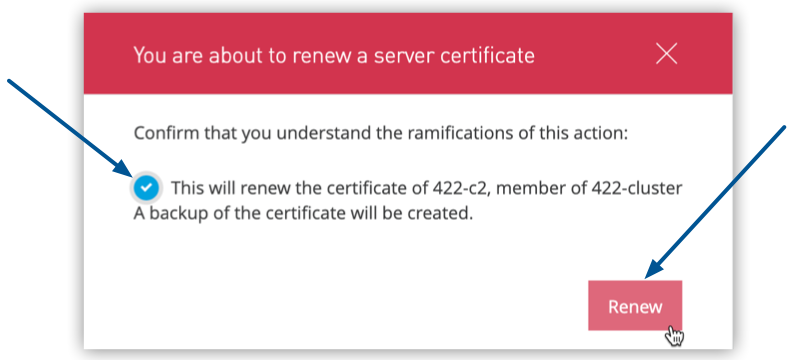
Select the checkbox to confirm your choice, and then click Renew.
-
Check Certificate expiration date to verify that the certificate renewed successfully.
If the Renew Certificate option in the Actions pull-down menu isn’t available after performing the previous steps, update your Agent version. The Server certificate renewal feature, which enables you to renew server certificates directly from Runtime Manager, was introduced by Runtime Manager 2.8.4. This feature requires Runtime Manager Agent 1.10.0 or later. Hover over the Renew Certificate option in the Actions pull-down menu, and a tooltip in the UI indicates you the minimum required Runtime Agent version.
| Renewing server certificates requires a manual runtime restart to start using the new certificates. |
If renewing the unexpired certificate via Runtime Manager fails, follow the steps in Renew a Certificate via the Command Line.
Renew a Certificate via the Command Line
Use this method to renew a certificate even after it has expired.
The agent connects with Runtime Manager using mutual SSL authentication and stores the key pair
in the $MULE_HOME/conf/mule-agent.jks file.
The key pair is valid for two years, after which the certificate expires and the connection with Runtime Manager terminates.
| Make sure you disable MFA before implementing these steps. |
To renew the agent key pair:
-
Download the appropriate
agent-certificate-renewer-{version}.jarfile for your Mule version from Applications and Servers showing as Unknown and Disconnected state in Anypoint Runtime Manager due to expired key pair. -
Move the JAR file to
$MULE_HOME/binand make sure that you have execute permission.For example, on Linux, enter
chmod +xx agent-certificate-renewer-{version}.jar. -
Stop Mule.
-
Create a backup copy of the
$MULE_HOME/confdirectory. -
From
$MULE_HOME/bin, run one of these commands, depending on how you authenticate with Anypoint Platform:-
Nonfederated
Use your Anypoint Platform credentials on the command line:
java -jar ./agent-certificate-renewer-{version}.jar -u <username> -p <password> -
External identity
Copy the registration token for the server from the Runtime Manager > Servers > Add Server popup screen and include it on the command line:
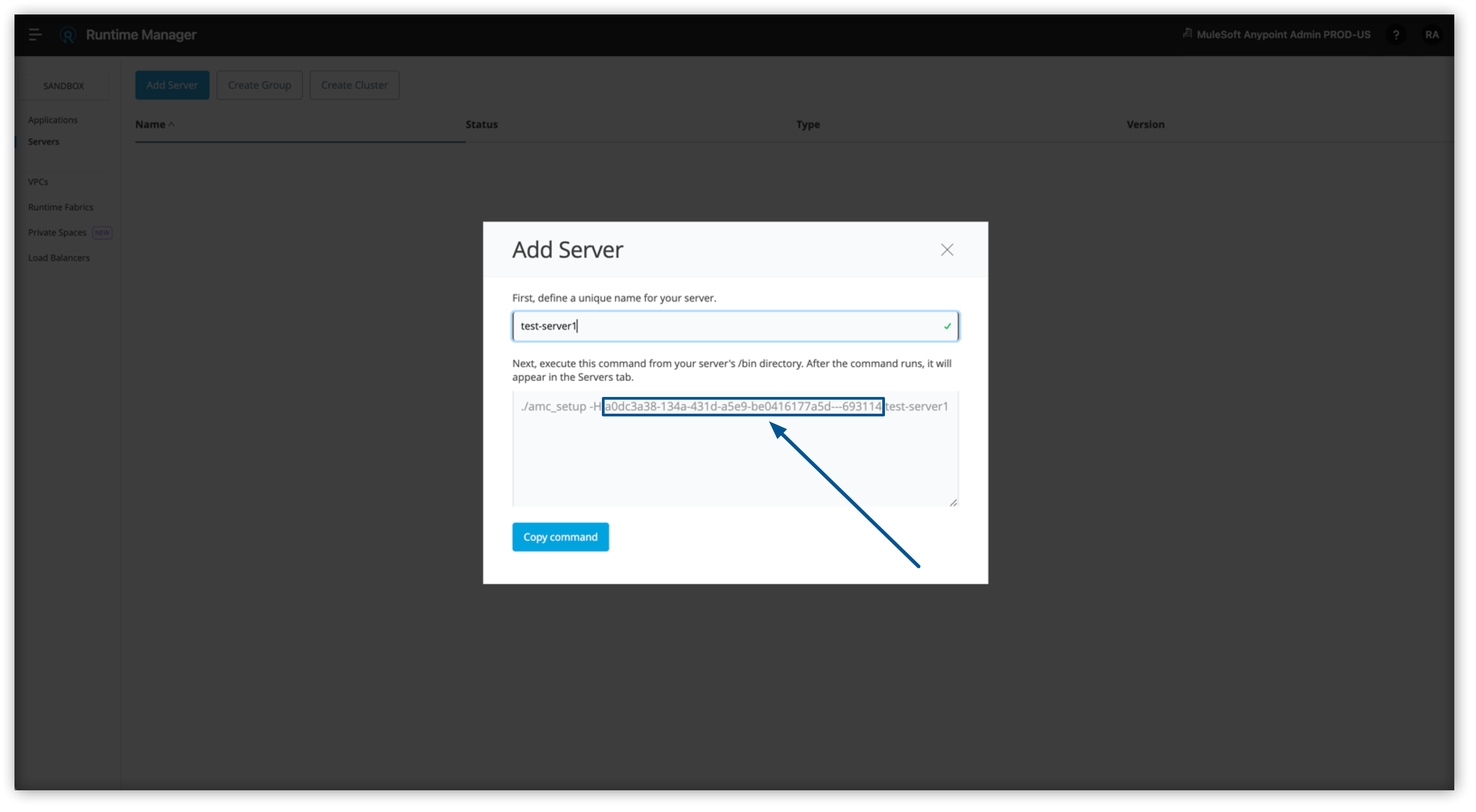
And execute this command:
java -jar ./agent-certificate-renewer-{version}.jar -H <ServerToken> -
Proxy connection
Use your Anypoint Platform and proxy server credentials on the command line:
java -jar agent-certificate-renewer-{version}.jar -u <username> -p <password> -P <host> <port> <username> <password> -
US MuleSoft Government Cloud Control Plane
Use this -r flag:
java -jar ./agent-certificate-renewer-{version}.jar -H <ServerToken> -r us_gov -
EU Control Plane
Use this -r flag:
java -jar ./agent-certificate-renewer-{version}.jar -u <username> -p <password> -r eu1
The command displays these messages:
INFO: Connecting to Core Services to extract authentication token.
INFO: Connecting to Runtime Manager to request a new certificate.
INFO: Backing up current agent keystore.
INFO: Generating and saving new keystore.
-