
Managing Mule Apps Deployed to Hybrid Standalone Instances
Manage your deployed Mule applications through Runtime Manager’s centralized console to control application lifecycle, monitor performance, and maintain operational health across your hybrid standalone instances.
Overview
Runtime Manager provides comprehensive application management capabilities for Mule applications deployed to hybrid standalone instances. You can:
-
Monitor application health and performance metrics in real time
-
Control application lifecycle operations (start, stop, delete, update)
-
Manage individual flow states within deployed applications
-
Configure application properties and logging settings
-
Access detailed application analytics and transaction insights
-
Perform application updates and version management
| This page covers deployments on hybrid standalone instances that are deployed both through the cloud based or the Private Cloud Edition of Anypoint Platform. Some of the features described in this page are not yet available on the Anypoint Platform Private Cloud Edition. If you’re interested in requesting the Anypoint Platform Private Cloud Edition, contact your sales representative. |
| MuleSoft doesn’t support manually deploying apps if you are managing your hybrid standalone servers with Runtime Manager. If you manually deploy applications on your hyrbid standalone servers, you can’t see or manage them in Runtime Manager because the applications are not auto-discovered. |
Applications Dashboard
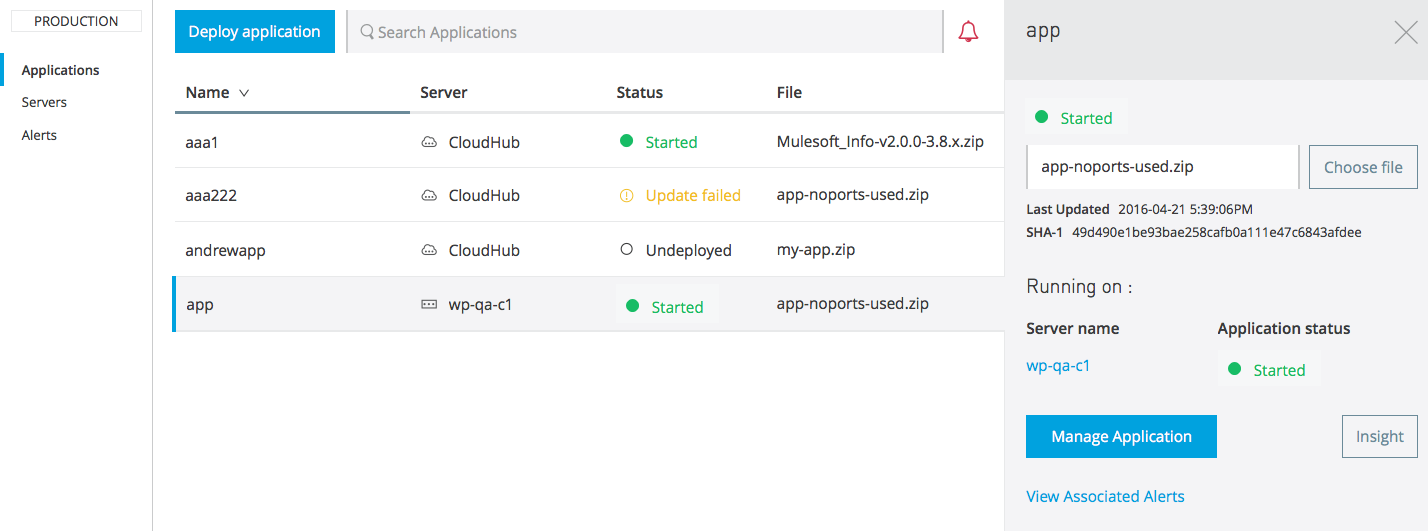
Access comprehensive application information and management controls through the Applications dashboard in Runtime Manager.
Dashboard Access
-
In Runtime Manager, navigate to the Applications tab.
-
Select any deployed application to open the application details panel.
-
Review application status, deployment information, and available management actions.
Dashboard Information
The application dashboard displays deployment-specific information based on your target infrastructure.
Server Deployments
-
Application status (Running, Stopped, Failed)
-
Last modification timestamp
-
Deployed application file (JAR/ZIP) with update capability
-
Server resource utilization
Server Group and Cluster Deployments
-
Aggregated application status across all members
-
Individual server status within the group or cluster
-
Load distribution and member health indicators
-
Collective resource consumption metrics
| Click any server name in the deployment panel to access detailed server information and diagnostics. For comprehensive server management guidance, refer to Managing Servers. |
Application Management Actions
The dashboard provides access to key management functions through buttons:
Manage Application
-
Access comprehensive application settings and configuration options
-
Review detailed deployment information and runtime parameters
-
Configure application properties, logging, and monitoring settings
-
Access performance dashboards and metrics analysis

Insight
-
Analyze transaction-level data for business and technical insights
-
Track message flow patterns and performance characteristics
-
Investigate errors and performance bottlenecks
-
Monitor business process execution and outcomes

| Insight features may have limited availability in Anypoint Platform Private Cloud Edition environments. |
Application Settings Management
Access comprehensive application configuration and monitoring options.
Accessing Application Settings
-
Navigate to Runtime Manager and select the Applications tab.
-
Choose your deployed hybrid standalone application to open the details panel.
-
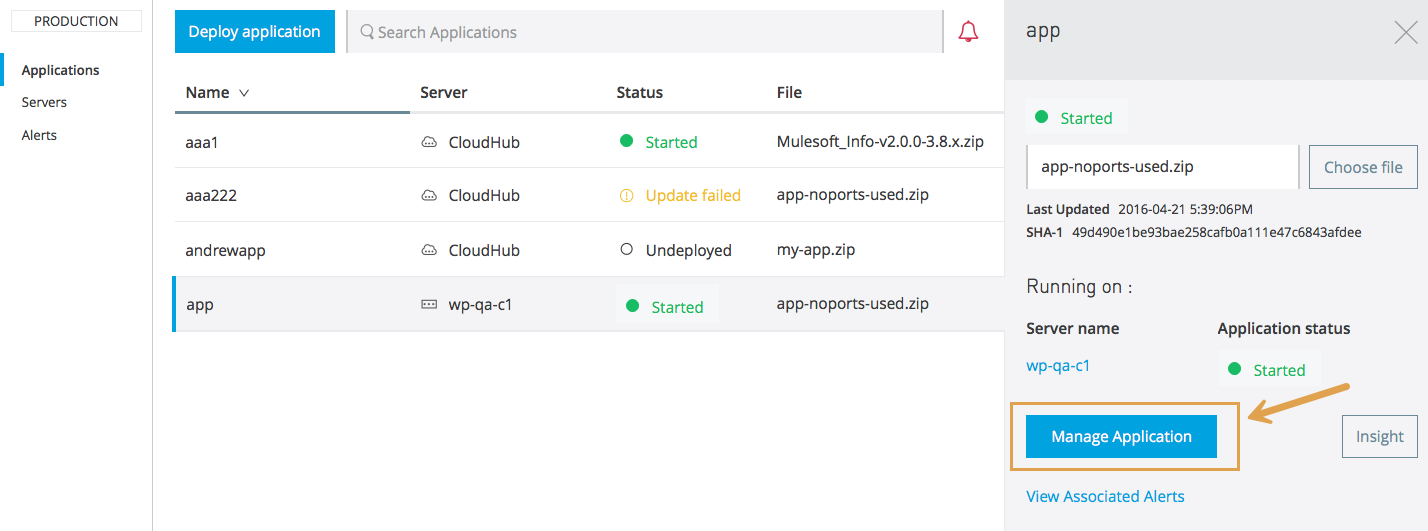
Click Manage Application to access the full settings interface.
Settings Interface
The application settings interface provides access to all dashboard information plus additional management capabilities.
Configuration Tabs
-
Flow Monitoring: Individual flow performance and management controls
-
Insight: Transaction analytics and business process monitoring
-
Alerts History: Historical record of triggered application alerts
-
Properties: Application runtime properties and environment variables
-
Logging: Log level configuration and output management
The Alerts History tab provides comprehensive visibility into application monitoring even*ts, including:
-
Alert trigger timestamps and conditions
-
Alert severity levels and notification status
-
Resolution tracking and acknowledgment records
-
Performance threshold violations and recovery events
For comprehensive alerting configuration, see Creating Alerts for Mule Apps Deployed to Hybrid Standalone.
Flow Management
Control individual flow states within your deployed applications to enable granular application behavior management and troubleshooting capabilities.
Flow Management Overview
Runtime Manager provides flow-level control for applications deployed to hybrid standalone instances, enabling you to:
-
Start and stop individual flows within running applications
-
Override application-defined flow management logic
-
Troubleshoot specific integration flows without affecting entire applications
-
Implement maintenance workflows for specific business processes
Before you Begin
-
Applications must be deployed to hybrid standalone instances (not available for CloudHub or Runtime Fabric)
-
User account must have Manage Applications permission for target applications
-
Target applications must be in Running status
Flow State Management
Default Flow Behavior
All flows within deployed applications start in Unmanaged state by default, allowing application logic to control flow activation and deactivation based on business requirements or runtime conditions.
Start and Stop Flows
Starting a flow activates its processing capability but does not trigger endpoints or initiate message processing. The flow becomes available to process messages when triggered by configured sources.
-
Navigate to your application settings in Runtime Manager.
-
Access the Flow Monitoring tab.
-
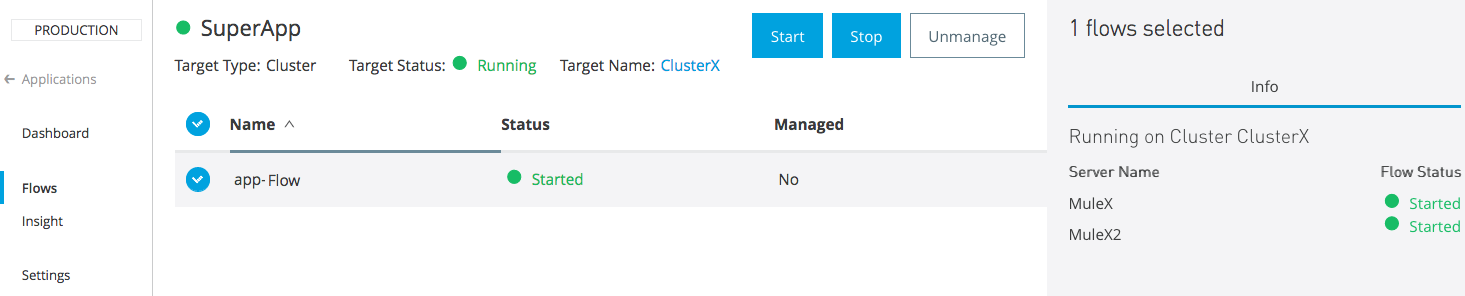
Select one or more flows to manage.
-
Use Start or Stop buttons to control flow states.
Managed vs Unmanaged Flow States
Unmanaged State (Default)
Flows operate under application control, allowing custom logic within the Mule application to start and stop flows based on:
-
Business conditions and requirements
-
External system availability
-
Scheduled operations and maintenance windows
-
Error recovery and failover scenarios
Managed State (Runtime Manager Control)
When you manually start or stop a flow, Runtime Manager overrides application logic and enforces the specified state:
-
Active: Flow remains active regardless of application logic attempts to stop it
-
Inactive: Flow remains stopped regardless of application logic attempts to start it
Returning to Unmanaged State
Click Unmanage to restore application-controlled behavior and remove Runtime Manager state enforcement from a flow.

Start, Stop, and Restart Applications
Control application lifecycle operations through Runtime Manager’s centralized interface for hybrid standalone deployments.
Operation Requirements
-
Servers: Target server must be accessible and running
-
Server Groups: At least one server in the group must be running
-
Clusters: At least one cluster member must be active and accessible
Start, Stop, and Restart Process
-
Navigate to the Applications tab in Runtime Manager.
-
Select your deployed application to open the management panel.
-
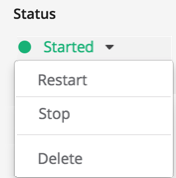
Click the status dropdown arrow next to the application name.
-
Choose the desired action from the available options:
Available Actions
-
Start: Activates stopped applications
-
Restart: Resets applications that are already running
-
Stop: Stops running applications
Operation Behavior
Start Applications
-
Activates stopped applications on target servers
-
Applies to individual servers, server groups, and clusters
-
Ensures proper application initialization and endpoint activation
Stop Applications
-
Gracefully stops running applications
-
Preserves application state and in-flight message processing
-
Maintains application configuration for future restarts
Restart Applications
-
Performs complete application restart cycle
-
Redeploys application artifacts if needed
-
Refreshes application configuration and connections
Cluster and Server Group Operations
For applications deployed to server groups or clusters:
-
Operations apply simultaneously to all target servers
-
Status indicators show aggregated results across all members
-
Individual server status is visible in the deployment details panel
| Application operations are immediate and affect all target servers. Ensure proper coordination for production environments. |
Update Applications
Deploy new versions of your applications to hybrid standalone instances through Runtime Manager’s update interface.
Application Update Process
-
Navigate to the Applications tab in Runtime Manager.
-
Select your deployed application to open the management panel.
-
Click Choose file to select a new application version.
-
Choose your update source:
Update Sources
-
Import file from Exchange: Deploy from Anypoint Exchange
-
Upload file: Deploy from local development builds
-
Click Apply changes to initiate the update process.
-
Update Behavior
Update Process
-
Application status indicator changes to blue during update
-
Status returns to green when deployment completes successfully
-
Update process typically completes within a few seconds
Cluster and Server Group Updates
-
New application versions deploy simultaneously to all target servers
-
Ensures consistent application state across all infrastructure members
-
Maintains deployment synchronization across server groups and clusters
Grace Period
When stopping, restarting, or updating applications, Runtime Manager implements a grace period to ensure proper message processing:
-
Two-minute timeout for in-flight message delivery
-
Five-second runtime grace period for application shutdown
-
Graceful handling of ongoing transactions and business processes
Delete Applications
Remove deployed applications from your hybrid standalone infrastructure through Runtime Manager’s application management interface.
Deletion Requirements
-
Servers: Target server must be in Running status
-
Server Groups: At least one server in the group must be running
-
Clusters: At least one cluster member must be active and accessible
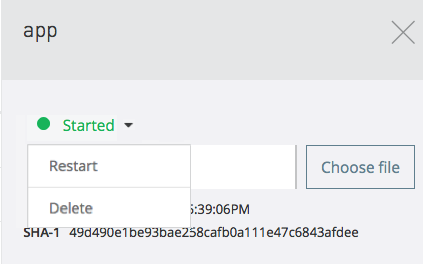
Delete Application Process
Application deletion is immediate and can’t be undone. Ensure you have application backups or source code access before deletion.
-
Navigate to the Applications tab in Runtime Manager.
-
Locate the application you want to remove.
-
Click the status dropdown arrow next to the application.
-
Select Delete from the available actions menu.
Redeploy Deleted Applications
Runtime Manager implements automatic recovery mechanisms to maintain application deployment consistency across your hybrid standalone infrastructure.
Manual File System Modifications
When application files are manually modified on the server filesystem while Mule runtime is running:
-
Affected applications are automatically undeployed from the local server
-
Applications on other servers in groups or clusters remain unaffected
-
Only Runtime Manager UI or REST API deletions permanently remove applications
Runtime Restart Synchronization
During Mule runtime restart, Runtime Manager performs automatic synchronization as follows.
-
Detects applications missing from expected deployment targets
-
Automatically redeploys missing applications to restore desired state
-
Applies configurations to individual servers, server groups, and clusters
-
Synchronization occurs only during runtime restart events
New Server Integration
When adding servers to existing server groups or clusters:
-
Runtime Manager automatically deploys all group/cluster applications to new members
-
Deployment occurs regardless of other member availability
-
Ensures deployment consistency across all infrastructure components
Download an Application Archive
Runtime Manager doesn’t support downloading the application archive (ZIP or JAR file) from the application Settings page for an application deployed to hybrid standalone instances.
However, you can download the archive using these programmatic access methods.
-
Runtime Manager REST API: Use API endpoints to retrieve application artifacts
-
Anypoint CLI: Download archives through command-line interface tools
For detailed CLI usage, see Runtime Manager Application Artifacts.
Application Status
Understand the various status indicators for applications deployed to hybrid standalone instances to monitor application health and deployment progress.
The information in the Status column depends on the context:
Application Status States
| Icon | State | Description |
|---|---|---|

|
|
The application is not running. |

|
|
Application is in the process of transitioning to another state. |
|
|
Application is running or the update succeeded. The Application shows Started when running on at least one of the Cluster nodes. |
|
|
Application deployment failed. The cause of the failure appears in the console. |

|
Application update failed. |


Application Deployment States
| Icon | State | Description |
|---|---|---|
|
|
Deleted |
Application is deleted. |
|
|
Applying |
Application is in the process of transitioning to another state. |
|
Applied |
Application is running or the update succeeded. |
|
Failed |
Application deployment failed. The cause of the failure appears in the console. |

|
Unknown |
Application’s status is unknown because the server is not responding to the platform (on-premises deployments only). |
Monitor Applications
Manage application deployment lifecycle through Runtime Manager’s centralized controls for updates, monitoring, and removal operations.
Runtime Manager provides comprehensive monitoring capabilities for applications deployed to hybrid standalone instances:
-
Performance Dashboards: Real-time application metrics and resource utilization
-
Transaction Analytics: Business process monitoring and message flow analysis
-
Alert Management: Proactive notification for application and infrastructure events
-
Log Management: Centralized logging aggregation and analysis
For detailed monitoring configuration and usage, see Monitoring Mule Apps Deployed to Hybrid Standalone Instances.